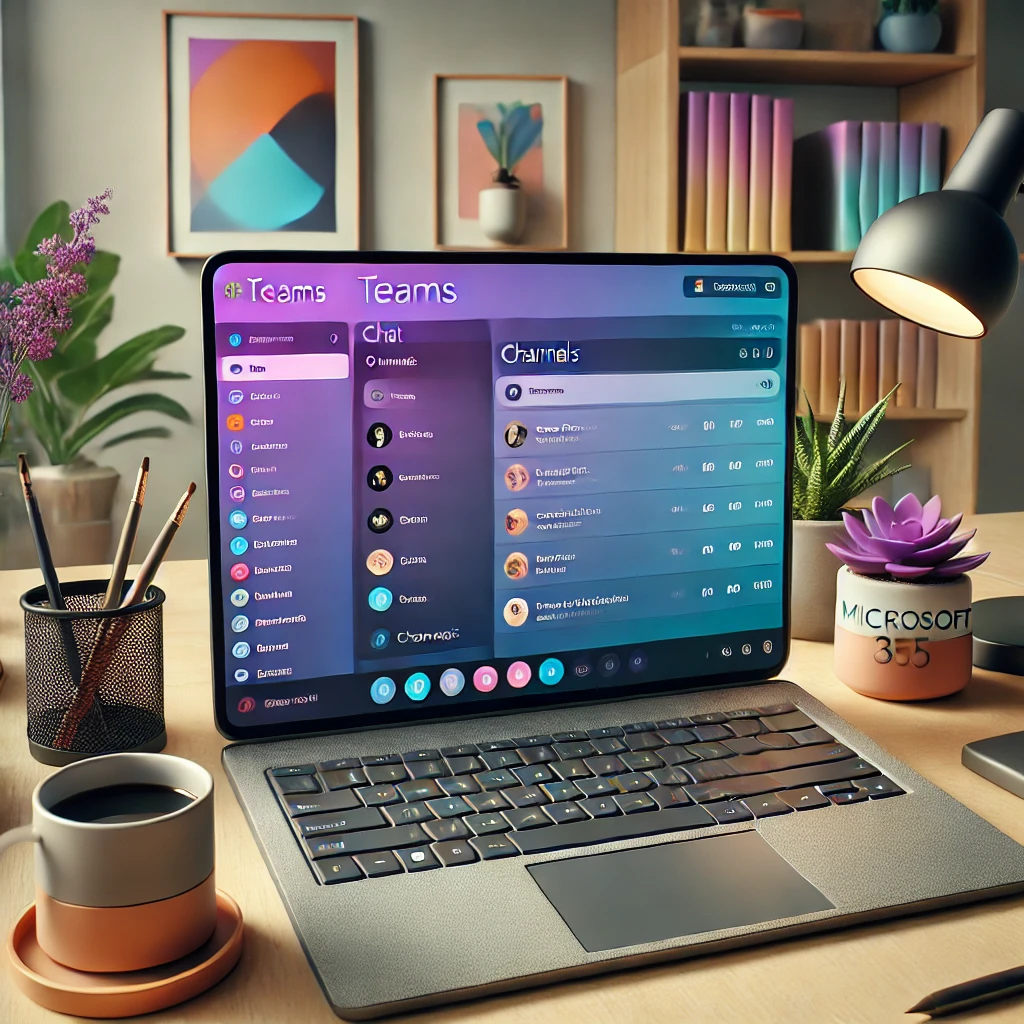
In the new Teams you can see chats and channels together in one list, and organize that list yourself. No more switching between Chat and Teams to keep up with your conversations. Here is what changed and how to set it up the way you like.
The refreshed chat and channels experience has rolled out broadly in the new Teams. Whether you see channels in Chat is up to you; the exact names of settings and filters can differ.
What changed?
- Chats and channels together: you can show your channels in the list under Chat, next to your regular chats.
- Custom sections: group conversations into sections, for example per project or customer, and drag them into the order you want.
- Filters and views: quickly filter on unread messages, chats, channels or meetings.
- Mentions and favorites are easier to find.
- Channel posts look cleaner, with clear posts and replies.
How to set it up
- Click the three dots (...) next to your profile picture and choose Settings.
- Under Appearance or Chats and channels, look for the option to show channels in Chat or combine chats and channels (the exact label can differ).
- Choose whether you prefer a combined list or separate views.
Create sections
- Go to Chat.
- Right-click a chat or channel and choose the option to move it to a new or existing section.
- Name the section and drag sections into the order you want.
Tips for a calmer Teams
- Hide channels you rarely use, and turn notifications on or off per channel.
- Use the Unread filter to catch up quickly in the morning.
- Create a section for your most important conversations at the top.
Also see handy Microsoft Teams tips and tricks and Microsoft Teams keyboard shortcuts.
Nederlandstalige versie: Chats en kanalen samen bekijken en ordenen in de nieuwe Teams
Related articles
▸Mark a message as unread in Microsoft TeamsMark a Teams chat or channel message as unread to follow up later, and view all unread messages with the…
▸Turn on the compact chat list in Microsoft TeamsSee more chats at once with the compact view in Teams. How to set chat density and keep your chats organized.
▸Search Microsoft Teams quickly, without the old commandsThe slash commands are gone from the new Teams. Here's how to search messages, files and people with filters…
▸Save messages in Microsoft Teams and find them again fastSave important chat and channel messages in Teams with one click and find them quickly in your saved messages…
▸Meetings in a separate window and Together mode in TeamsYou no longer need to turn on the new meeting experience. Here's how meeting windows work and how to turn on…