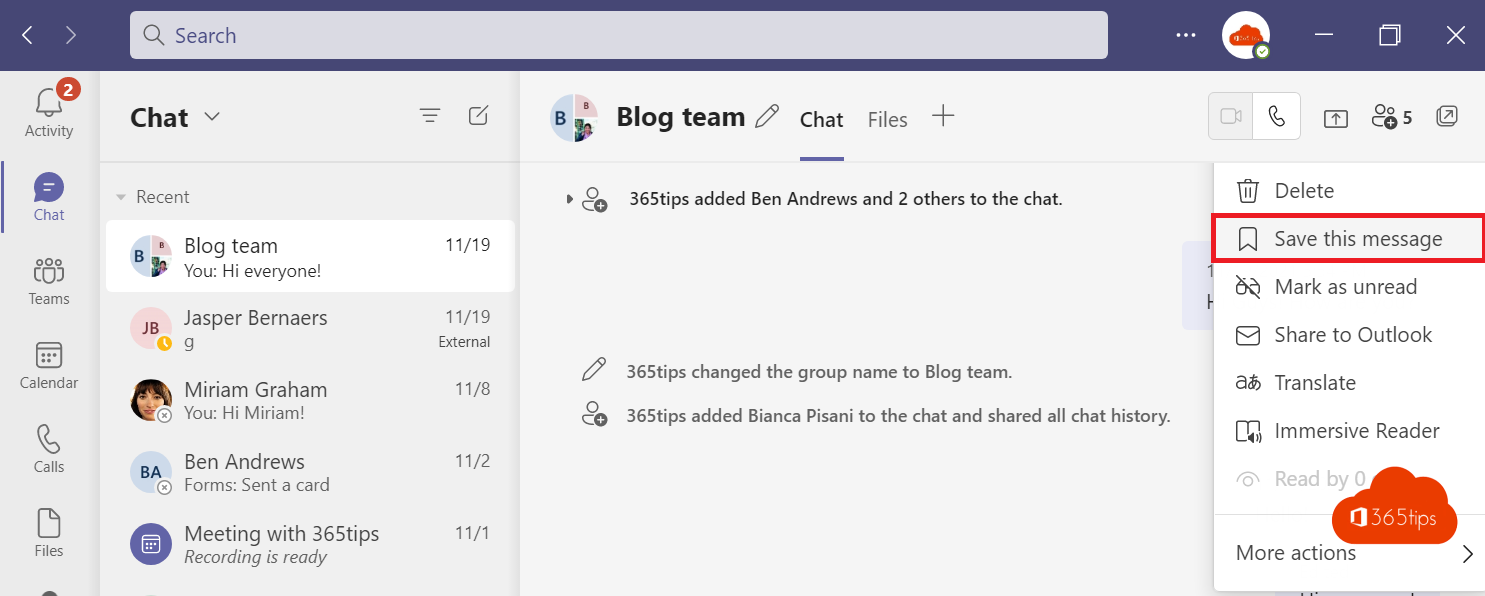
In a busy Teams chat, an important message quickly scrolls out of view. With saved messages you bookmark a message so you can find it again in a couple of clicks. Handy for agreements, links, decisions or instructions from a colleague.
Save a message
- Hover over the message in a chat or channel.
- Click More options (the three dots).
- Choose Save this message.
This works in one-to-one chats, group chats and channel posts. In the mobile app, press and hold the message and tap Save.
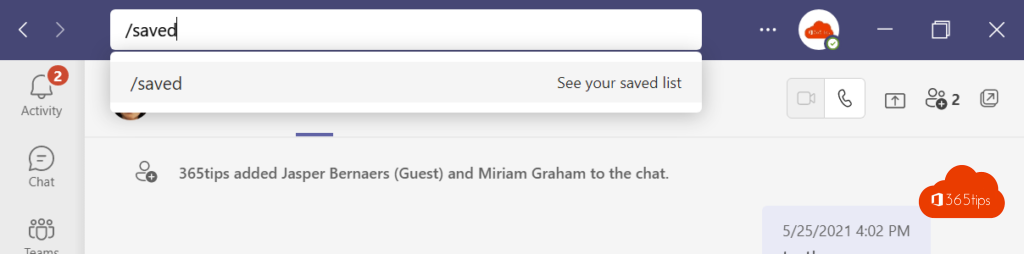
Find your saved messages
- At the top right, click Settings and more (the three dots next to your profile picture) or your profile picture. The exact location can differ by version.
- Choose Saved.
- Click a message to jump straight to the conversation.
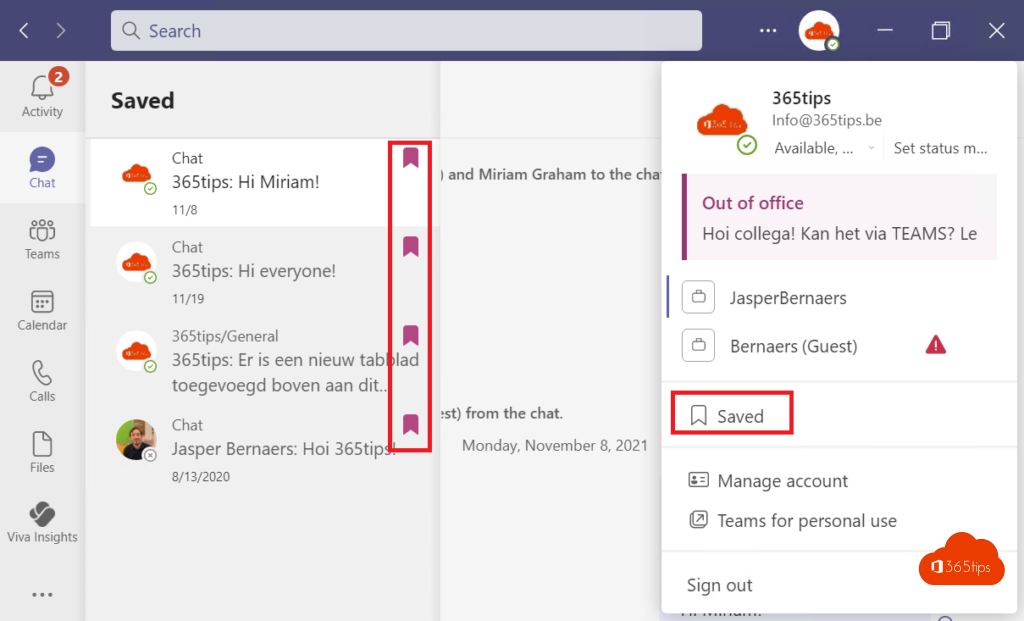
No longer need a message? Click the bookmark icon in the list to remove it from your saved messages. The old search box commands such as /saved no longer work in the new Teams app, so use the menu instead.
Combine with search
Not sure whether you saved a message? Use the search box at the top (Ctrl + E). Filter by Messages, then by person, chat or date. To search within a single conversation, press Ctrl + F. More tips in search Microsoft Teams with filters.
Tips
- Save messages with a deadline, decision or important link right away.
- Clean up the list regularly so it stays short and useful.
- Saved messages are private: colleagues can't see what you save.
- If the original message is deleted, it also disappears from your list.
Also see use saved messages as a to-do list and mark a Teams message as unread.
Read also
Save a message for later in Microsoft Teams
Search Microsoft Teams quickly, without the old commands
Mark a message as unread in Microsoft Teams
Nederlandstalige versie: Berichten opslaan in Microsoft Teams en snel terugvinden