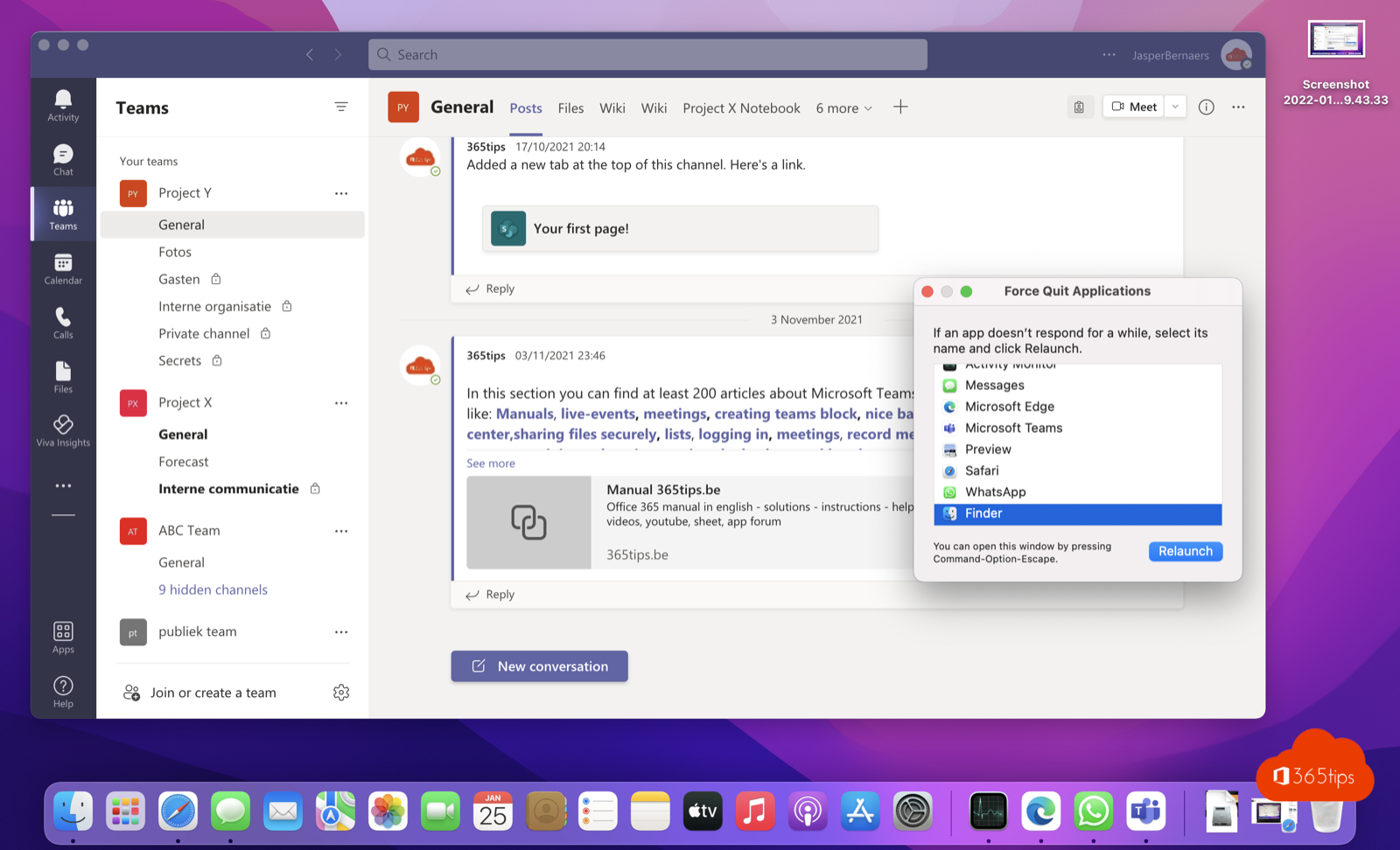
An app on your Mac stops responding, the spinning beach ball keeps turning and Quit does nothing. That's when you force quit the app. macOS offers five ways to do it, from a quick keyboard shortcut to Terminal. This article covers all of them, plus what to do when the whole Mac is frozen.
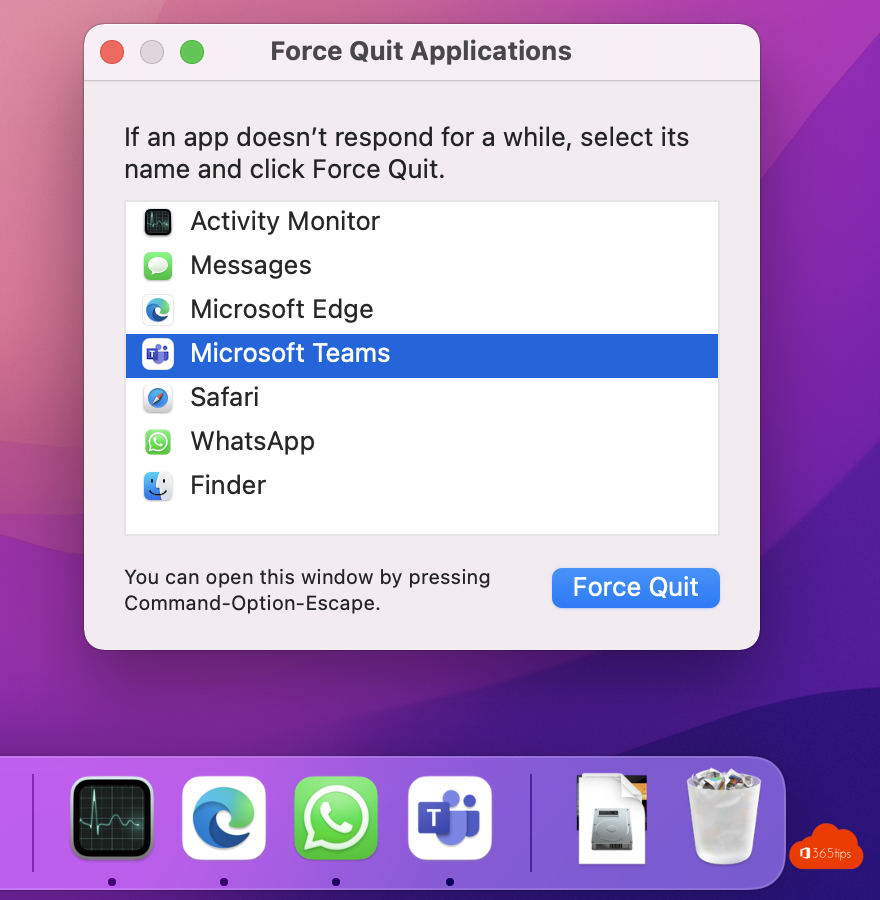
1. With the keyboard shortcut
- Press Command + Option + Esc.
- The Force Quit Applications window opens. Apps that aren't responding are marked (not responding).
- Select the app and choose Force Quit.
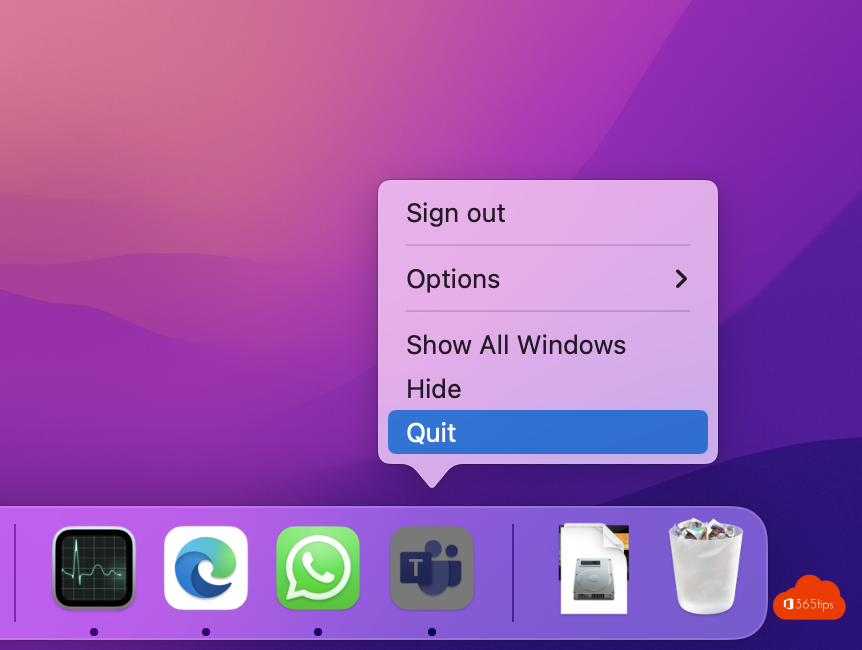
2. From the Apple menu
Click the Apple logo in the top left > Force Quit. You get the same window. Hold Shift while opening the menu and you'll see Force Quit [app name] for the app in the foreground.
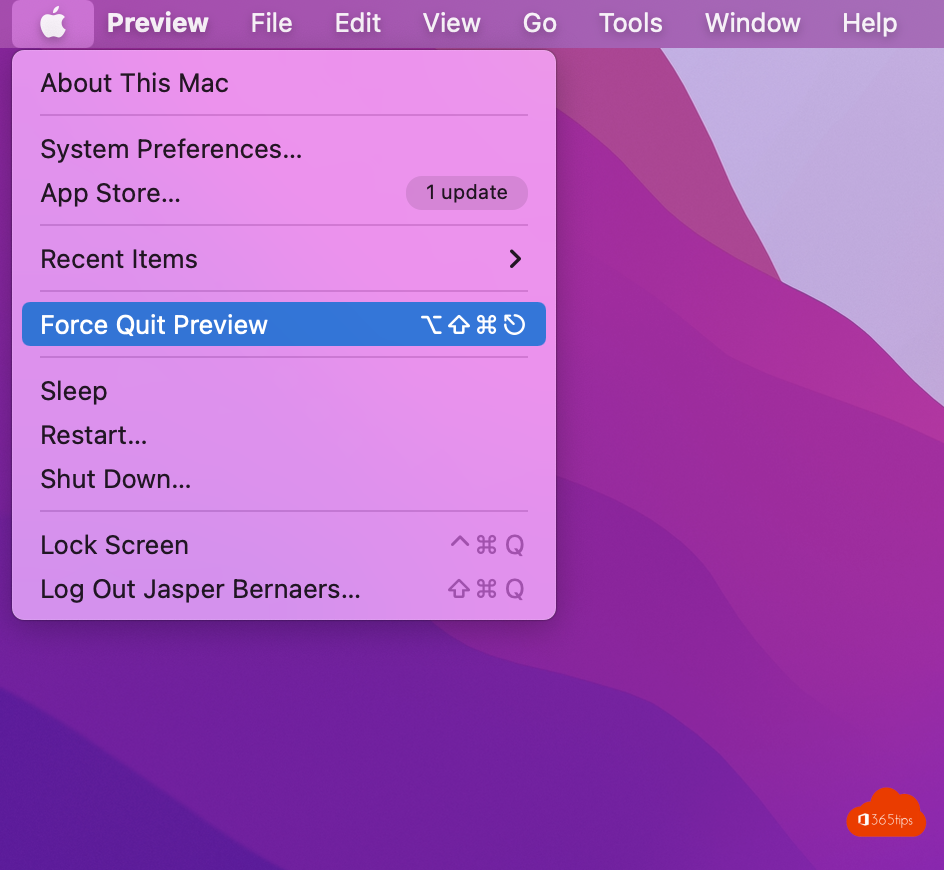
3. From the Dock
Right-click (or Control-click) the app icon in the Dock. Hold Option: Quit changes to Force Quit.
4. With Activity Monitor
- Open Activity Monitor (Command + Space and type Activity Monitor).
- Select the app or process and click the X at the top.
- Choose Force Quit.
Here you also see which app uses a lot of CPU or memory. Handy when your Mac is slow without an app actually freezing.

5. With Terminal
Open Terminal and type killall "App Name", for example killall "Microsoft Teams". If that doesn't work, find the process ID with pgrep -l teams and stop it with kill -9 PID.
Finder or the whole Mac is stuck
- You can't quit the Finder, but you can relaunch it: select Finder in the Force Quit window and choose Relaunch.
- If nothing responds, hold the power button (or Touch ID) for about ten seconds until the Mac turns off.
- Does the same app freeze often? Update or reinstall it. For Teams, clearing the cache often helps.
Also on a Mac: use an iPad as a second screen with Sidecar.
Read also
How to use an iPad as a second screen for your Mac with Sidecar
Clear the Microsoft Teams cache on Windows and Mac
Record your screen in Windows 11 without extra software
Nederlandstalige versie: Een vastgelopen app geforceerd afsluiten op een Mac: 5 manieren