Working on a Mac? You install Word, Excel, PowerPoint, Outlook, OneNote and Teams just as easily as on Windows. This article shows how to install the Microsoft 365 apps on macOS, from the website or the Mac App Store, and how to keep them updated.
Requirements
- A licence with desktop apps, such as Business Standard, Business Premium, E3 or E5. Read check your licence.
- A recent version of macOS. Microsoft usually supports the three latest versions.
- Works on Macs with Apple silicon (M chips) and Intel.
From the website
- Go to microsoft365.com and sign in with your work account.
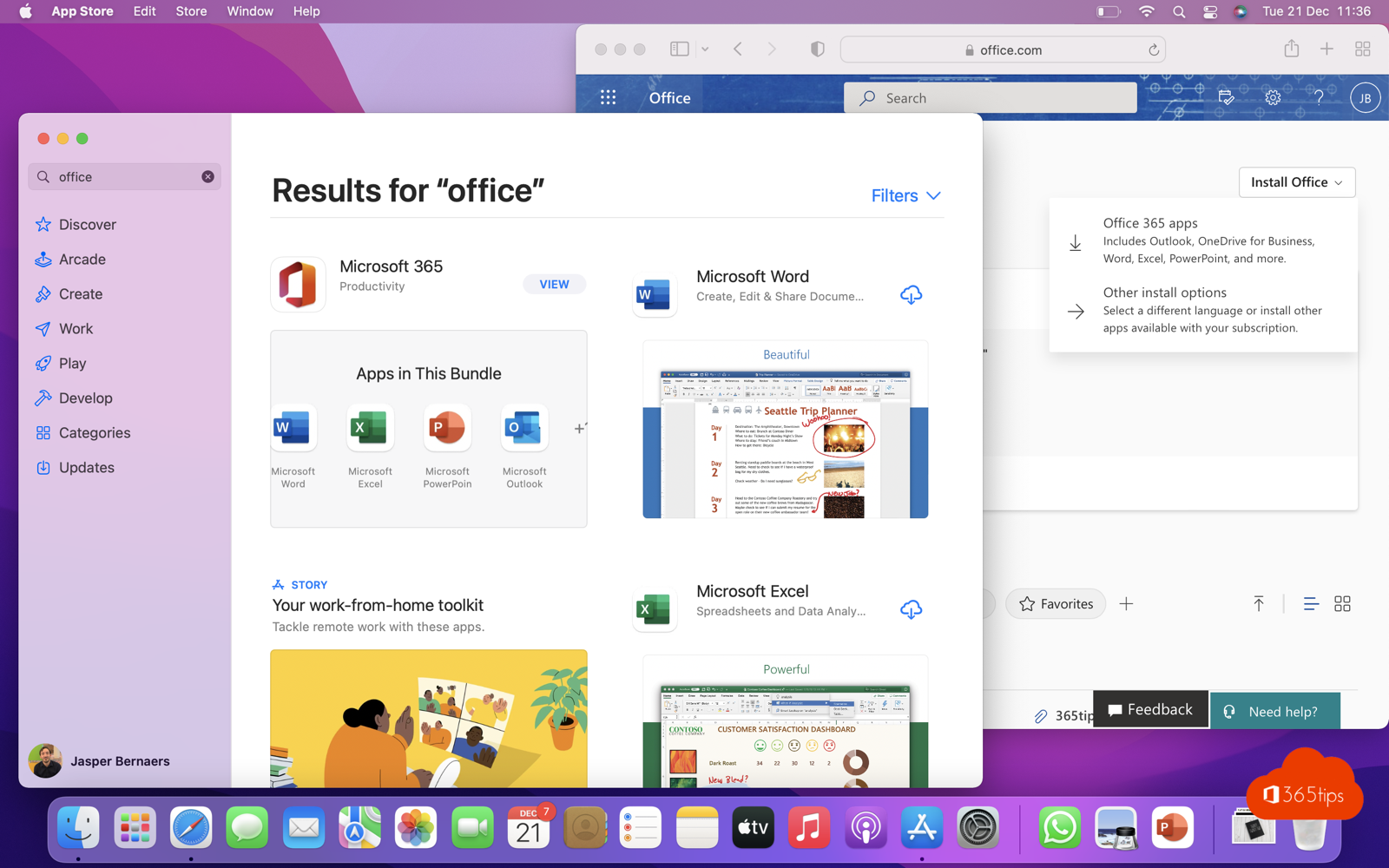
- Select Install apps > Microsoft 365 apps.
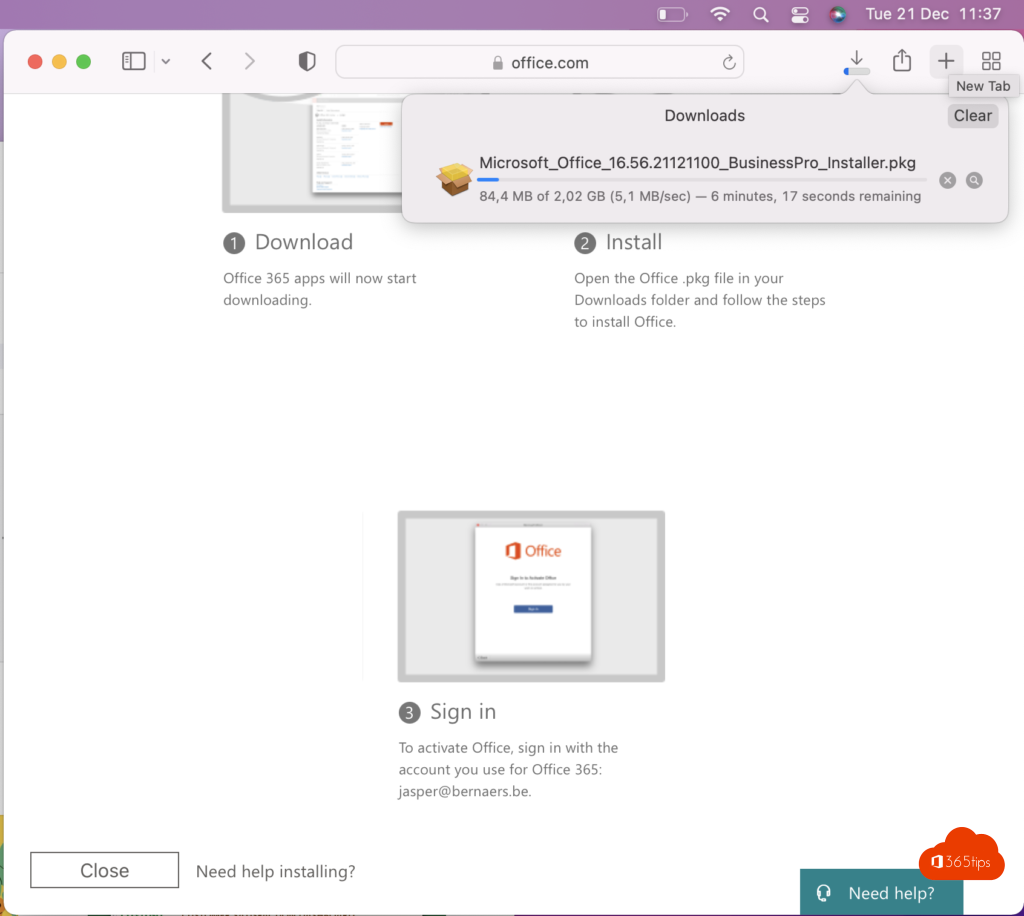
- Open the .pkg file in Downloads and follow setup. Enter your Mac password when asked.
- Open Word and sign in to activate.
From the Mac App Store
Search the App Store for Microsoft Word, Excel, PowerPoint, Outlook or Teams and install the apps you need. Then sign in with your work account. Handy if you don't want every app.
Updates
- Installed from the website, the apps update with Microsoft AutoUpdate: open an app > Help menu > Check for Updates.
- Installed from the App Store, updates come through the App Store.
Tips
- You can install the apps on 5 computers (PC or Mac). Manage installations at myaccount.microsoft.com.
- Also on Windows? Read install on Windows.
- App frozen? Read force quit an app on a Mac.
- iPad as a second screen? Read use Sidecar.
Read also
Install the Microsoft 365 apps (Office) on your Windows PC
Force quit a frozen app on a Mac: 5 ways
How to use an iPad as a second screen for your Mac with Sidecar
Nederlandstalige versie: Microsoft 365-apps (Office) installeren op een Mac
More in English
▸Install the Microsoft 365 apps (Office) on your Windows PCInstall Word, Excel, PowerPoint, Outlook and Teams on your PC with your work or school account. Device limits…
▸Take a screenshot or screen recording on a Mac, iPhone or iPadEvery shortcut for screenshots and screen recordings on a Mac, iPhone and iPad, and where the files are…
▸Which Microsoft 365 licence do I have? How to checkSee which Microsoft 365 or Office 365 licence is assigned to your account: via My Account, in the Office…
▸Set up your work email in the Outlook app on iPhone or AndroidSet up your Microsoft 365 mailbox in the Outlook app on iPhone or Android, with Authenticator, app protection…