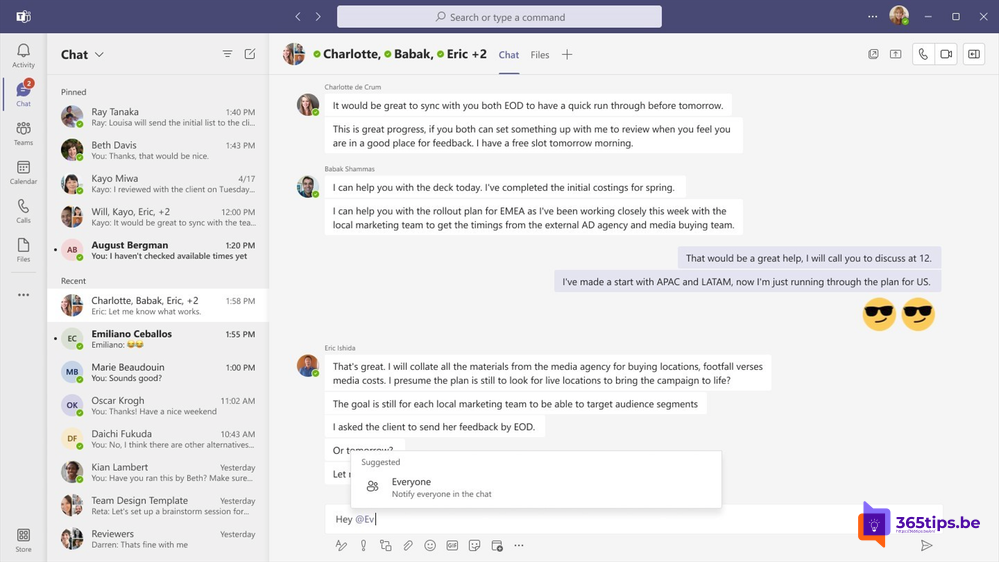
In a group chat with twenty people you sometimes want everyone to really see a message. Then type @everyone. All participants get a notification, just as if you had mentioned each of them.
How it works
- Open a group chat.
- Type
@everyonein the message box and pick the suggestion. - Type your message and send it. Every participant gets a notification in their activity feed.

And in channels?
- @channelname mentions everyone who follows the channel.
- @teamname mentions all members of the team. An owner can restrict this in the team settings.
- With tags you mention a group within the team, such as @Sales.
Use it sparingly
A notification for everyone only works if it doesn't happen every day. Use @everyone for truly important messages, and a normal mention for the rest. Also see reply to a specific message and mute notifications.
Read also
Reply to a specific message in Microsoft Teams
Mute Microsoft Teams notifications during meetings and set them up smartly
How to chat with yourself in Microsoft Teams
Nederlandstalige versie: Iedereen in een groepschat vermelden met @everyone
More in English
▸Mark a message as unread in Microsoft TeamsMark a Teams chat or channel message as unread to follow up later, and view all unread messages with the…
▸How to schedule a chat message in Microsoft TeamsSchedule a chat message in Microsoft Teams on desktop and phone, change or cancel it, and schedule posts in…
▸Get a notification as soon as a colleague is available in TeamsTurn on Notify when available on a colleague's profile card and manage your status notifications in the Teams…
▸Delete a message or an entire chat in Microsoft TeamsDelete or edit your own messages and remove an entire chat from your list in Teams. Plus hide, mute, leave…