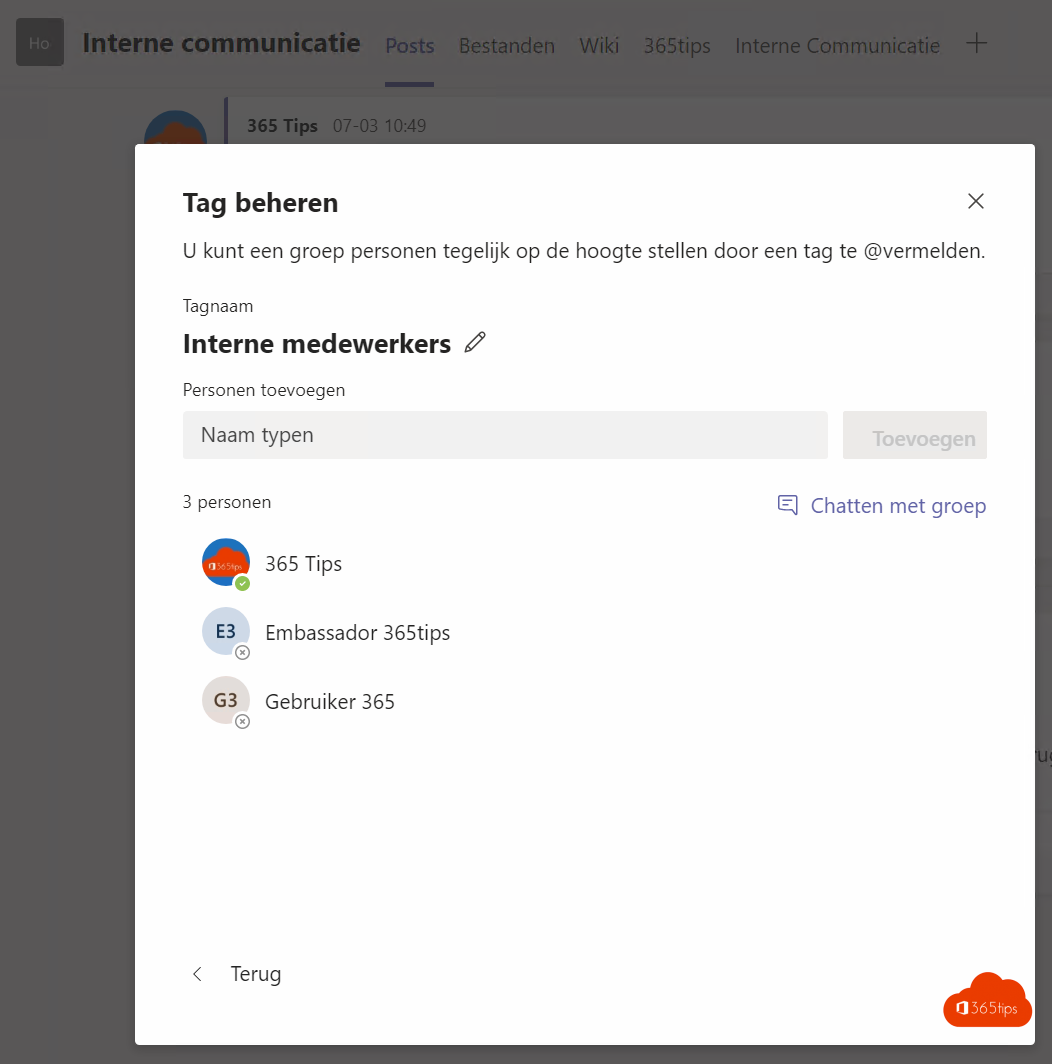
Want to reach all nurses, all developers or only the people on call in a team? With tags in Teams you create a group within the team. Mentioning the tag, such as @OnCall, notifies everyone who has it.
Create a tag
- Hover over the team > More options (...) > Manage tags.
- Select Create tag, give it a name and optionally a description, and add members.
- Select Create.
By default only owners can create tags. An owner can allow members too in the team settings under Tags.
Use a tag
- In a channel: type
@and the tag name. Everyone with the tag gets a notification. - In a chat: type the tag in the To field of a new chat to start a group chat with everyone who has it.
For admins
In the Teams admin center > Teams > Teams settings > Tagging you decide who can manage tags, whether team owners can change that setting and whether there are default tags. In frontline environments, tags can also be assigned automatically based on shifts in Shifts.
Frequently asked questions
- Do guests see tags? Guests can be tagged and mentioned, but can't manage tags.
- Does a tag work across teams? No, a tag belongs to one team.
- What if someone leaves the team? They're removed from the tag too.
Also see @everyone in a group chat and what owners, members and guests can do.
Read also
Mention everyone in a group chat with @everyone
Owners, members and guests in Microsoft Teams: who can do what?
Stop members deleting channels, tabs and apps in Teams
Nederlandstalige versie: Tags in Microsoft Teams: maken, gebruiken en beheren