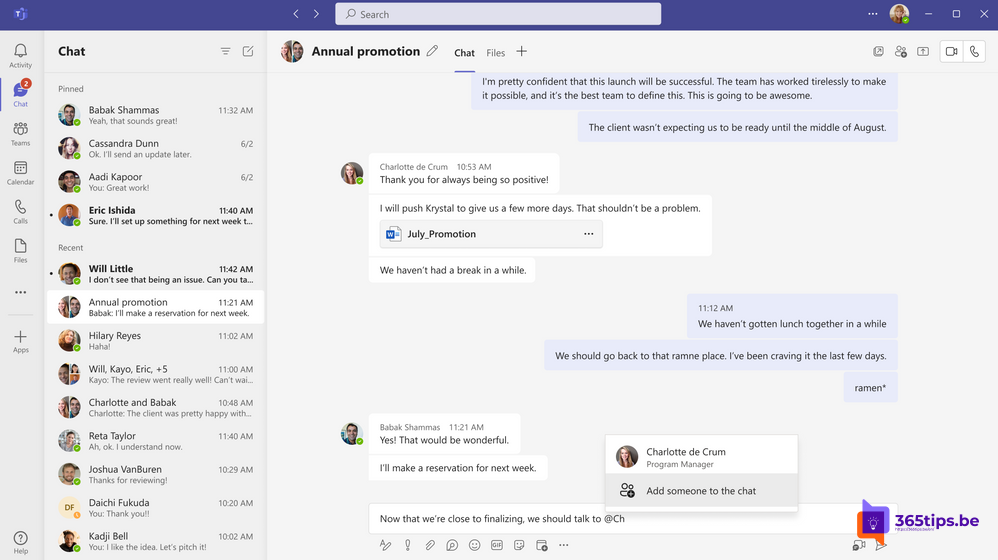
You're discussing something in a group chat and realize a colleague needs to be there too. Just type an @mention with their name. If they're not in the chat yet, Teams offers to add them right away.
How it works
- In a group chat, type
@and the colleague's name. - If that person isn't in the chat yet, Teams asks whether you want to add them.
- Choose how much of the chat history they can see: none, the last few days or all of it.
- Send your message.

And in a one-on-one chat?
If you add someone to a conversation with just two people, Teams creates a new group chat. The original conversation stays private.
Another way
Select the People icon at the top of the chat > Add people. There you also choose how much history the new participant sees. Also see @everyone in a group chat and tags in Teams.
Read also
Mention everyone in a group chat with @everyone
Chatting in Microsoft Teams: four scenarios and when to use each
Tags in Microsoft Teams: create, use and manage
Nederlandstalige versie: Mensen toevoegen aan een groepschat met een @vermelding
More in English
▸Reply to a specific message in Microsoft TeamsReply to a specific message in a Teams chat or channel with the original as a quote, on your computer or…
▸Start a group chat with internal and external contacts in TeamsStart a group chat in Teams with colleagues and people from another organization, without adding them as…
▸How to chat with yourself in Microsoft TeamsYour own chat in Teams works as a personal scratchpad: notes, links and files from your phone to your laptop.…
▸Get a notification as soon as a colleague is available in TeamsTurn on Notify when available on a colleague's profile card and manage your status notifications in the Teams…