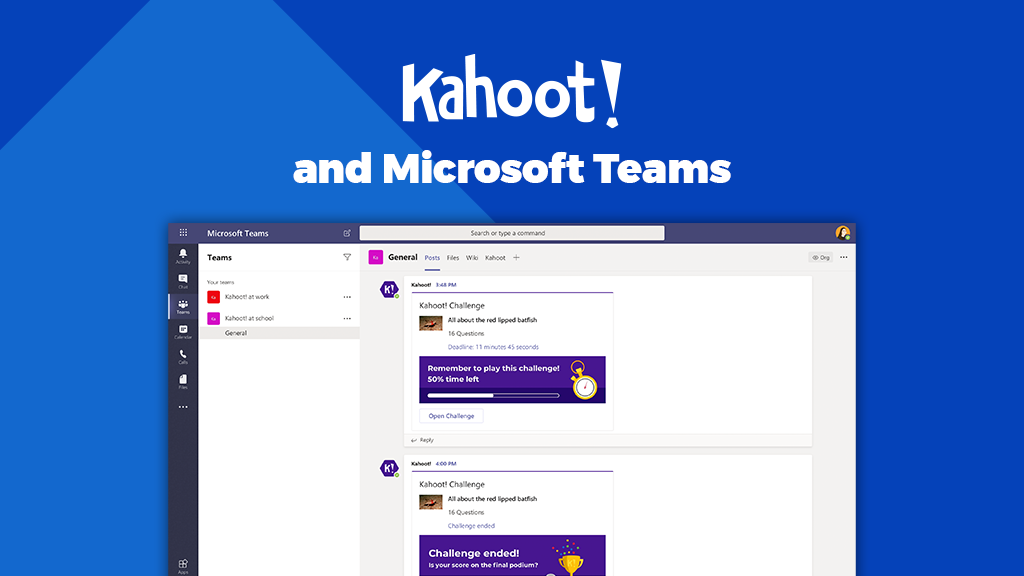
Kahoot! is a popular quiz app that makes lessons and meetings playful and interactive. Participants answer on their own device and see right away who's in the lead. You can also use Kahoot! in Microsoft Teams. This starter guide shows how to create an account, build a quiz and play it with your class or team. What you can do depends on your Kahoot! plan, so check which features your account includes.
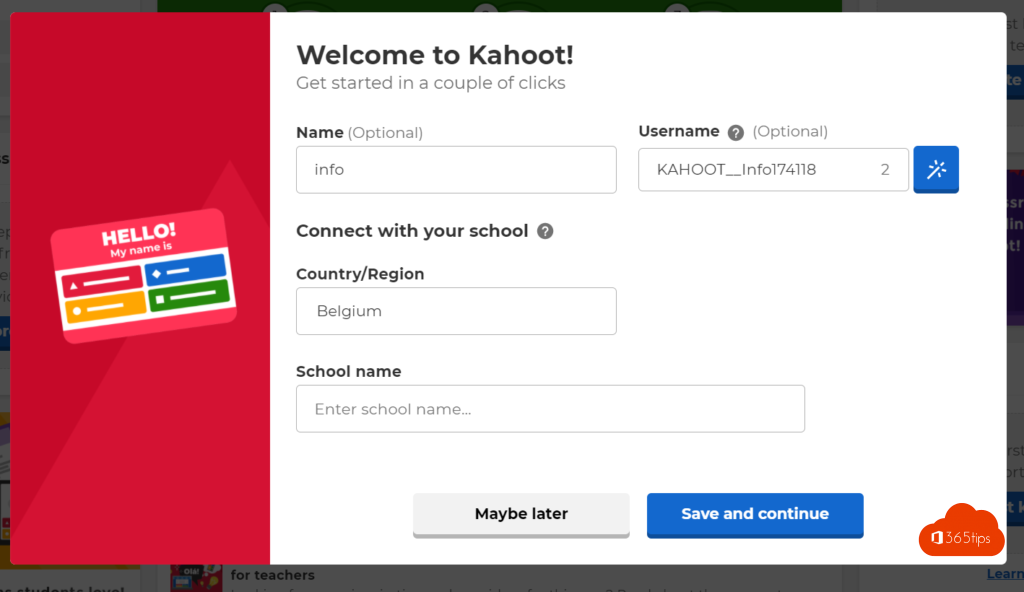
Step 1: create a Kahoot! account
- Go to kahoot.com and choose Sign up.
- Choose the account type, for example Teacher or Work.
- Sign in with your Microsoft account. That way you can use the same sign-in later in Teams.
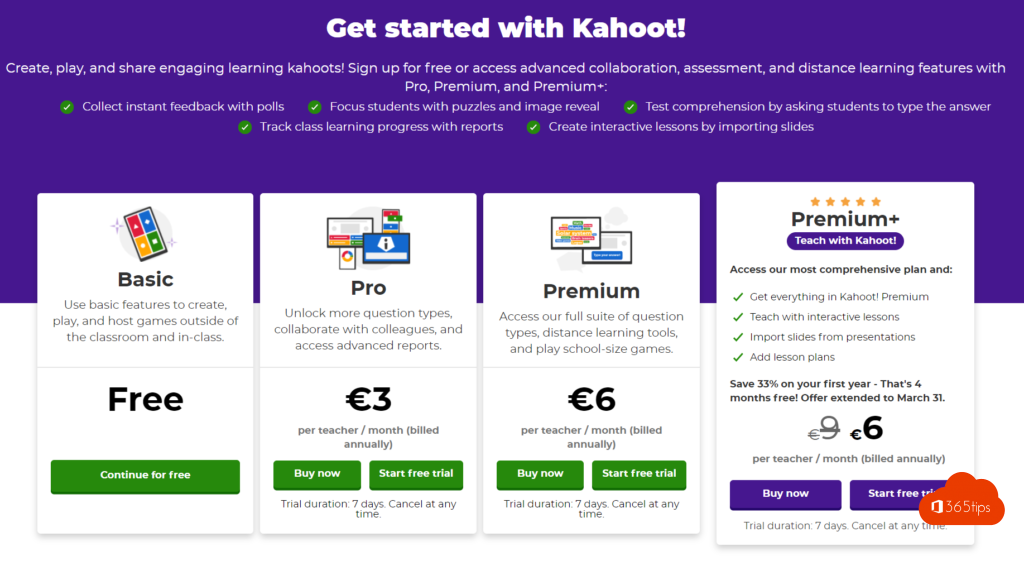
- Pick a plan. There's a free basic version with more limited options.


Step 2: create your first quiz
- Click Create and choose a blank kahoot or a template.
- Type your question, add answers and mark the correct one.
- Set the time per question and optionally add an image or video.
- Save the kahoot.
Step 3: add Kahoot! to Teams
- Open Teams and click Apps on the left.
- Search for Kahoot! and open the app.
- Choose whether to add the app for yourself or as a tab in a team or channel.
- Sign in with the account you created in step 1, via Continue with Microsoft.
- Pick the kahoot you want to show and click Save.
Don't see the app? Your admin may have blocked third-party apps. Ask whether Kahoot! can be allowed.

Step 4: play the quiz
- Live in a Teams meeting: start the kahoot and share your screen. Participants go to kahoot.it or open the Kahoot! app and enter the game PIN.
- As an assignment: share a link so students play the quiz at their own pace.
Tips
- Keep questions short so they're easy to read through screen sharing.
- Let participants use a second device if their screen is small.
- Want a quiz without an extra app? Use Microsoft Forms, which is already part of Microsoft 365.
Also see creating assignments in Teams for Education and polls in Microsoft Teams.
Nederlandstalige versie: Kahoot! gebruiken in Microsoft Teams: startersgids
Related articles
▸Create, turn in and grade assignments in Microsoft Teams for EducationCreate assignments with points and rubrics in a class team, let students turn in work and give feedback…
▸Create polls in Microsoft Teams with Polls and Microsoft FormsCreate a poll in a Teams chat, channel or meeting with the Polls app. Prepare questions, use quizzes and word…
▸How to create an instant poll in a Teams meetingAdd the Polls app to your Teams meeting, ask a quick yes/no question, and create multiple-choice questions…
▸Set up a class in Teams with the OneNote Class NotebookCreate a class team and set up the Class Notebook with a Content Library, Collaboration Space and student…
▸Teaching with Microsoft Teams: where to find good video tutorialsVideos and courses on teaching with Microsoft Teams: official Microsoft resources, YouTube and the topics…