With the Assignments app in Microsoft Teams for Education you create tasks, share them with your class and grade the work that's turned in. Students see all their tasks in one place, with due dates and feedback. This article walks you through creating an assignment and how students turn it in. You need a class team in a tenant with an education license such as Microsoft 365 A1, A3 or A5.
What do you need?
- A class team in Teams. That team type automatically gets the tabs for assignments, grades and the Class Notebook.
- A teacher account (owner of the team).
No class team yet? See how to create a class team and set up the Class Notebook.
Create an assignment
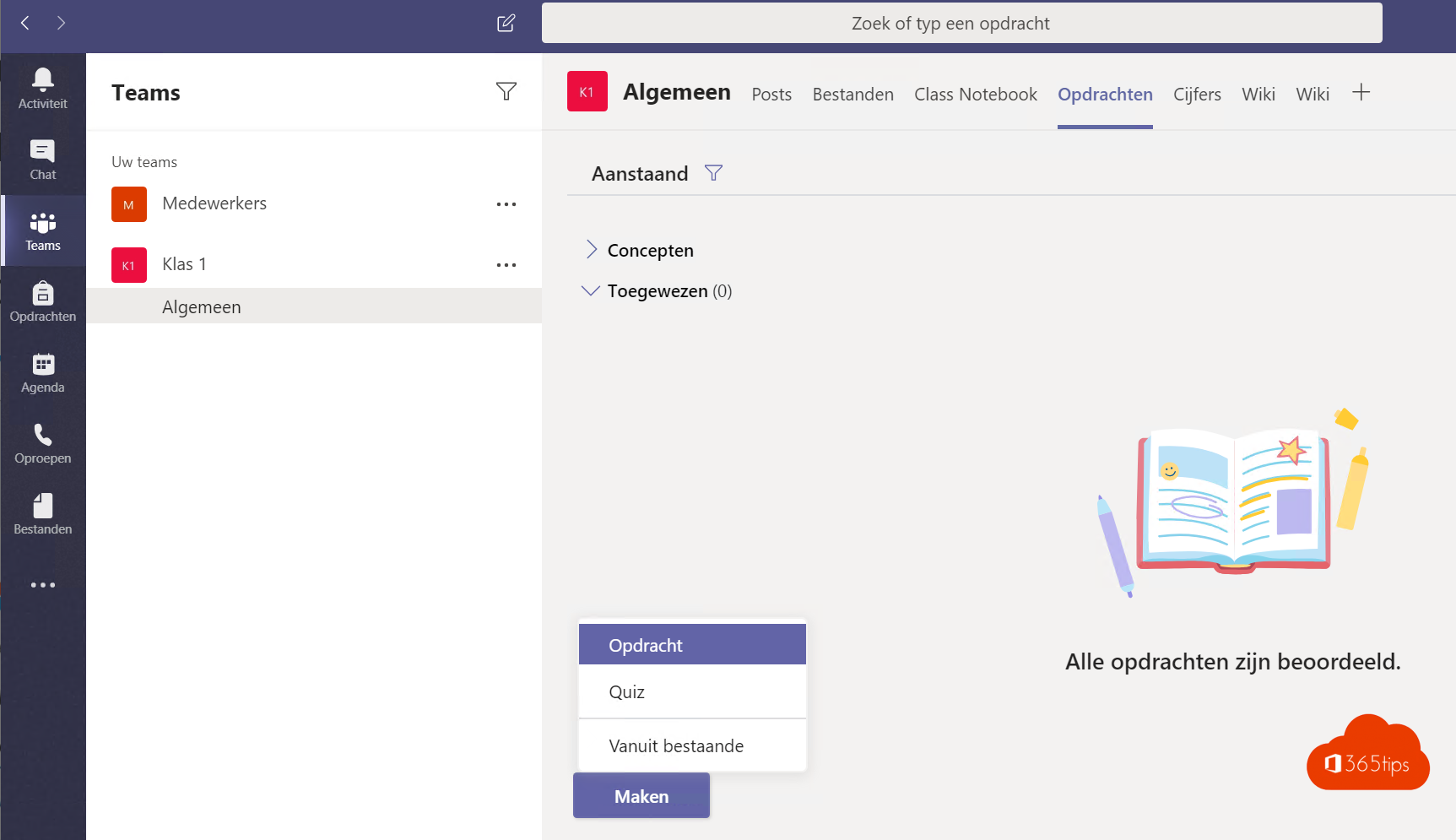
- Open the class team and go to the Assignments tab.
- Click Create > Assignment. You can also choose a quiz built with Microsoft Forms.
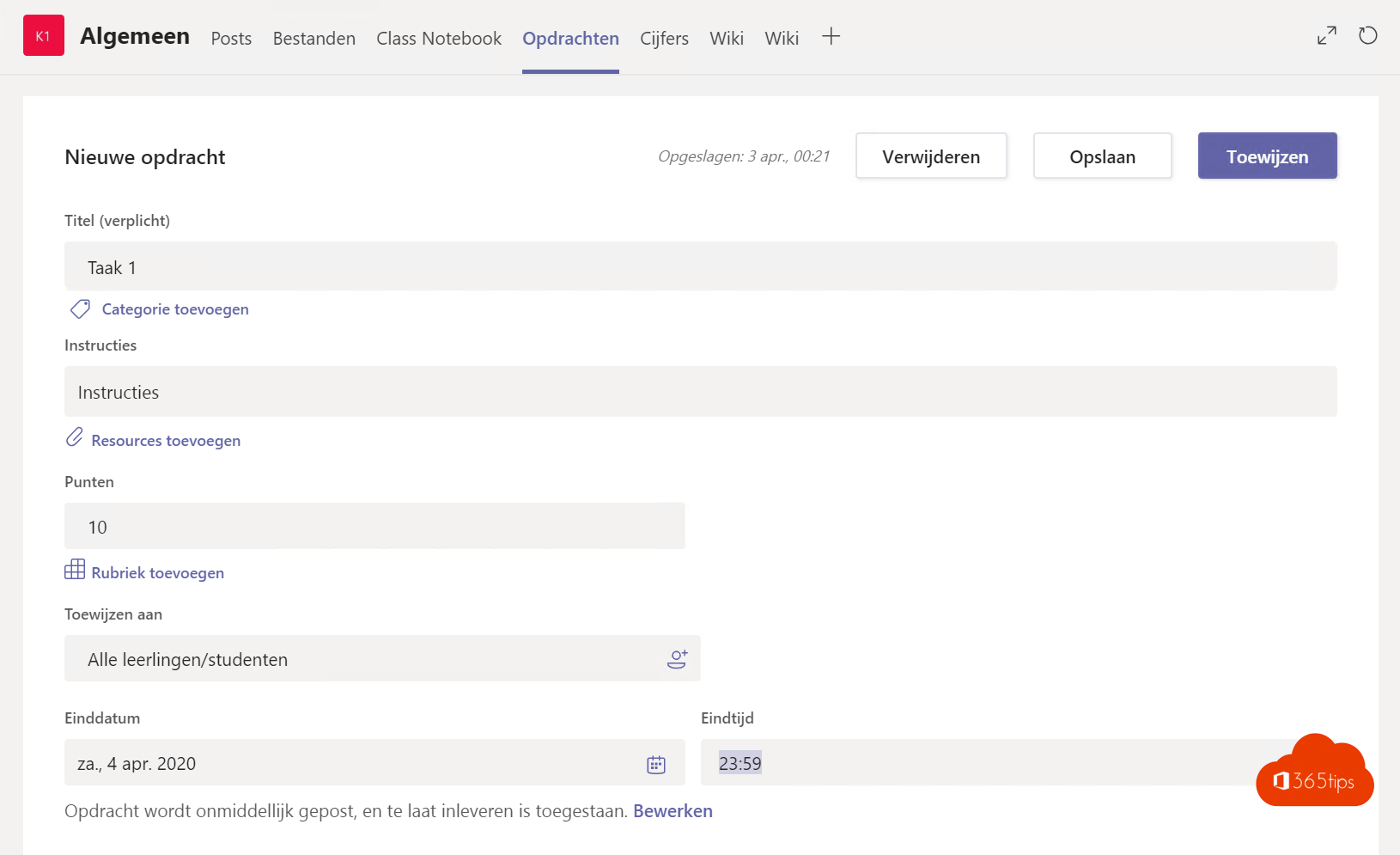
- Add a title and clear instructions.
- Use Add to attach files, links or other resources. For a Word file you can choose whether each student gets their own copy to edit.
- Set the number of points and optionally add a rubric with criteria and levels.
- Choose who gets the assignment: the whole class, a group or individual students.
- Set the due date. In the settings you also choose when the assignment becomes visible and whether late turn-ins are allowed.
- Click Assign, or save the assignment as a draft.
How students turn in work
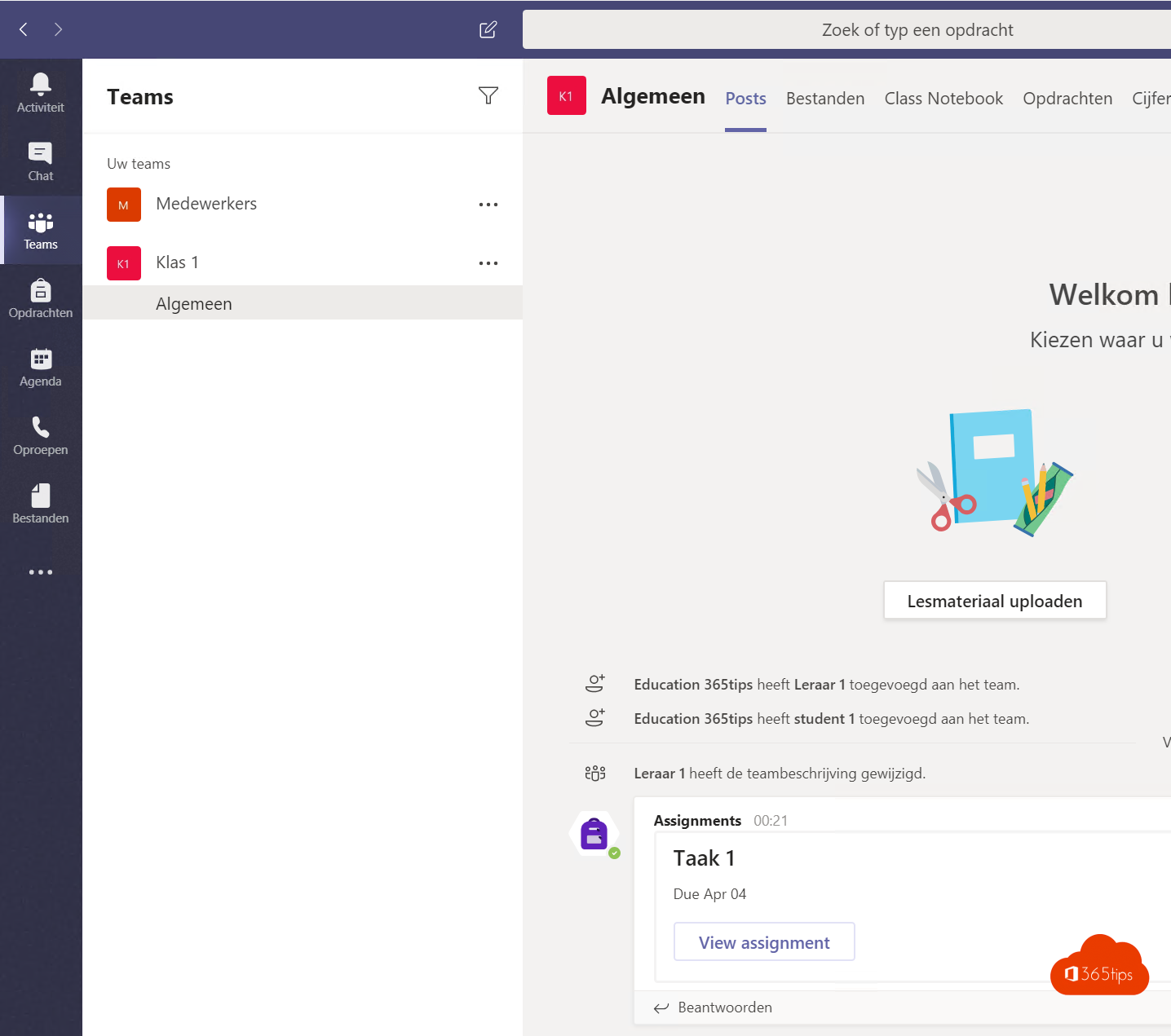
- The student opens the class team and chooses Assignments, or clicks the notification in Teams.
- They open the assignment, work in the attached file or add their own work.
- They click Turn in. Undoing the turn-in is possible as long as the assignment is open.
Grade and give feedback
- Open the assignment. You see who has turned in and who hasn't.
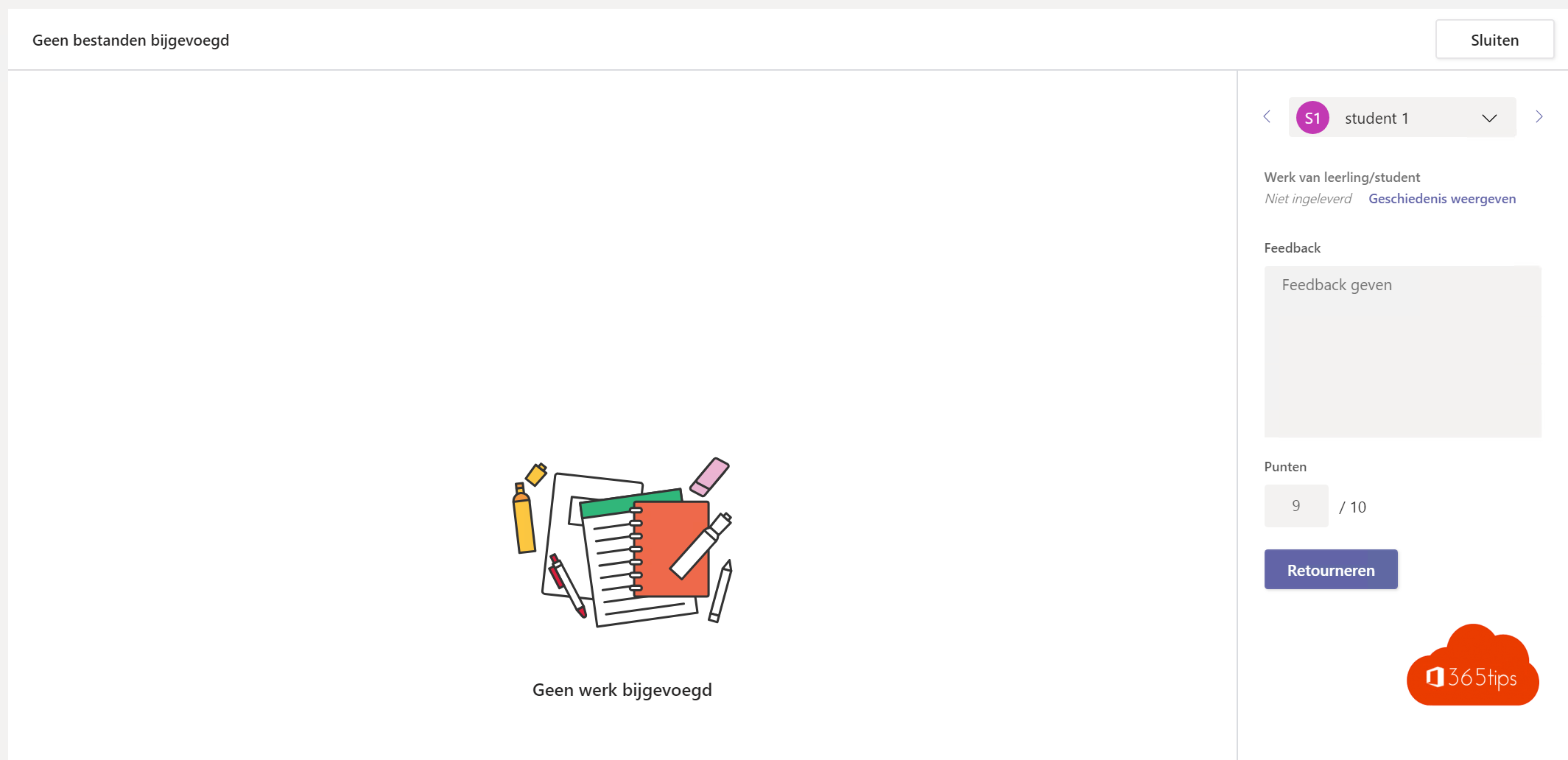
- Open a student's work, give feedback and points, or fill in the rubric.
- Click Return. The student gets a notification.
- See all results in the Grades tab. You can export from there too.
Tips
- Reuse assignments from previous years with Reuse existing assignment.
- Let students have text read aloud with Immersive Reader.
- Use Kahoot! or Forms for a playful review: see Kahoot! in Teams.
Also see setting up a class with Class Notebook and disabling Meet now for students.
Read also
Set up a class in Teams with the OneNote Class Notebook
Use Kahoot! in Microsoft Teams: starter guide
Have Teams messages read aloud with Immersive Reader
Nederlandstalige versie: Opdrachten maken, insturen en beoordelen in Microsoft Teams voor Onderwijs