
The Class Notebook is a OneNote notebook that comes with every class team in Microsoft Teams for Education. You share course material there, students work in their own section and the class can take notes together. This quickstart shows how to set it up and use it. Class Notebook is part of the Microsoft 365 education licenses (A1, A3 and A5); older names such as Office 365 for education are no longer used.
How is a Class Notebook structured?
| Part | Who can do what? | What it's for |
|---|---|---|
| Content Library | Teacher edits, students read | Course material, handouts and instructions |
| Collaboration Space | Everyone edits | Group work and shared notes |
| Student notebooks | Each student and the teacher | Personal work; students can't see each other's section |
| Teacher Only (optional) | Teachers only | Lesson prep and notes |
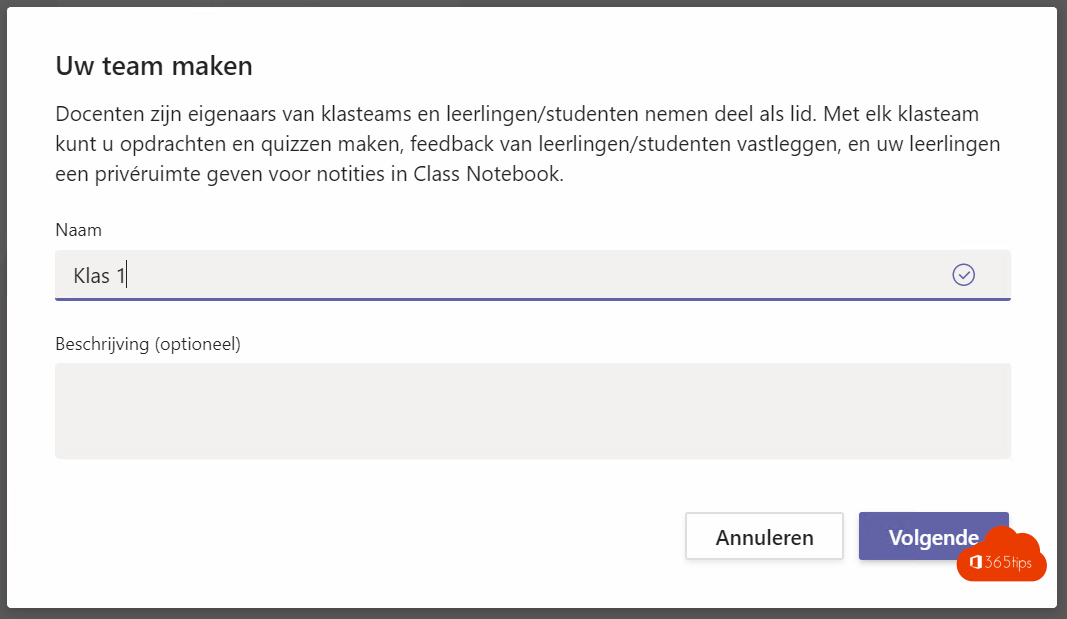
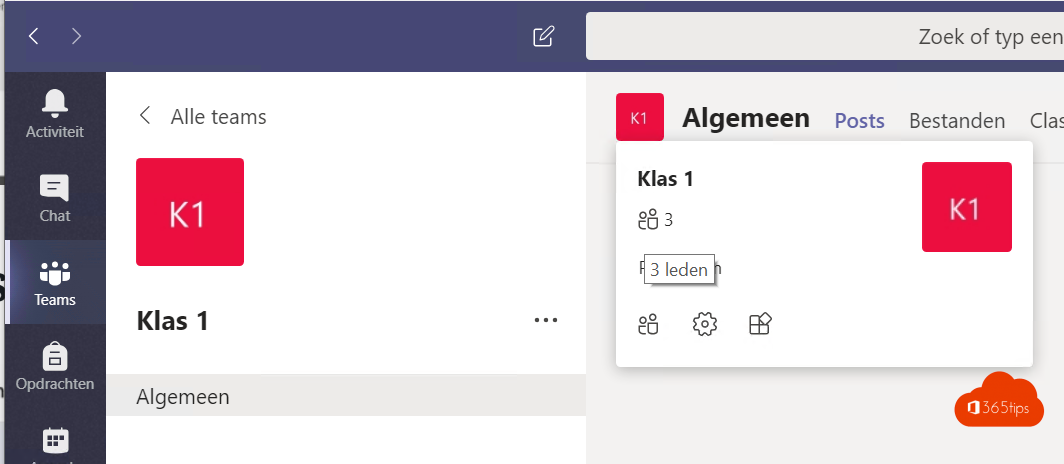
Step 1: create a class team
- In Teams, click Teams > Create a team (or Join or create a team).
- Choose the Class team type.
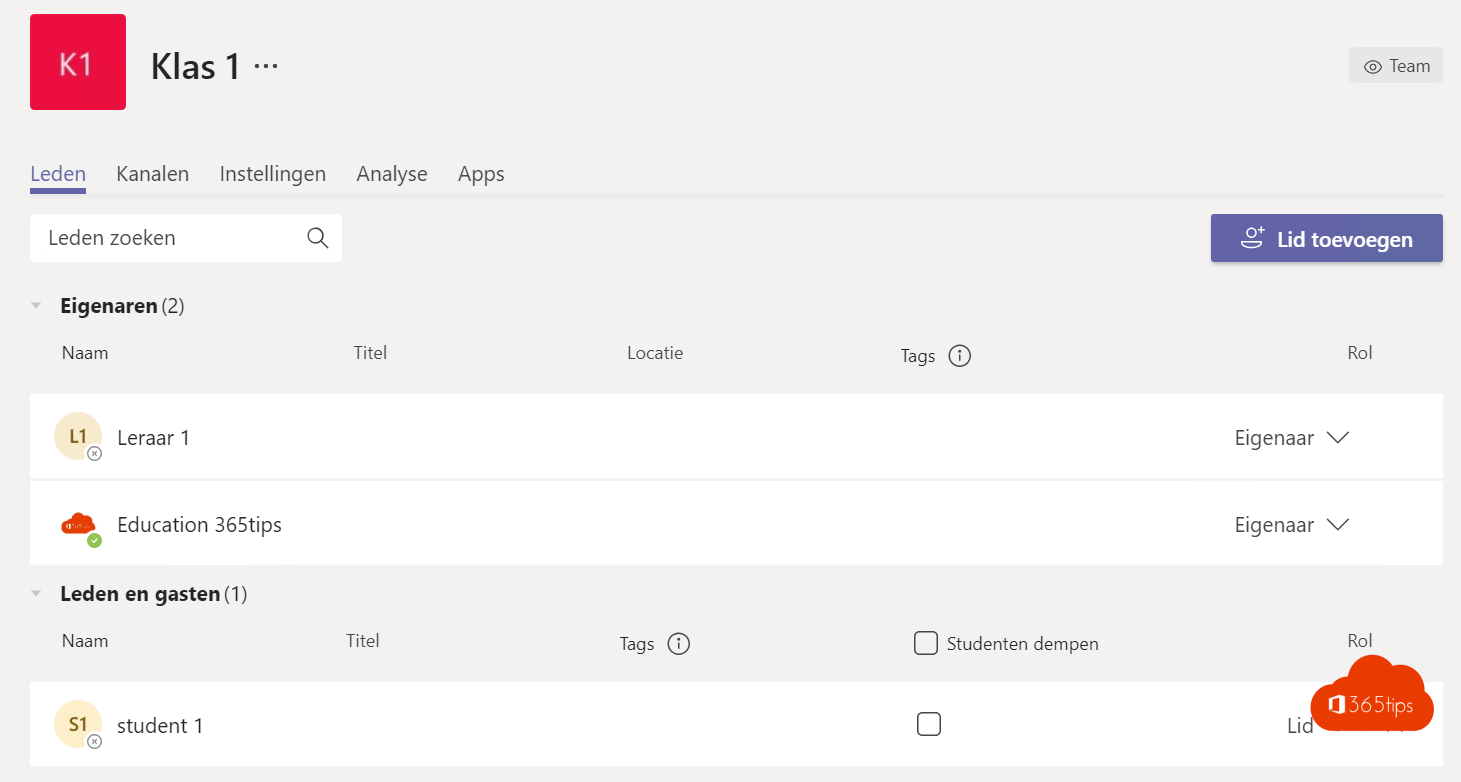
- Add a name and description and add your students. At many schools IT creates class teams automatically through School Data Sync.
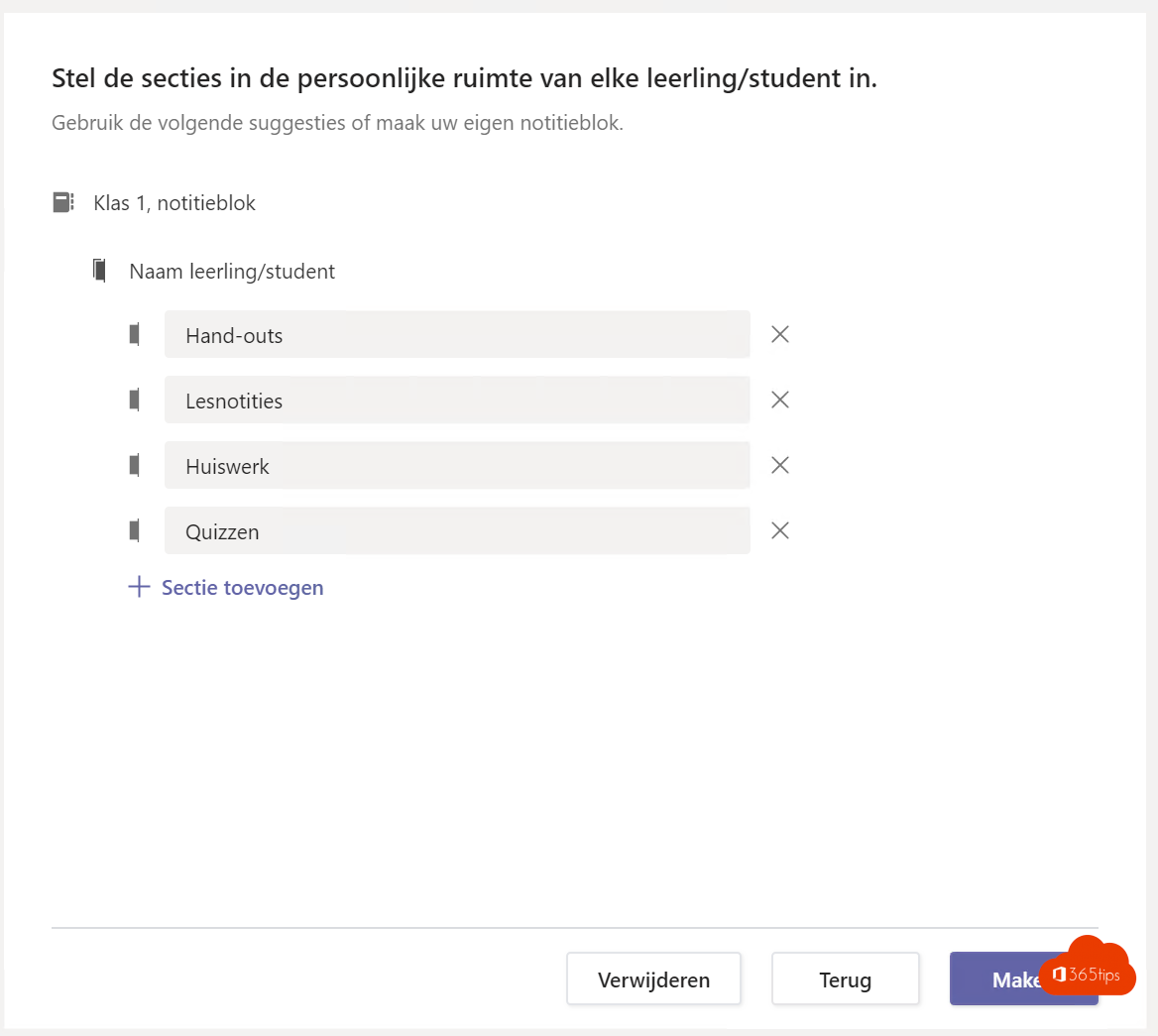
Step 2: set up the Class Notebook
- Open the class team and choose the Class Notebook tab.
- Click Set up a OneNote Class Notebook.
- Choose a blank notebook or copy content from an existing notebook.
- Review the default student sections, such as Handouts, Class Notes, Homework and Quizzes. Adjust them as you like.
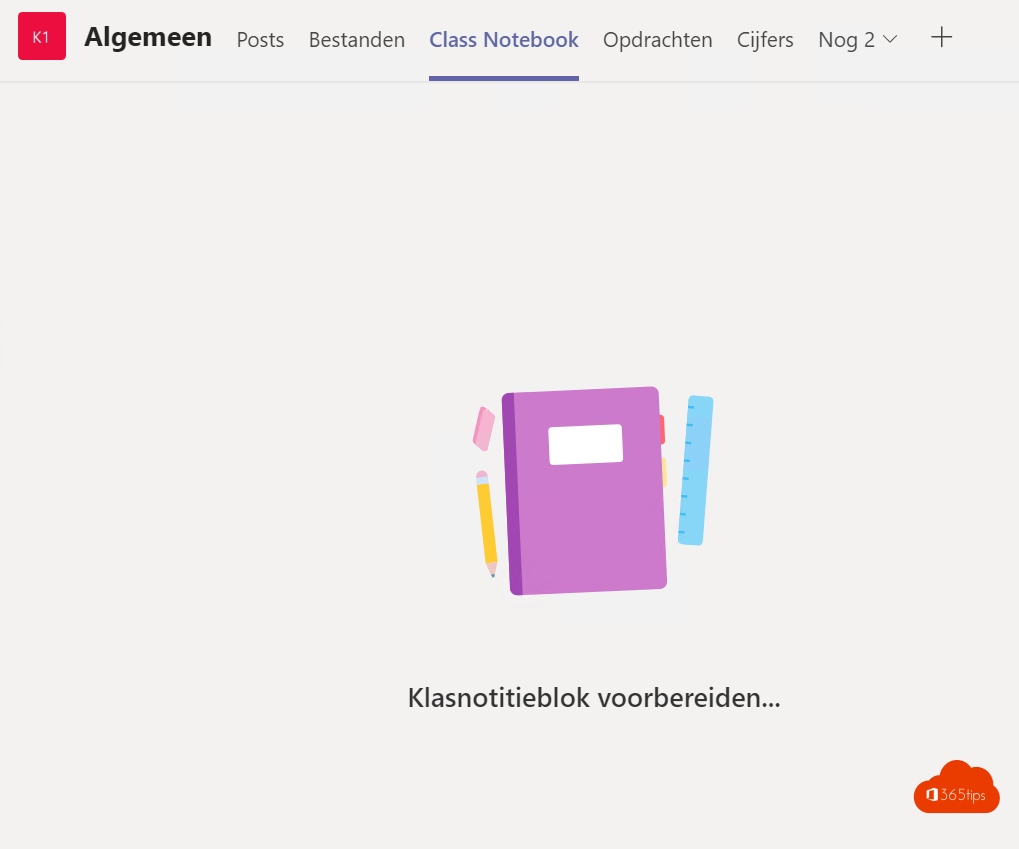
- Click Create. Teams prepares the notebook for everyone in the team.
Step 3: use the notebook
- Put course material in the Content Library. Students can read it but not change it.
- Send pages to all students at once with the Distribute Page feature in the OneNote app (Class Notebook tab).
- Review students' work right in their section and give feedback on the page.
- Use Open in app for more options in the OneNote app.
Tips for IT
- Create class teams automatically from your student information system with School Data Sync.
- Limit who can create teams: see restrict who can create teams.
- Stop students from starting meetings themselves: see disable Meet now.
Also see creating assignments in Teams for Education and getting started with OneNote.
Read also
Create, turn in and grade assignments in Microsoft Teams for Education
Get started with OneNote in Microsoft 365: guide and tips
The most useful OneNote keyboard shortcuts for Windows
Nederlandstalige versie: Een klas inrichten in Teams met het OneNote Class Notebook