A regular distribution list needs manual upkeep: add the new colleague, remove the one who left. A dynamic distribution group does that automatically. You set rules, such as everyone in the Sales department or everyone in the Ghent office, and Exchange Online works out who's a member. This article shows how to create one in the Exchange admin center and with PowerShell.
In the Exchange admin center
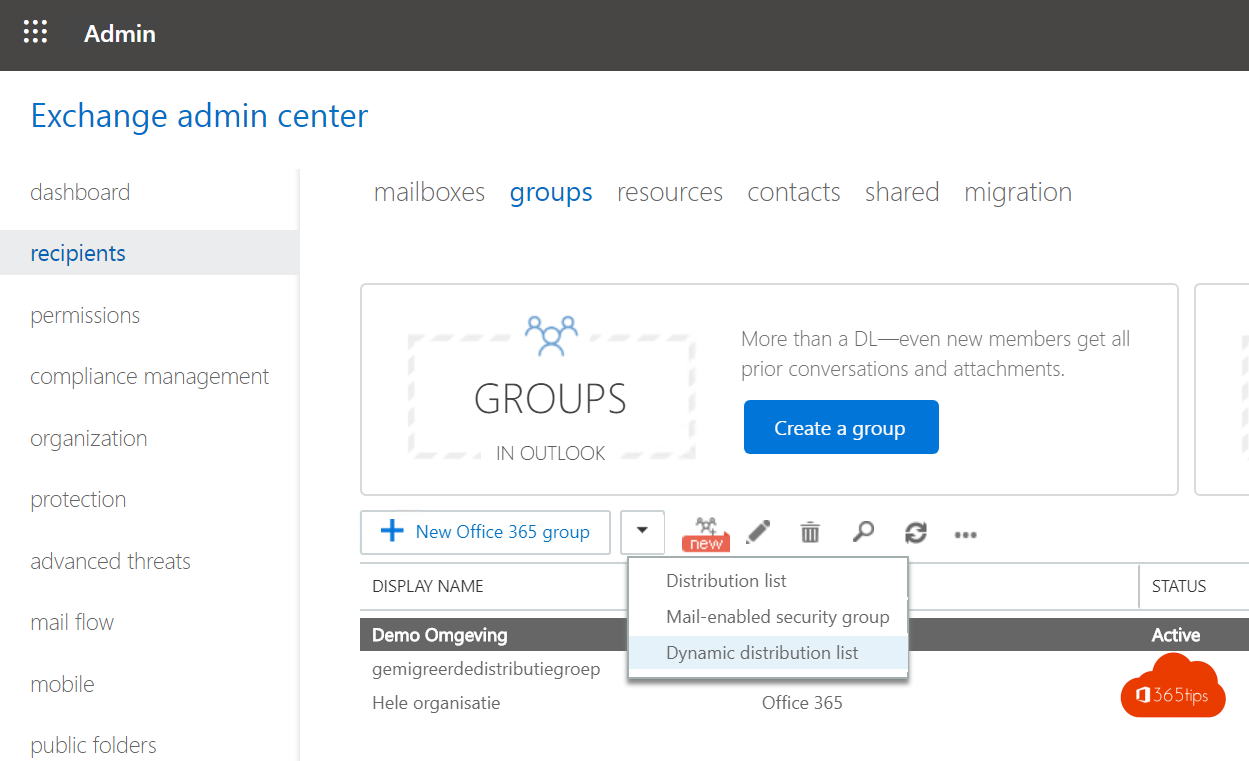
- Go to admin.exchange.microsoft.com > Recipients > Groups.
- Open the Dynamic distribution list tab and select Add a group.
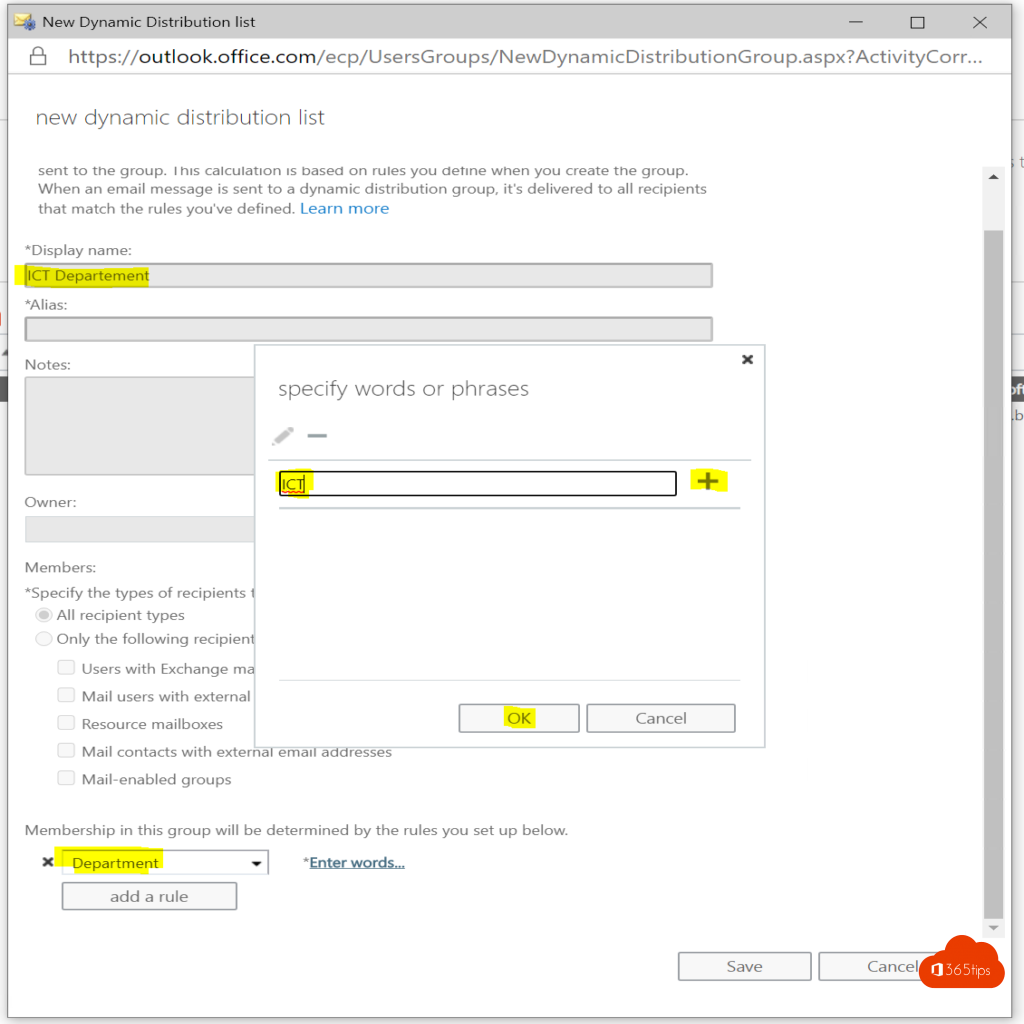
- Enter a name, an owner and an email address.
- Choose which recipient types become members, usually Users with Exchange mailboxes.
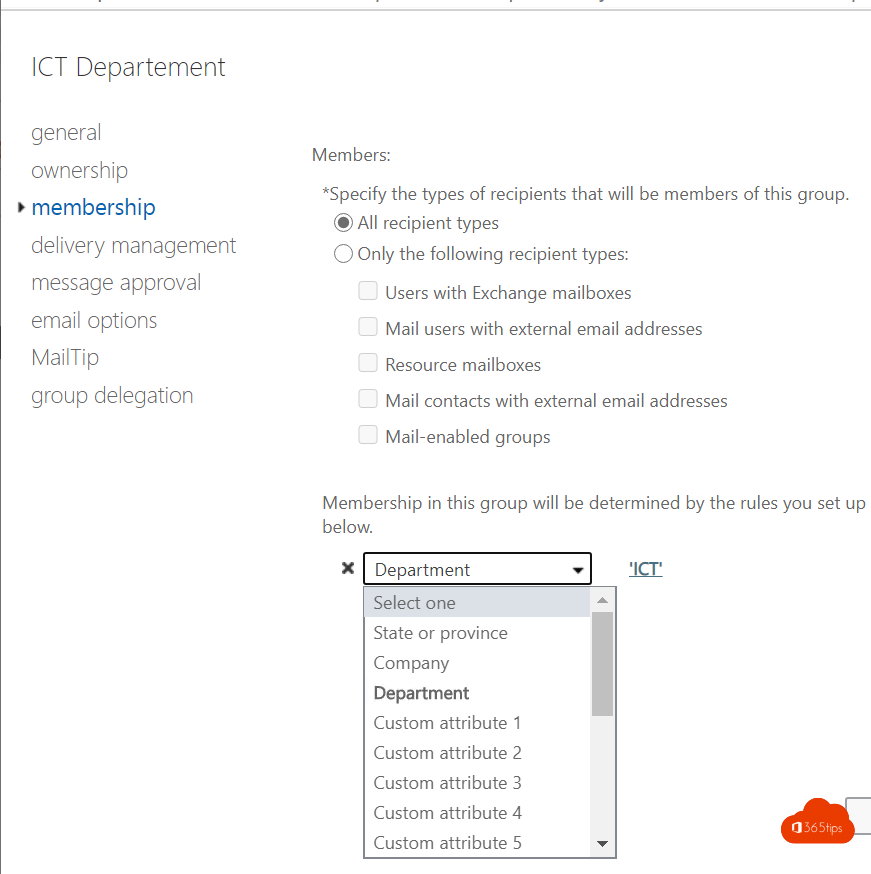
- Add rules, for example Department is Sales, or State or province is East Flanders.
- Select Create.
With PowerShell
PowerShell lets you build far more flexible filters:
New-DynamicDistributionGroup -Name "Sales" -RecipientFilter "(RecipientTypeDetails -eq 'UserMailbox') -and (Department -eq 'Sales')"
Want to see who's in it first? Use:
Get-Recipient -RecipientPreviewFilter (Get-DynamicDistributionGroup "Sales").RecipientFilter
How often is membership updated?
Exchange Online calculates membership in the background, roughly once a day. A new colleague therefore doesn't always receive the group's emails straight away. The admin center shows when membership was last calculated.
Tips
- Rules only work if the data in Entra ID is correct. Make sure department, office and job title are filled in, for example from HR or Entra Connect.
- Use custom attributes (CustomAttribute1-15) for groups that don't fit the standard fields.
- Restrict who can email the group via Settings > Delivery management, especially for an all-company group.
- You can't use a dynamic distribution group for permissions or in Teams. For that you need a dynamic Microsoft 365 group in Entra ID (Entra ID P1).
Need a static list instead? See how to create a distribution list in Microsoft 365.
Read also
How to create a distribution list in Microsoft 365 and use it in Teams
Set up Full Access, Send As and Send on Behalf in Exchange Online
How to set out of office on a shared mailbox in Microsoft 365
Nederlandstalige versie: Een dynamische distributiegroep maken in Exchange Online