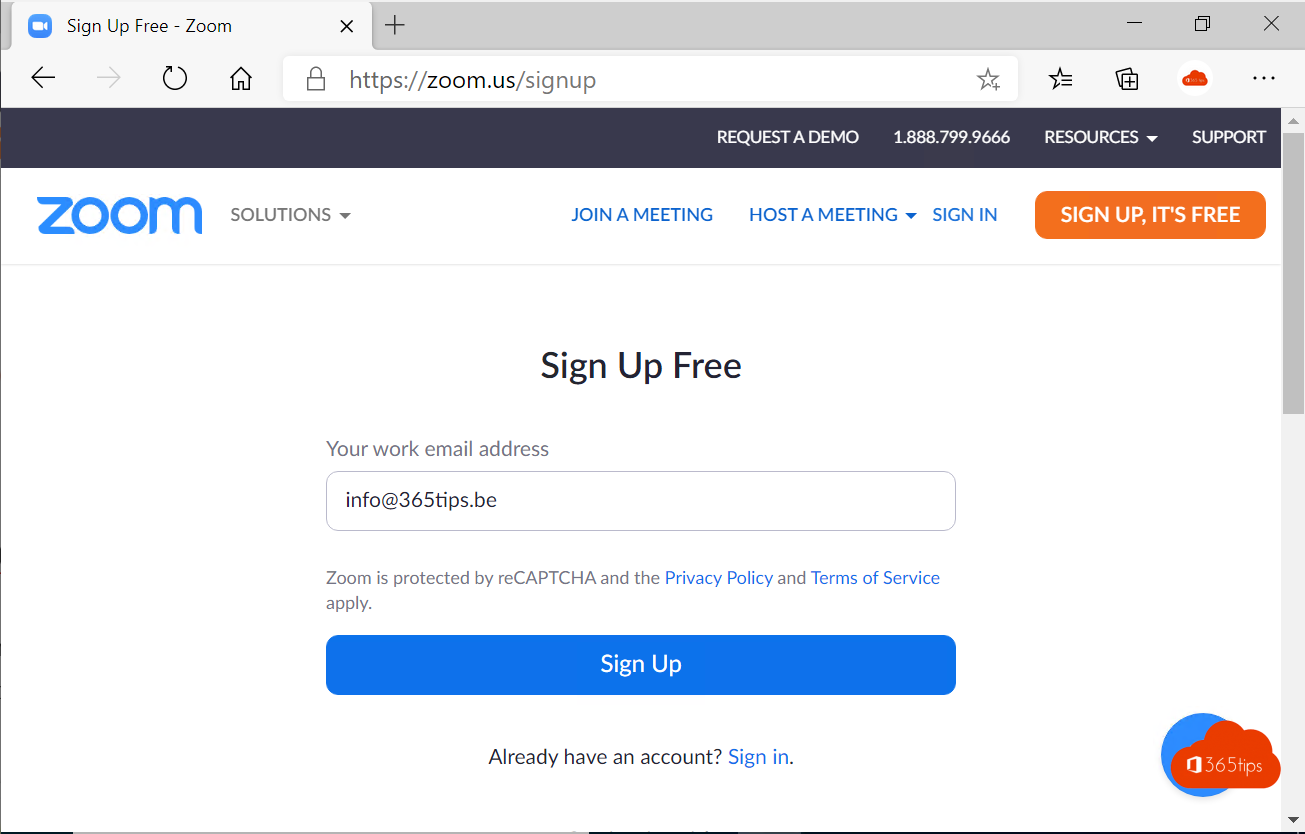
Need to join a Zoom meeting, or want to schedule your own? Then install the Zoom app on your computer. This guide shows how to install Zoom on Windows and macOS, create an account and sign in for the first time.
What is Zoom?
Zoom is a platform for online meetings, webinars and video calls. You can share your screen, record meetings and chat with participants. Zoom runs on Windows, macOS, Linux, iPhone, iPad and Android, and it's one of the best-known alternatives to Microsoft Teams. The desktop app is now called Zoom Workplace and also includes chat, a whiteboard and other tools.
Install Zoom Workplace on Windows or macOS
- Go to zoom.us/download.
- Under Zoom Workplace desktop app, pick the download for your system. On a Mac, choose the version for Apple silicon or for Intel processors.
- Open the downloaded file: an .exe or .msi on Windows, a .pkg on macOS.
- Follow the installer. Zoom starts automatically afterwards.

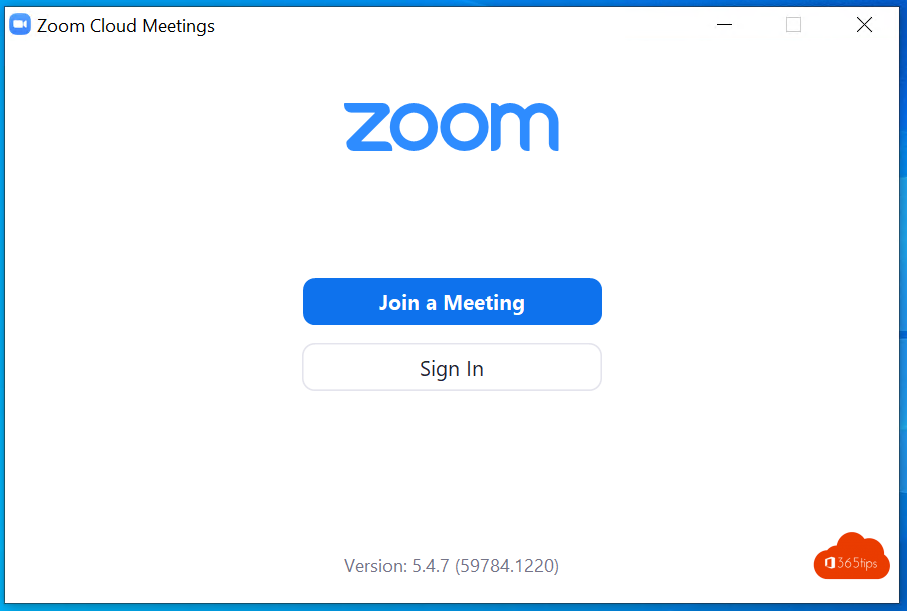
On first launch you'll see a welcome screen. You can click Join a meeting right away: you don't need an account to join. You only need the meeting link, or the meeting ID and passcode.
Create a Zoom account
Want to schedule meetings yourself? Then you need an account. A free account lets you meet, but with limits, for example on the length of group meetings. Paid plans give you more. Check Zoom's website for the current terms.
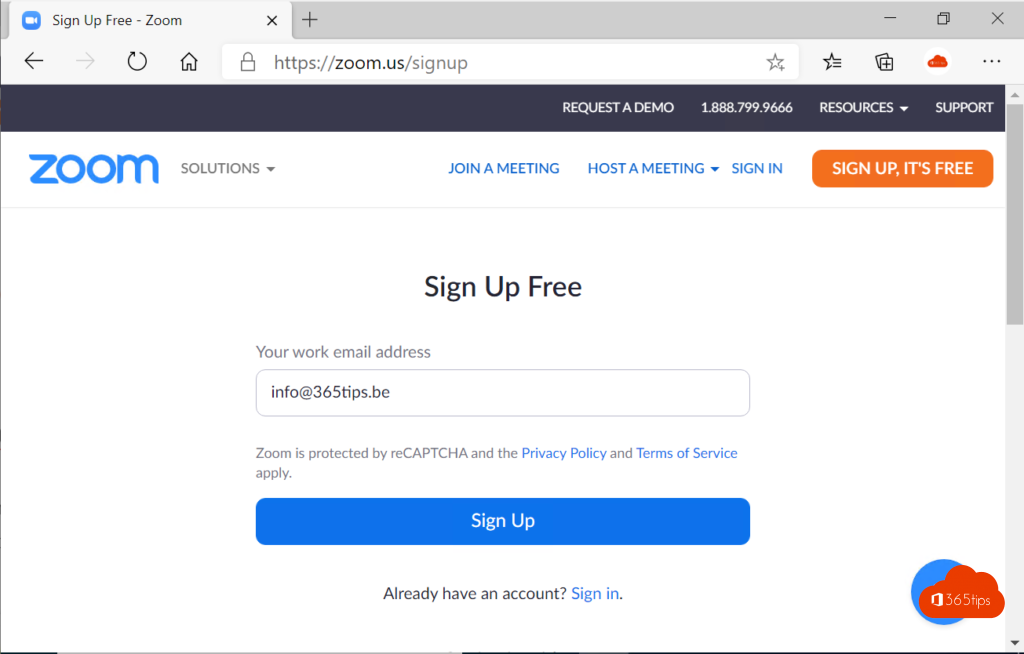
- Go to zoom.us/signup or click Sign up in the app.
- Enter your date of birth.
- Enter your email address, or sign up with a Google, Apple or Microsoft account.
- Confirm your email address with the code or link you receive.
- Enter your name and a password.

You then get a personal meeting ID and link. Like a Teams link, you can add it to your email signature.
Sign in for the first time
- Open Zoom Workplace.
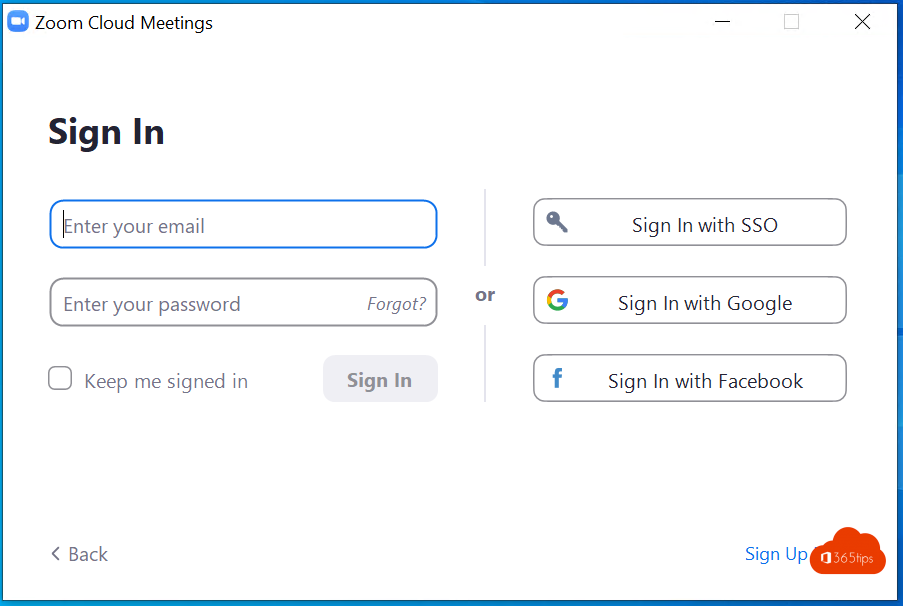
- Click Sign in and use your email address and password, or SSO if your organization uses it.
- You land on the home screen, where you can start, join or schedule a meeting.

Handy tips
- Zoom also works in the browser without installing anything. Click a meeting link and choose Join from your browser.
- Working in an organization? Check with IT before installing Zoom. On managed devices the app is often deployed automatically.
- Zoom keeps itself up to date. You can also check manually via your profile picture and Check for updates.
Also see Microsoft Teams vs Zoom and download and install Microsoft Teams.
Read also
Microsoft Teams vs Zoom: the differences side by side
Download and install Microsoft Teams on Windows, Mac and mobile
Install and use Slack on Windows 10 and 11
Nederlandstalige versie: Zoom Workplace installeren op je Windows-pc of Mac