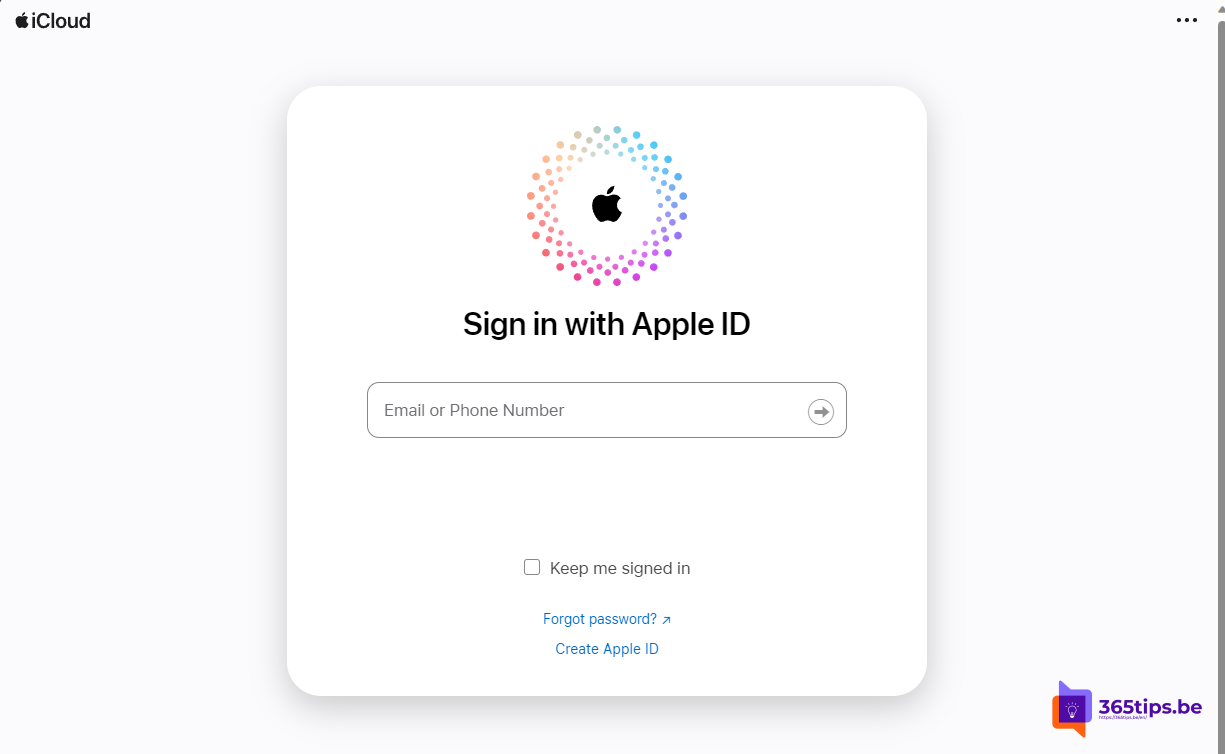
With an Apple Account you use the App Store, iCloud, Find My and your saved passwords and passkeys. You also need one to use your iCloud passwords on a Windows PC. Here's how to create an account on an iPhone, iPad, Mac, Windows PC or Android device.
What is an Apple Account?
Apple renamed the Apple ID to Apple Account; an existing Apple ID keeps working. It's your personal account for all Apple services. You sign in with an email address (or phone number) and a password. With it, you sync your devices, buy apps and store photos and passwords in iCloud. Two-factor authentication is on by default for new accounts.
Create one on an iPhone or iPad
Through Settings
- Open Settings and tap Sign in to your iPhone (or iPad) at the top.
- Tap the option to create a new account, such as Don't have an Apple Account?. The exact wording may vary.
- Enter your name, date of birth and email address, choose a password and verify your phone number.

Through the App Store
- Open the App Store and tap the profile icon in the top right.
- Choose to create a new Apple Account and follow the steps.
Create one on a Mac
- Click the Apple menu > System Settings.
- Click Sign In at the top of the sidebar.
- Choose to create a new account and follow the steps.

Create one on a Windows PC or Android device
You don't need an Apple device. Create your account in a browser:
- Go to account.apple.com (or icloud.com).
- Choose Create Your Apple Account or a similar button.
- Fill in your details and verify your email address and phone number with the codes you receive.

Use your passwords and passkeys on Windows
Using an iPhone with a Windows 11 PC? Then you can use your iCloud passwords and passkeys on your PC too:
- Install iCloud for Windows from the Microsoft Store.
- Sign in with your Apple Account.
- Turn on Passwords and install the browser extension for Edge or Chrome.
- Manage your passwords in the passwords app that comes with iCloud for Windows.

Tips for a secure account
- Choose a strong, unique password that you don't use anywhere else.
- Keep two-factor authentication on and your phone number up to date.
- Set up a recovery contact, so you can get back into your account if you forget your password.
Also see how to create a free Microsoft account and how to reset an iPhone without a computer.
Read also
Create a free Microsoft account or Outlook.com address
Use your personal Microsoft account without a password
4 ways to reset an iPhone without a computer
Nederlandstalige versie: Een Apple Account aanmaken op iPhone, Mac, Windows of Android