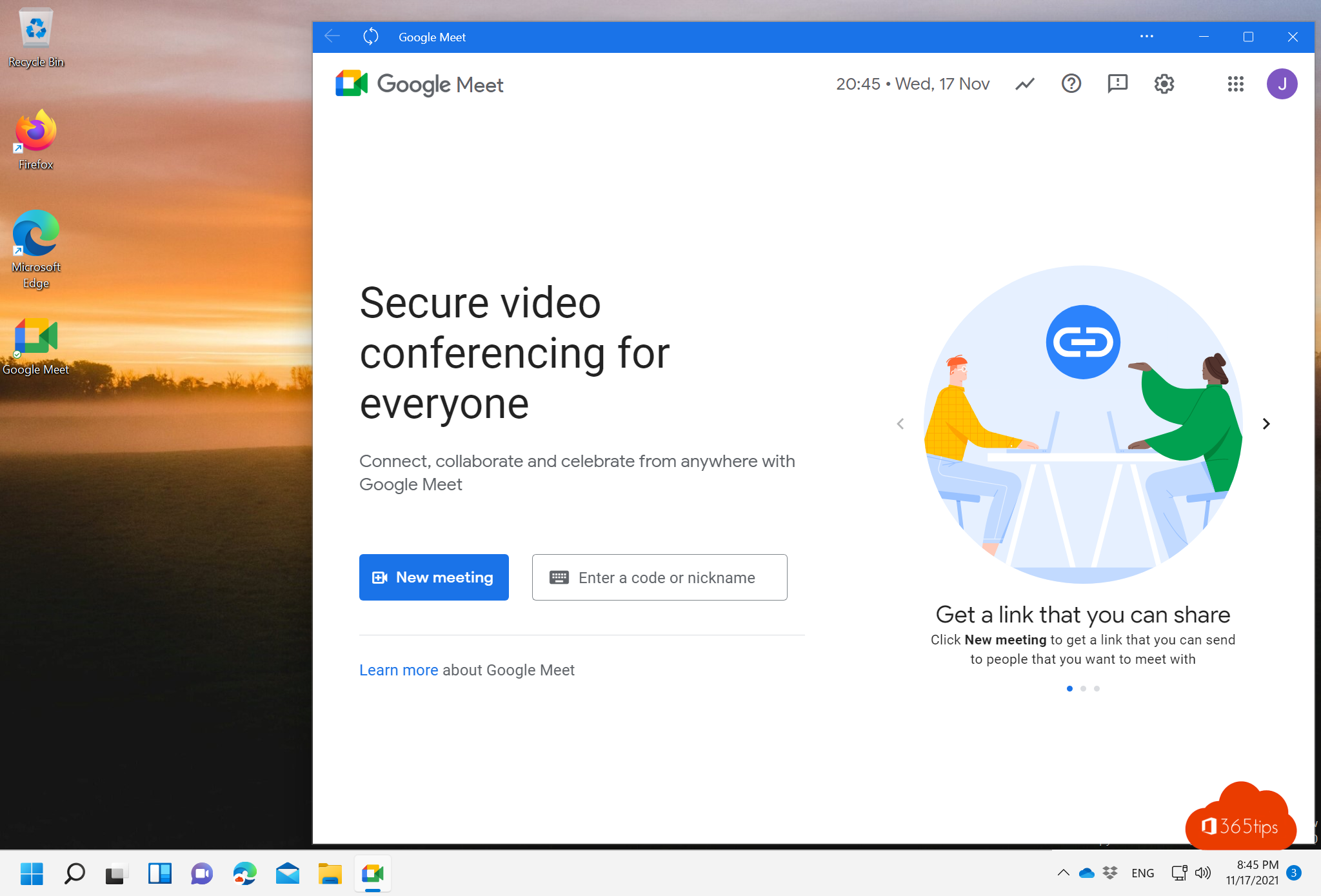
Looking for a Google Meet program for Windows? It doesn't exist as a classic desktop app. You use Google Meet in your browser, but you can install it as an app. That gives you its own window, a taskbar icon and a Start menu shortcut. Here's how.
Google still offers no official Google Meet app for Windows or macOS. Be careful with download sites offering a "Google Meet .exe": always use meet.google.com.
What is Google Meet?
Google Meet is Google's video meeting service. You can share your screen, chat and (with a paid plan) record meetings. Meet is connected to Gmail and Google Calendar, so scheduling is easy. A free Google account lets you meet, but with limits, for example on the length of group calls.
Create a Google account
To start meetings yourself you need a Google account. Create one at accounts.google.com and choose Create account. You can also join a meeting without an account: you then ask the organizer for access.
Open Google Meet in the browser
- Go to meet.google.com.
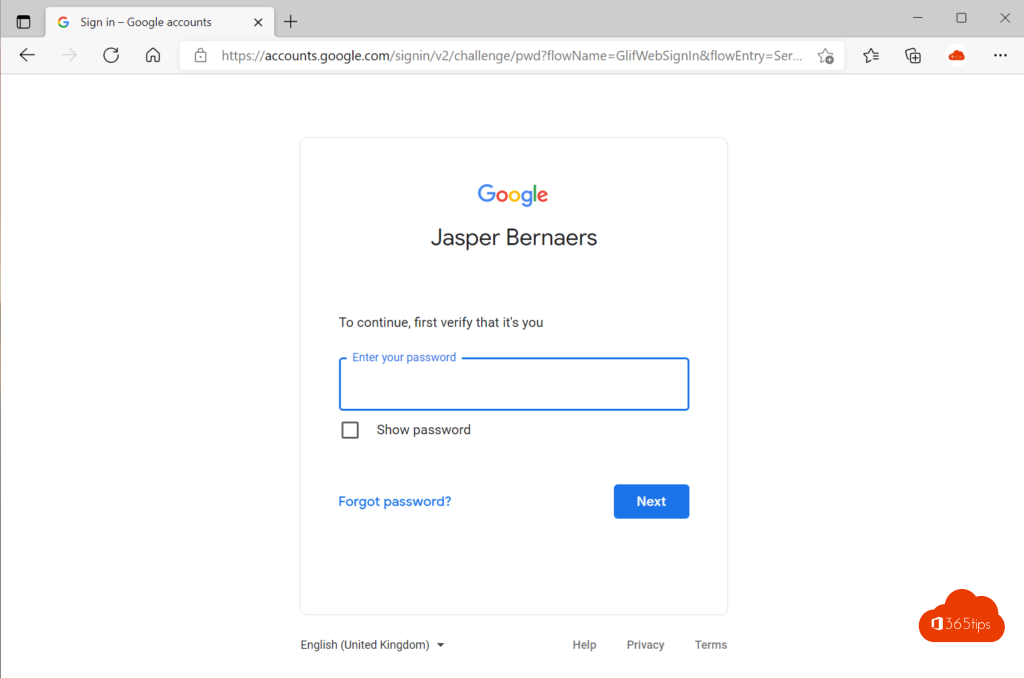
- Sign in with your Google account.
- Click New meeting, or enter a meeting code and click Join.
Meet works in Microsoft Edge, Google Chrome, Firefox and Safari.
Install Google Meet as an app on Windows
Edge and Chrome can install a website as an app (a progressive web app). This works on Windows 10 and 11, and on a Mac too.
In Microsoft Edge
- Open meet.google.com.
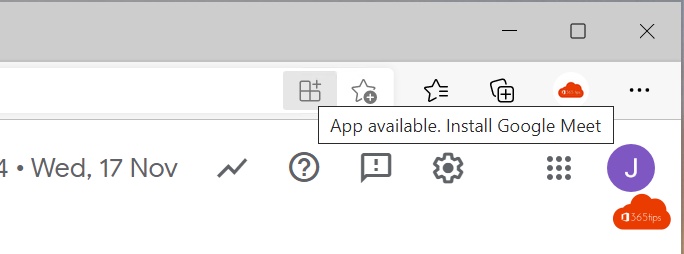
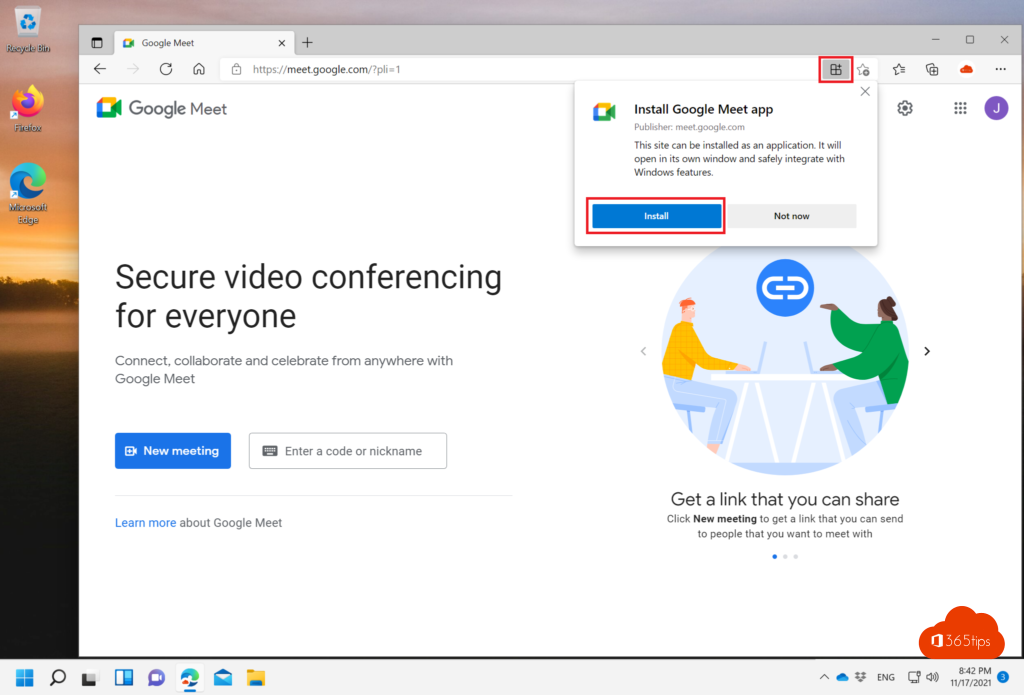
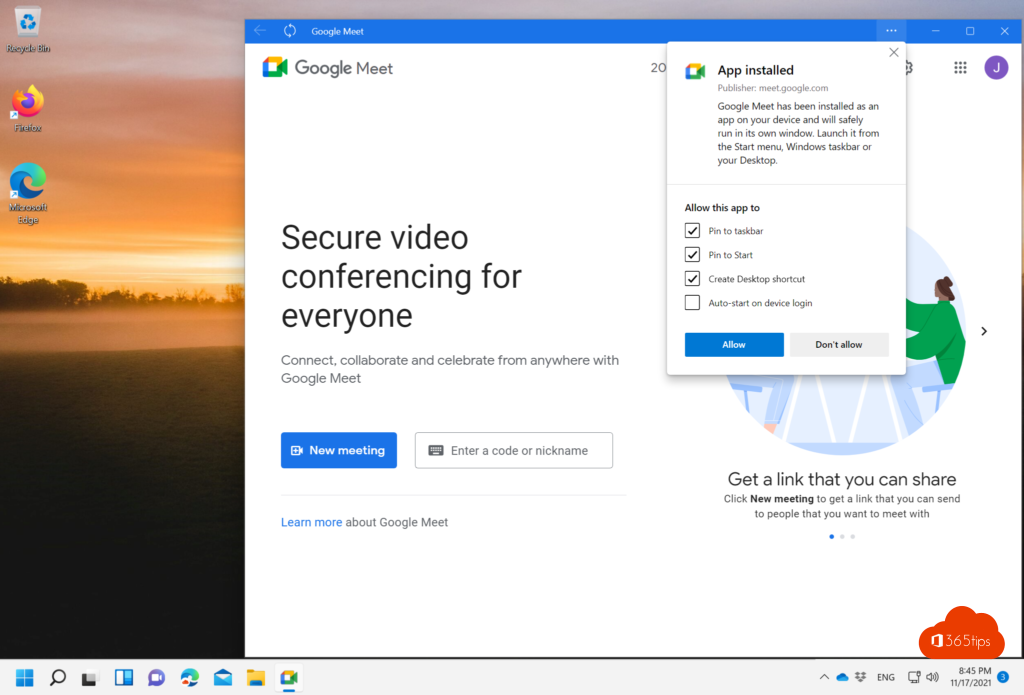
- Click the app icon in the address bar, or go to ... > Apps > Install this site as an app.
- Click Install.
- Choose whether to pin the app to the taskbar and Start, create a desktop shortcut and start the app automatically.
In Google Chrome
- Open meet.google.com.
- Click the install icon in the address bar, or open the ⋮ menu > Cast, save, and share > Install page as app.
- Confirm with Install.
Exact menu names can differ between browser versions.
Schedule a meeting
- In Google Meet, click New meeting.
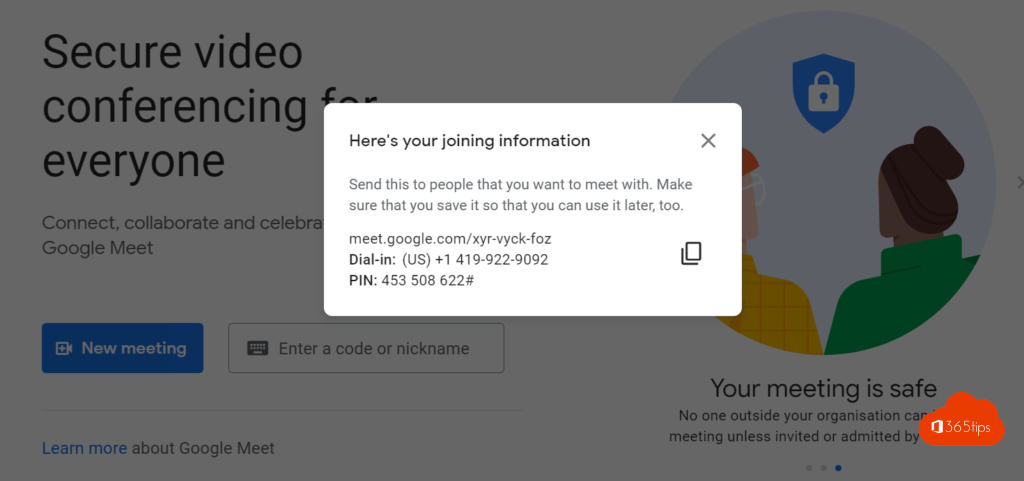
- Choose Create a meeting for later to get a link you can share, or Schedule in Google Calendar to send an invitation right away.

Remove the app
In the app, click ... and choose Uninstall. You can also remove it via Settings > Apps in Windows. Also see install Outlook as a web app and join a Teams meeting without an account.
Read also
Install Outlook on the web as an app in Edge or Chrome
Join a Teams meeting without a Microsoft account
Install Zoom Workplace on your Windows PC or Mac
Nederlandstalige versie: Google Meet op Windows: als app installeren via Edge of Chrome