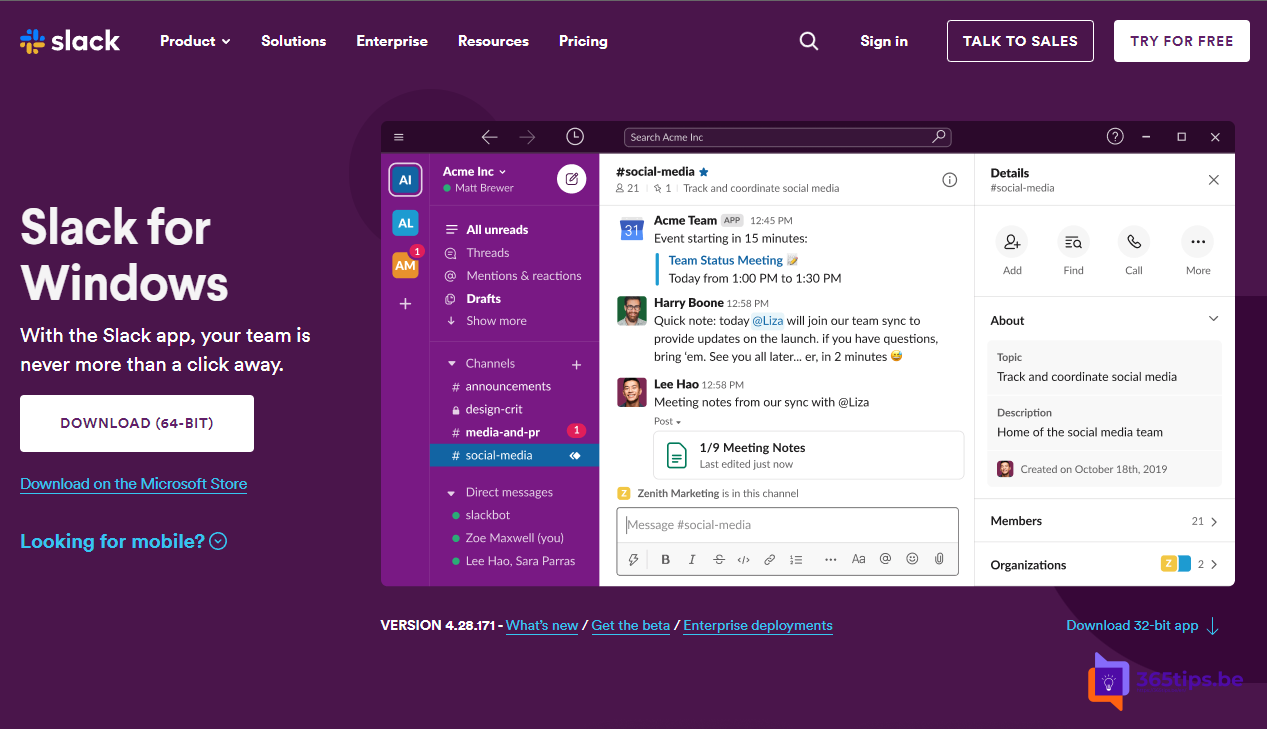
Slack is a popular chat app for teams. You work in channels, share files and have quick conversations. This guide shows how to install Slack on Windows, create a workspace and invite colleagues.
What is Slack?
Slack is a messaging platform built around workspaces and channels. Each channel is about a team, project or topic. You can send messages, share files and start quick audio or video calls (huddles).
Microsoft Teams offers much the same, plus full meetings, calling and tight integration with SharePoint, OneDrive and Outlook. If your organization uses Microsoft 365, you probably already have Teams. You'll often run into Slack with customers, partners or communities.
Create an account
- Go to slack.com and click Sign in or Get started.
- Sign up with your email address, or with a Google or Apple account.
- Confirm your email address with the code you receive.

Download Slack
- Windows: slack.com/downloads/windows or the Microsoft Store
- macOS: slack.com/downloads/mac or the Mac App Store
- iPhone and iPad: the App Store
- Android: Google Play
Rather not install anything? Slack also works in the browser at app.slack.com.
Install Slack on Windows 10 or 11
- Go to slack.com/downloads/windows and click Download.
- Open the downloaded file. Slack installs and starts automatically.
- Click Sign in to Slack. Your browser opens, you pick your workspace and return to the app.


Create a workspace
New to Slack and no invitation yet? Then create a workspace yourself.
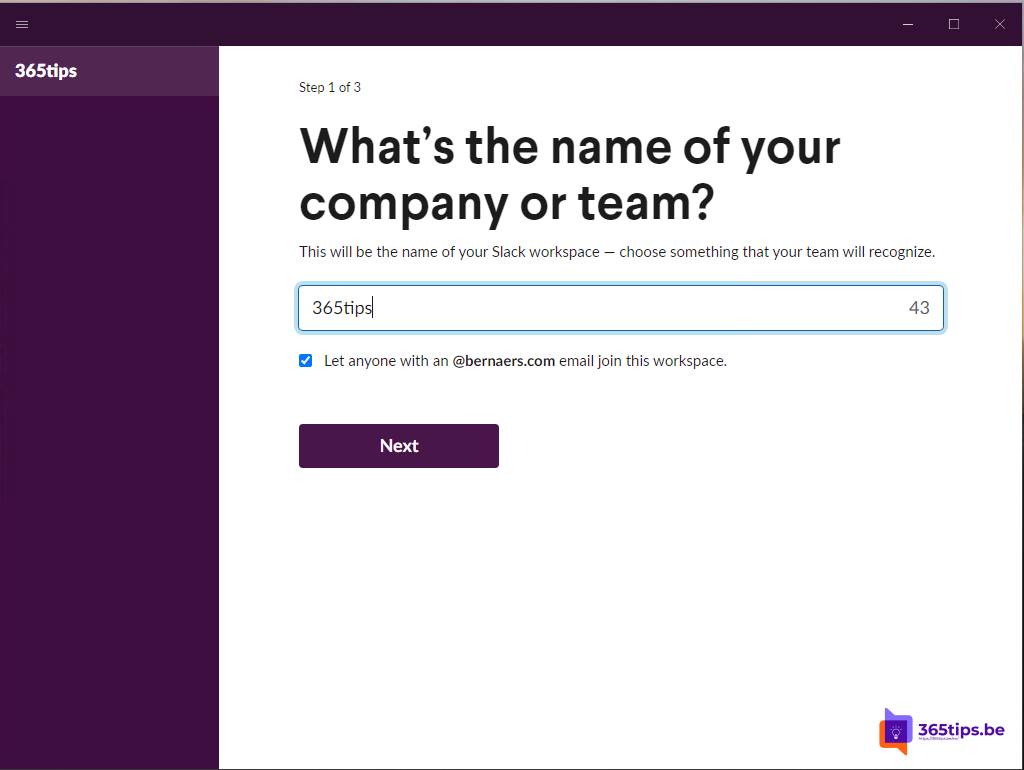
- Click Create a workspace.
- Give your workspace a name, for example your team or company name.
- Choose whether anyone with the same email domain can join on their own, so you don't have to invite everyone separately.
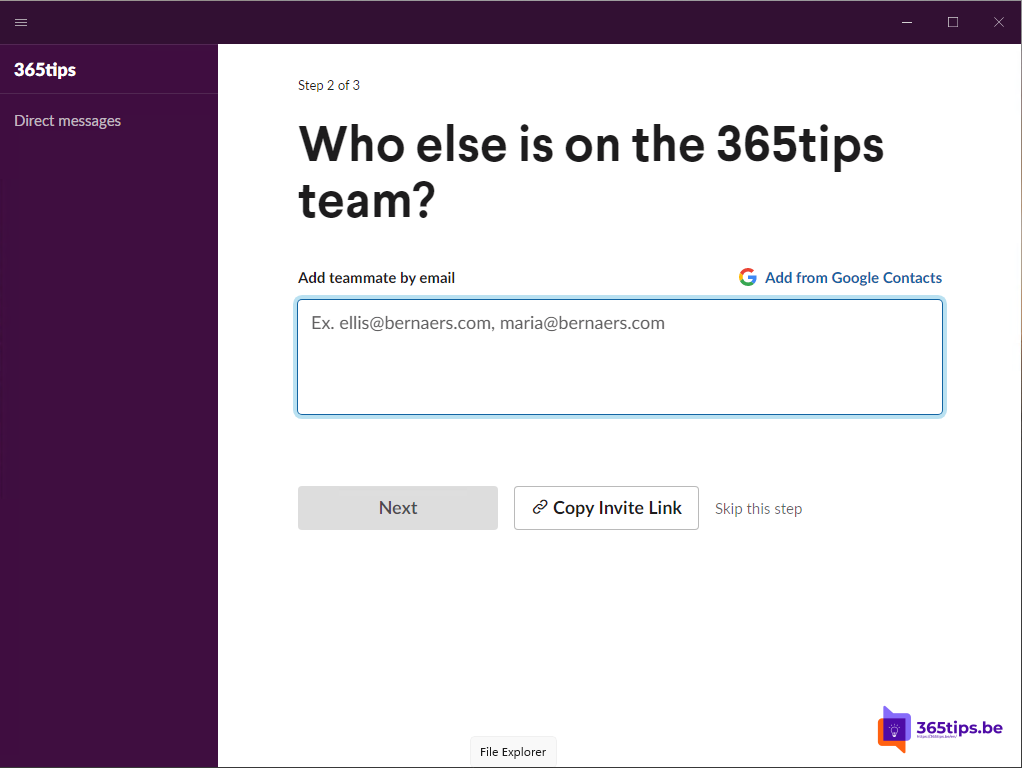
Invite colleagues
Invite people by email address or with an invite link. Click your workspace name and choose Invite people. Copy invite link gives you a link you can share.
Create your first channel
- In the sidebar, click Channels and choose Create a channel.
- Name the channel, for example tips.
- Choose whether the channel is public or private and add members.
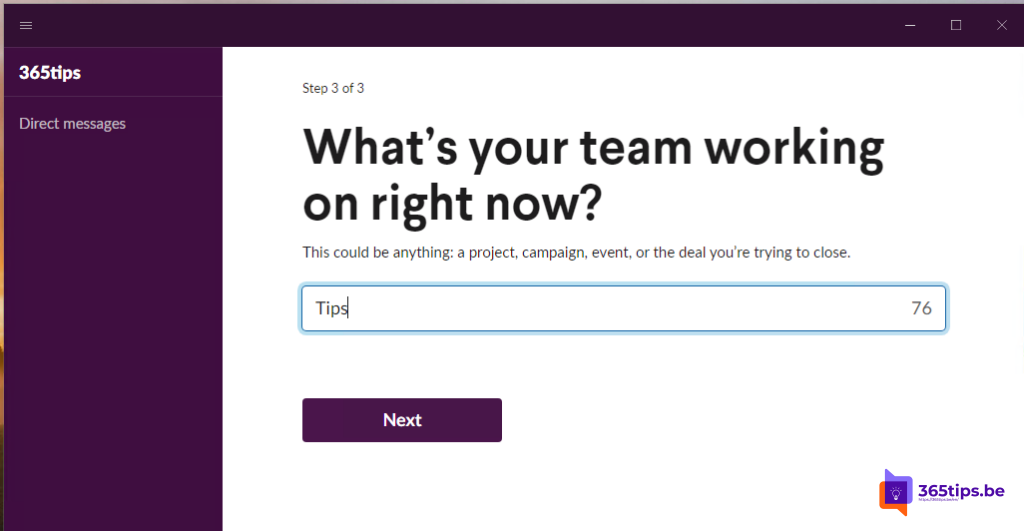
Exact button names can vary a bit between Slack versions. Also see download and install Microsoft Teams and Microsoft Teams vs Zoom.
Read also
Download and install Microsoft Teams on Windows, Mac and mobile
Microsoft Teams vs Zoom: the differences side by side
Install Zoom Workplace on your Windows PC or Mac
Nederlandstalige versie: Slack installeren en gebruiken in Windows 10 en 11