Do you occasionally have to meet in Zoom, for example with a customer or a school? Then you want to know quickly how it works. This guide covers the basics: installing Zoom, creating an account, scheduling and starting a meeting, sharing your screen, changing your background and connecting Zoom to Outlook.
The Zoom app is now called Zoom Workplace and includes chat, whiteboard and more besides meetings. For Outlook you use the Zoom for Outlook add-in; the older Outlook plug-in is no longer recommended.
Install Zoom
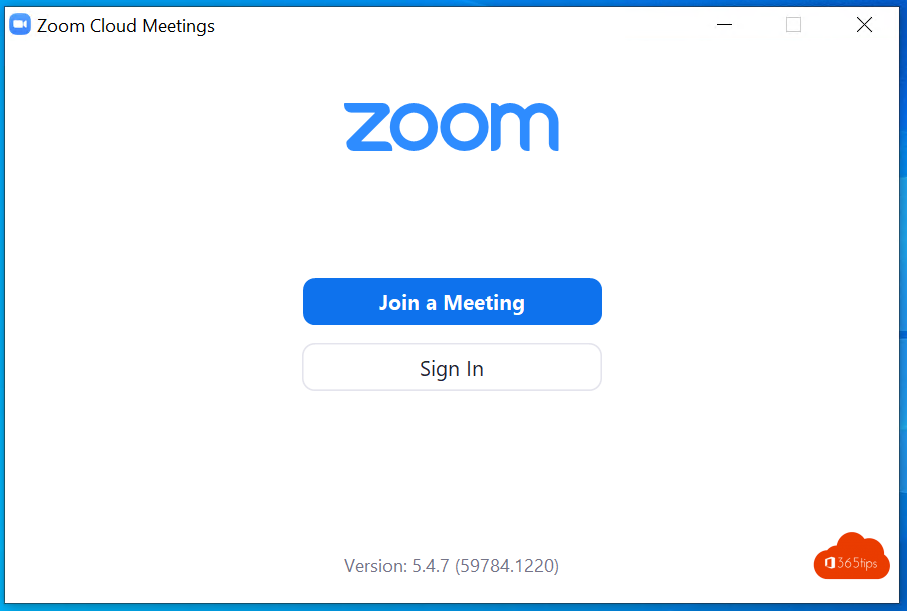
- Go to zoom.us/download and download Zoom Workplace for Windows or macOS.
- Install the app and open it.
- You can join a meeting right away with Join, even without an account.

On your phone or tablet, install the Zoom app from the App Store or Google Play.
Create an account
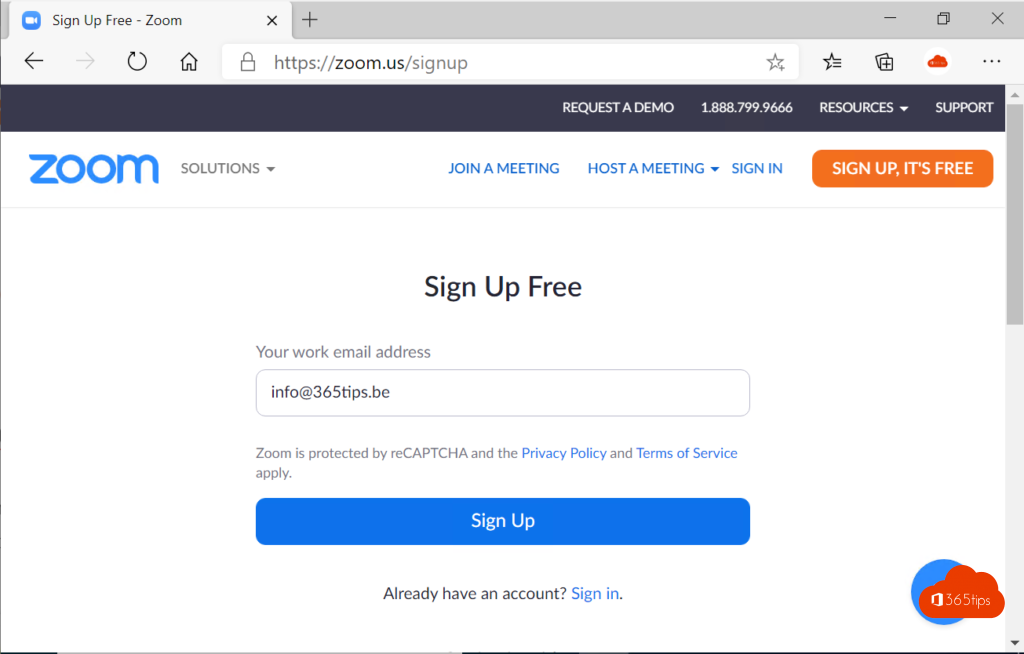
- Go to zoom.us/signup, or choose Sign up in the app.
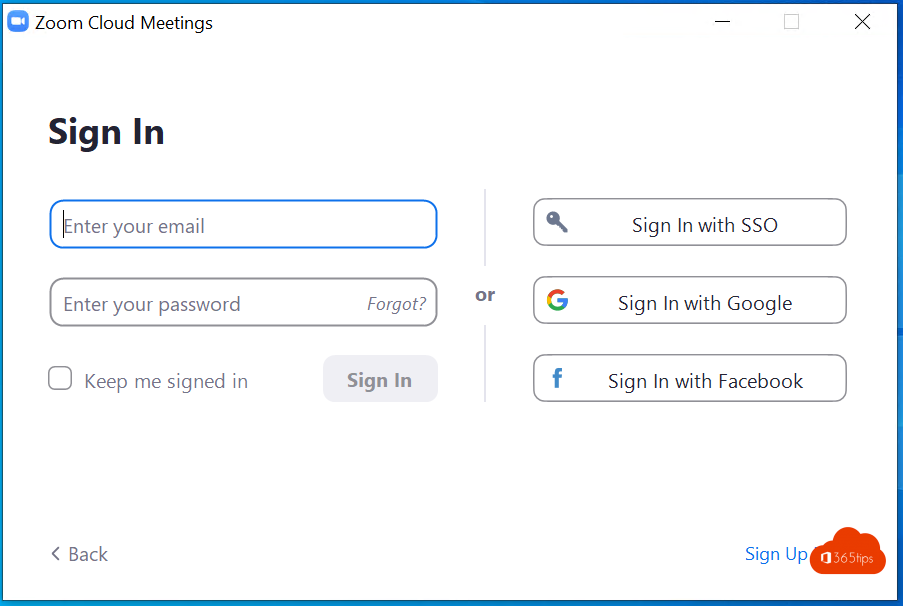
- Enter your email address and confirm it via the email you receive. You can also sign up with a Google or Microsoft account.
- You get a personal meeting ID and link that you can share.
If your organization uses Zoom, sign in with SSO and your work account.
Schedule and start a meeting
- Click Schedule in the app, fill in the topic, date and options, and click Save.
- Copy the invitation and send it by email, chat or calendar.
- Want to meet right now? Click New meeting.
- Cancel a meeting in the app, or delete the calendar item and notify the attendees.
Connect Zoom to Outlook
With the Zoom for Outlook add-in you add a Zoom link to an event with one click, in Outlook on Windows, Mac and the web.
- For yourself: in Outlook choose Apps or Get Add-ins, search for "Zoom for Outlook" and add it (if your admin allows it).
- For the whole organization: an admin goes to the Microsoft 365 admin center > Settings > Integrated apps, searches for Zoom for Outlook and assigns it to everyone or to a group.
During the meeting
At the bottom of the meeting window you find the main buttons: microphone, video, Participants, Chat, Reactions, Share and Record. The exact layout can differ per version.
- Share screen: pick a window or your whole screen. Tick share sound if you show a video.
- Hold the spacebar to unmute temporarily.
- Breakout rooms are created by the host via the Breakout rooms button, if the feature is enabled.
- The waiting room lets you decide who gets in.

Change your background and video
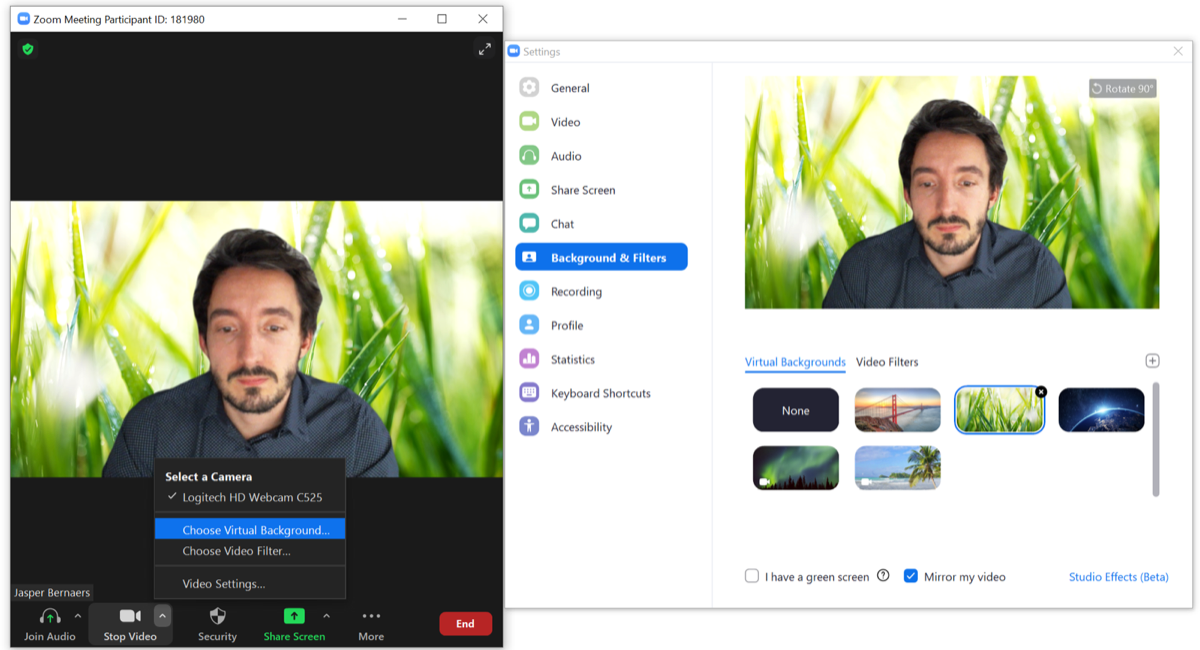
- Open Settings (gear icon at the top right) > Backgrounds & effects.
- Choose blur, a built-in background or upload your own image.
- Under Video you can adjust for low light and touch up your appearance.

Recordings
Local recordings are saved to a folder on your computer by default. Change that location via Settings > Recording. Cloud recording depends on your Zoom plan. Always ask for consent before you record.
Also see install Zoom on Windows or macOS and Microsoft Teams compared with Zoom.
Read also
Install Zoom Workplace on your Windows PC or Mac
Schedule Zoom meetings in Outlook with Zoom for Outlook
Microsoft Teams vs Zoom: the differences side by side
Nederlandstalige versie: Aan de slag met Zoom: installeren, vergaderen en tips