An extra screen makes work much more pleasant: mail on one side, your document on the other. Have an iPad? Then you can use it as a second screen for your Mac with Sidecar, wirelessly or with a cable. This article shows how to start Sidecar, what you need, the difference with Universal Control, and what to do when it doesn't work. You also learn how to use an iPad as a second screen with a Windows PC.
What do you need?
- A Mac with macOS Catalina or later and an iPad with iPadOS 13 or later. Not every older model supports Sidecar; the list is on Apple's support site.
- The same Apple Account on both devices, with two-factor authentication.
- Wireless: Bluetooth, Wi-Fi and Handoff turned on, and the devices within about 10 metres of each other. The iPad must not be sharing its cellular connection and the Mac must not be sharing its internet connection.
- With a cable: a USB-C or Lightning cable. The iPad charges at the same time.
Start Sidecar
From Control Center:
- Click Control Center in the menu bar.
- Click Screen Mirroring.
- Choose your iPad under Extend to.
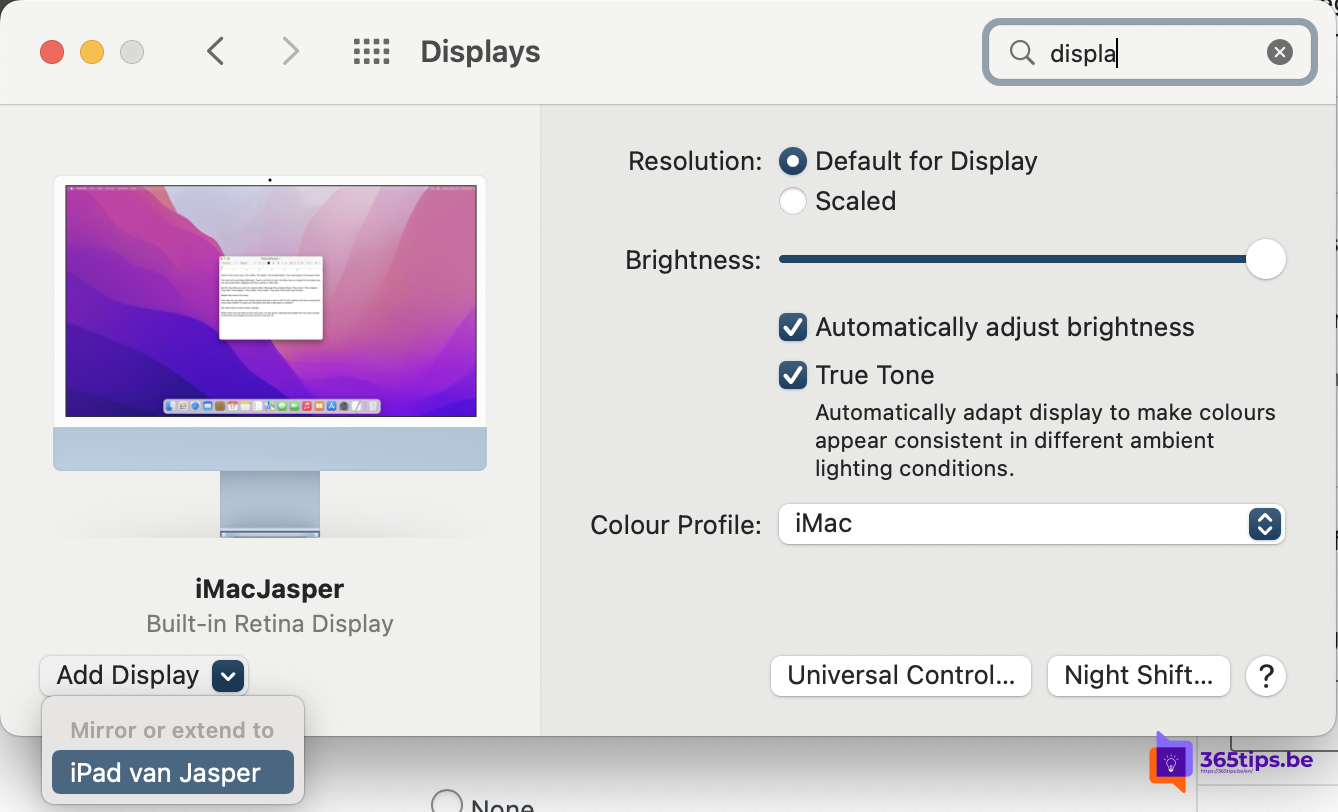
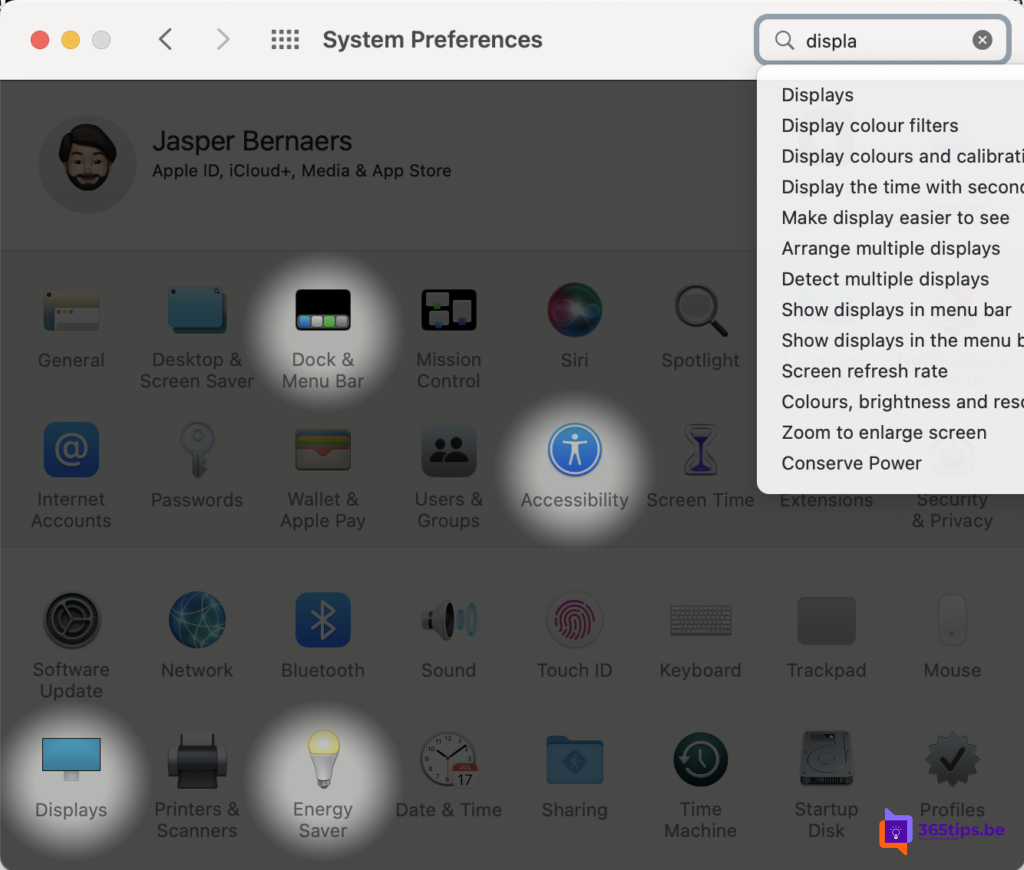
From System Settings: go to System Settings > Displays, click the + menu next to your Mac's name and choose your iPad.
Your iPad becomes an extra screen. Drag windows to it, or hover over the green button at the top left of a window and choose Move to iPad.
Extend or mirror, and arrangement
- By default the iPad extends your desktop. Want the same image on both screens? In Displays, select your iPad and choose to mirror your Mac's display under Use as.
- In Displays > Arrange, drag the iPad to the left or right of your Mac so your pointer crosses over on the correct side.
- The iPad shows a sidebar with keys such as Command and Shift, and a Touch Bar strip. Turn them on or off in the Sidecar settings.
- With an Apple Pencil you can draw on the iPad in Mac apps such as Photoshop or Illustrator.
Stop Sidecar
Tap the disconnect icon in the sidebar on the iPad, or open Screen Mirroring in Control Center again and click your iPad.
Sidecar or Universal Control?
With Universal Control (macOS Monterey 12.3 or later, iPadOS 15.4 or later) your iPad stays an iPad with its own apps, but you control it with your Mac's keyboard and mouse. You can even drag files between them. Sidecar turns the iPad into a second Mac screen. Choose Universal Control to use iPad apps next to your Mac, and Sidecar for more room for Mac windows.
Not working?
- Check that both devices are signed in with the same Apple Account.
- Turn Bluetooth and Wi-Fi off and on again on both, and check that Handoff is on (System Settings > General > AirDrop & Handoff).
- Try a cable; it's also more stable when your Wi-Fi is busy.
- Update macOS and iPadOS to the latest version.
- On a managed company Mac, Sidecar may be turned off by policy.
An iPad as a second screen for Windows
Sidecar only works with a Mac. For a Windows PC you need a third-party app, such as Duet Display (paid) or Spacedesk (free for personal use). You install a program on the PC and an app on the iPad. On a company PC, ask your IT department for permission first. To arrange windows conveniently afterwards, read how to put windows side by side in Windows 11.
Read also
How to put windows side by side in Windows 11 with Snap
How to turn on dark mode in Windows 11
How to view and use clipboard history in Windows 11 and 10 (Windows + V)
Nederlandstalige versie: Een iPad als tweede scherm gebruiken voor je Mac met Sidecar