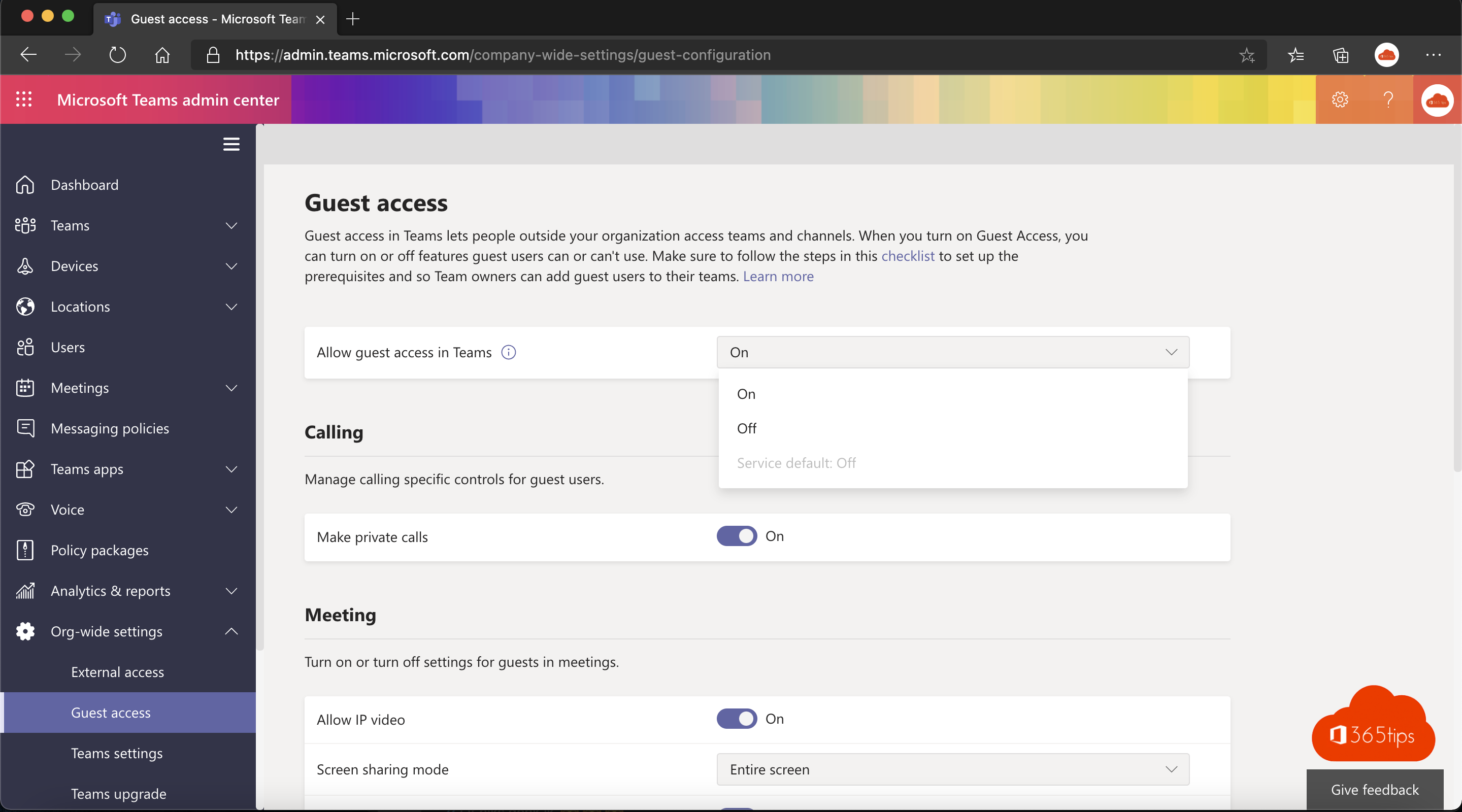
With guest access you invite people from outside your organization into a team. They can chat, edit files and join meetings. Since February 2021, guest access in Teams is on by default for organizations that never changed the setting themselves. Here's how to check and manage it today.
Check guest access in Teams
- Open the Teams admin center (admin.teams.microsoft.com).
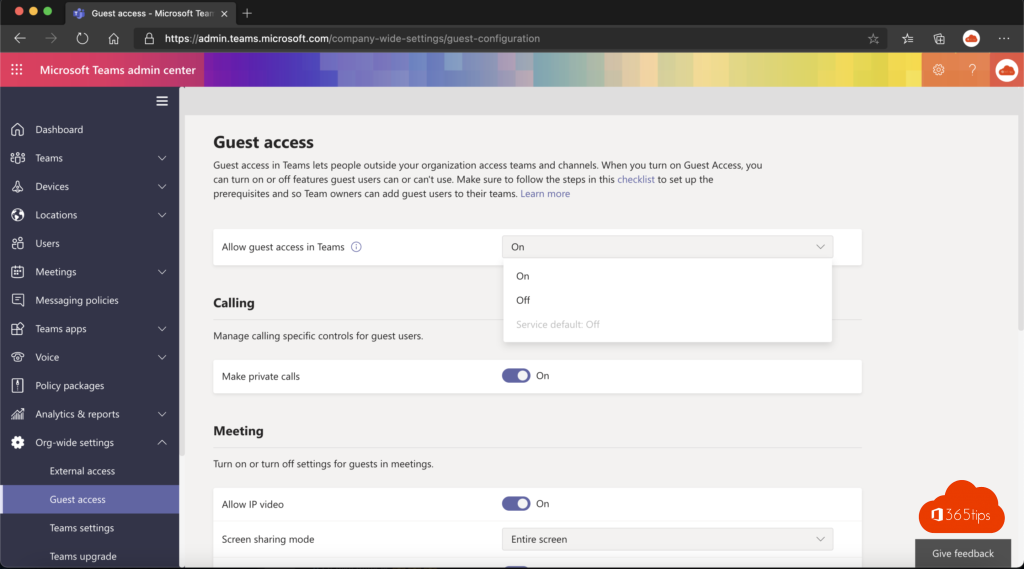
- Go to Users > Guest access. In older versions this was under Org-wide settings.
- Turn guest access on or off and decide what guests can do: calling, meetings, editing or deleting messages, using GIFs.
Defaults and menu names can change, so always verify the settings in your own tenant.

Guest access works in layers
The Teams setting is only one layer. Adding a guest only works if all of these layers allow it:
| Layer | Where |
|---|---|
| External collaboration (who can invite guests, which domains) | Microsoft Entra ID > External Identities |
| Guests in Microsoft 365 Groups | Microsoft 365 admin center > org settings |
| External file sharing | SharePoint admin center > Policies > Sharing |
| Guest access in Teams | Teams admin center |
Guest access or external access?
- Guest access: the external person becomes a member of a team and gets access to channels and files.
- External access: you chat and meet with people from another organization without adding them to your team.
- Shared channels: you share a single channel with another organization, without switching tenants.
Working safely with guests
- Require MFA for guests with Conditional Access.
- Have team owners review their guests regularly with access reviews.
- Disable guest access for teams with sensitive information, for example with sensitivity labels.

Also see add guests in Microsoft Teams and access reviews for guests.
Read also
How to add external guests in Microsoft Teams
Set up external access in Microsoft Teams
Automatically review guests in Microsoft Teams with access reviews
Nederlandstalige versie: Gasttoegang in Microsoft Teams controleren en beheren