Leaving an organisation, keeping an archive or moving to another mailbox? With classic Outlook for Windows you export all your email, contacts and calendar to a PST file. This article shows how it works, how to save a single email as a file and what an admin can do.
Export to a PST file
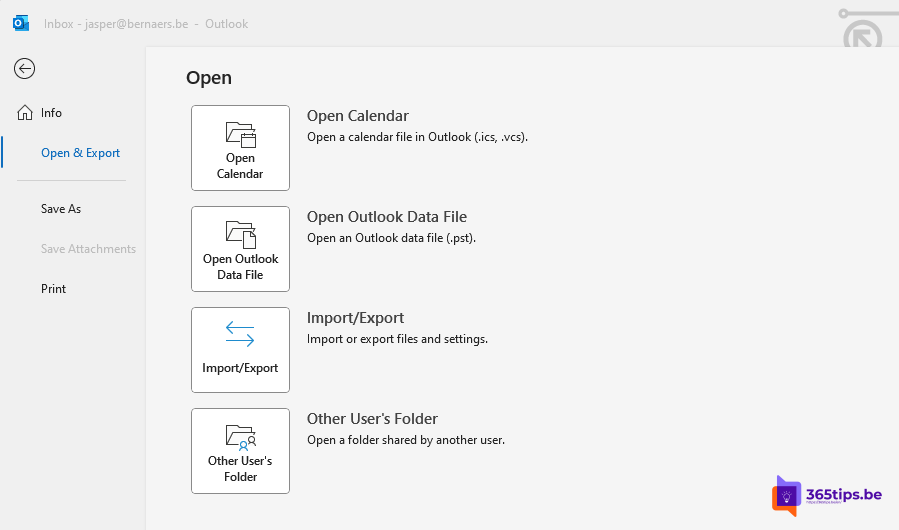
- Open classic Outlook and select File > Open & Export > Import/Export.
- Choose Export to a file > Outlook Data File (.pst).
- Select your mailbox at the top and tick Include subfolders.
- Choose where to save the file and whether to set a password.
- Select Finish. A large mailbox takes a while.
Open a PST file
In classic Outlook, go to File > Open & Export > Open Outlook Data File. Or import it into another mailbox via Import/Export > Import from another program or file.
The new Outlook and Outlook on the web
The new Outlook and Outlook on the web can't export a whole mailbox to PST. Use classic Outlook for that. Saving one email does work: open the message > three dots > Save as or Download. You get an .eml file.
Save one email as a file
- Classic Outlook: drag the email to a folder in File Explorer, or choose File > Save As (.msg, .html or .txt).
- A saved .msg can later be attached to a new email.
- Keeping lots of attachments? Read save attachments to OneDrive automatically.
For admins
Export a departed employee's mailbox through Microsoft Purview > eDiscovery: create a search on the mailbox and choose Export. Or convert it to a shared mailbox. Read delete a user.
Read also
Save email attachments to OneDrive automatically
Delete a user in Microsoft 365: soft delete and hard delete
Recover deleted emails in Outlook and Exchange Online
Nederlandstalige versie: Alle e-mails downloaden en exporteren naar een PST-bestand in Outlook