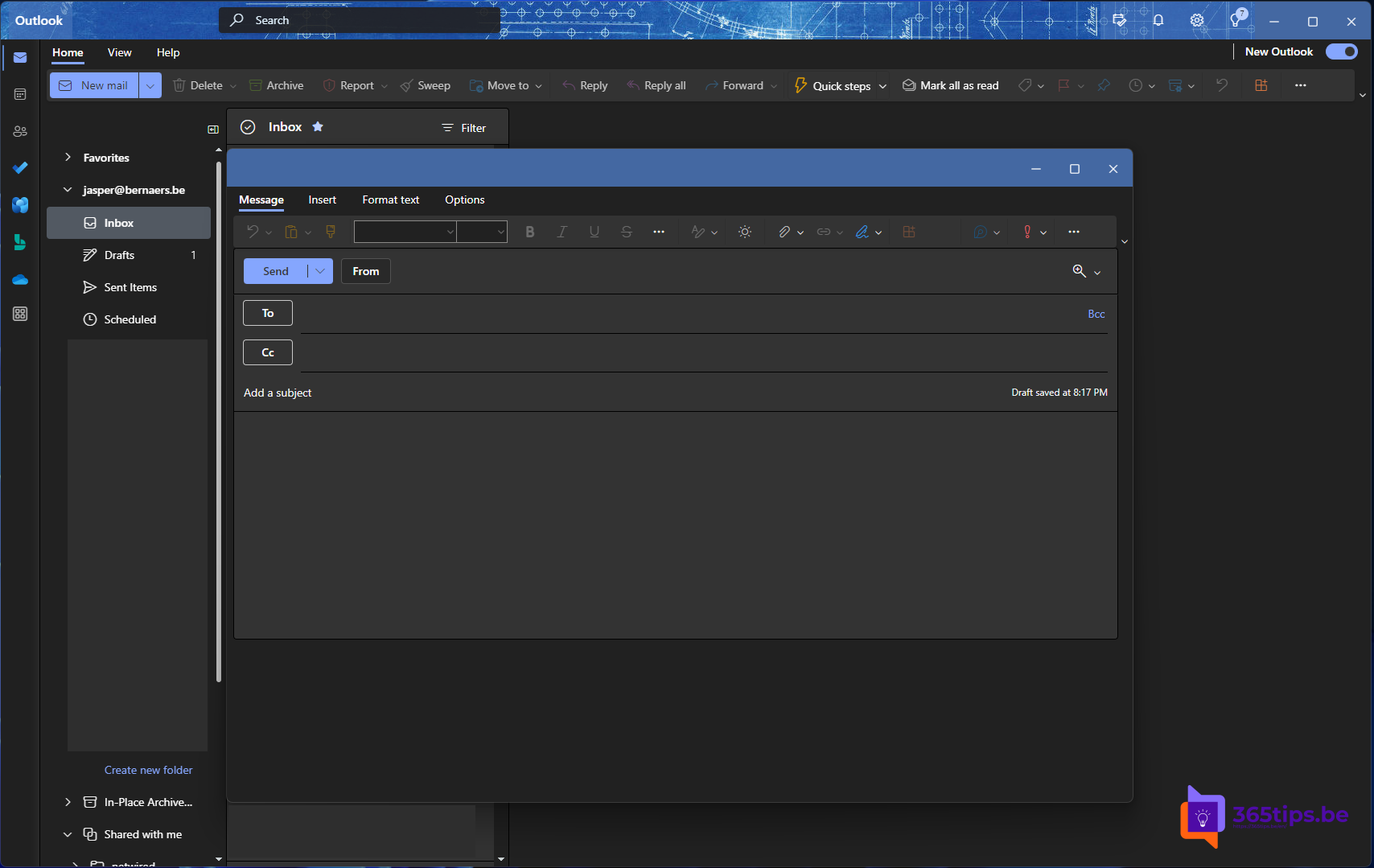
Microsoft is building a new Outlook for Windows. It's based on Outlook on the web, loads faster and looks the same on Windows, Mac and in the browser. The new Outlook also replaces the old Windows Mail and Calendar apps. This article shows how to switch and what to watch out for.
Switch over
- Open classic Outlook.
- Turn on the Try the new Outlook toggle at the top right.
- Outlook downloads the new app and brings over your account and some of your settings.
You can also open the new Outlook directly from Start, or install it from the Microsoft Store.


What's new?
- The same features as Outlook on the web, such as pin, snooze and schedule send.
- Copilot to summarize emails and write drafts (with a license).
- Work, school and personal accounts such as Outlook.com and Gmail in one app.
- Settings that follow you to every device where you use the new Outlook.
What to watch out for
- Not all COM add-ins work. Your organization may need web add-ins.
- PST files are being supported step by step. Check whether you still need them.
- Something not working? Turn off the toggle to go back to classic Outlook.
- Admins can hide the toggle or plan the switch with policies.
Also see tips for email in Outlook and Copilot in classic Outlook.
Read also
The most useful tips for email in Microsoft Outlook
Install Outlook on the web as an app in Edge or Chrome
Install the Microsoft 365 apps (Office) on your Windows PC
Nederlandstalige versie: De nieuwe Outlook voor Windows: overschakelen en wat er verandert
More in English
▸Turn on dark mode in Outlook on the web, Windows and mobileTurn on dark mode in the new Outlook, on the web, in classic Outlook and in the Outlook app, with a white…
▸Download and export all emails to a PST file in OutlookExport your email, contacts and calendar to a PST file in classic Outlook, save a single email as a file, or…
▸Open replies and forwards in a new window in OutlookMake replies and forwards always open in a new window in classic Outlook, or pop them out in the new Outlook…
▸Turn on desktop notifications in Outlook on the webTurn on desktop notifications in Outlook on the web for email and calendar, check browser permissions and…