A colleague on long leave, an employee leaving, or email from an old address that should go to a new one? In Exchange Online you set up forwarding for a mailbox. This article covers the options, and why forwarding to external addresses is often blocked.
As an admin in the Microsoft 365 admin center
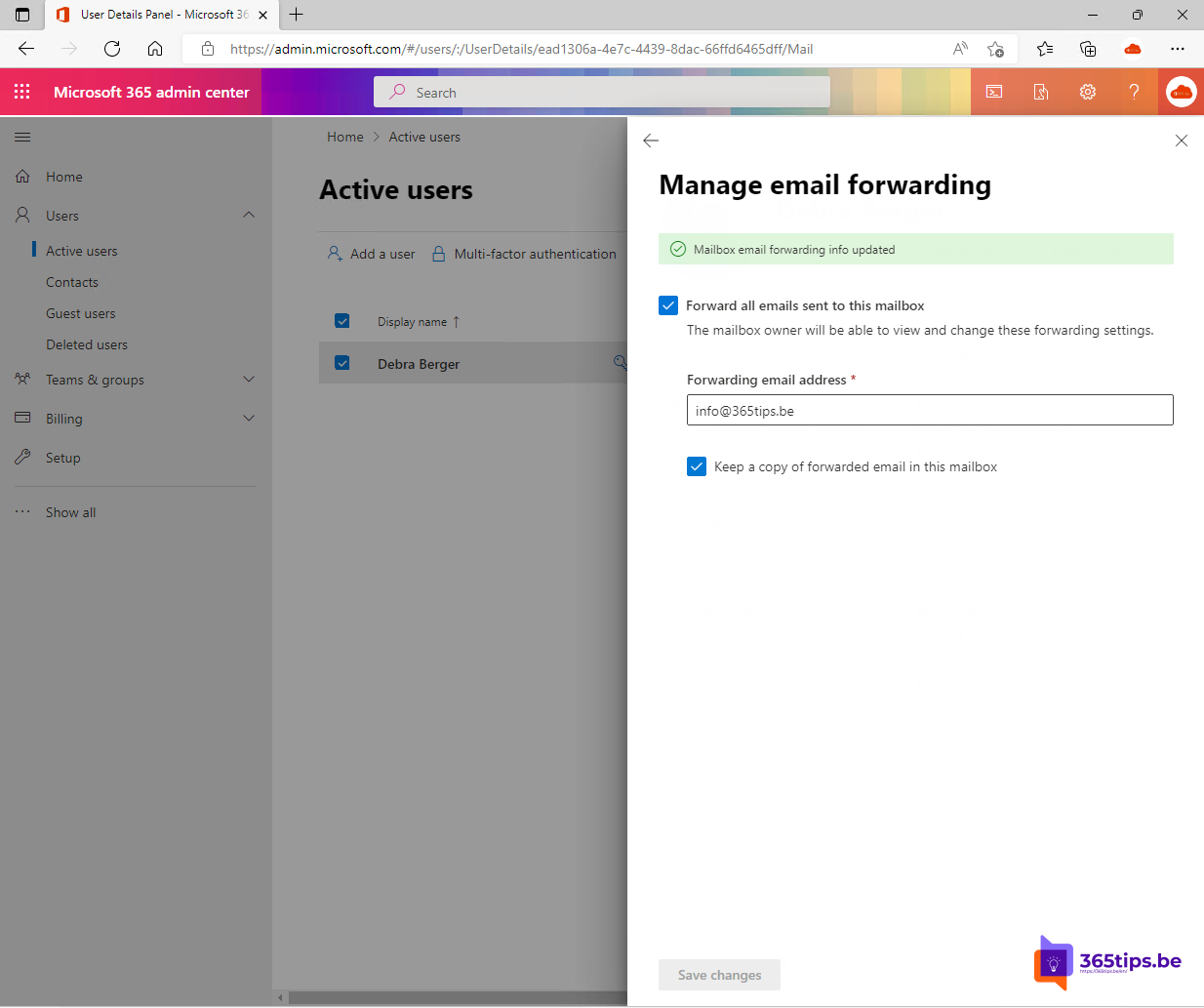
- Go to admin.microsoft.com > Users > Active users and select the user.
- Open the Mail tab > Manage email forwarding.
- Tick Forward all emails sent to this mailbox and type the address.
- Tick Keep a copy of forwarded emails if the mailbox should keep its emails.

With PowerShell
Set-Mailbox -Identity john@contoso.com -ForwardingSmtpAddress sarah@contoso.com -DeliverToMailboxAndForward $true
To stop: Set-Mailbox -Identity john@contoso.com -ForwardingSmtpAddress $null.
As a user in Outlook
- Outlook on the web and the new Outlook: Settings > Mail > Forwarding.
- Or create a rule that forwards only certain emails, for example from one sender.
External forwarding blocked?
Microsoft 365 blocks automatic forwarding to external addresses by default, because attackers abuse it to steal email. Recipients get nothing and the sender gets an error. If one mailbox really needs it, create a separate outbound spam policy for that user with forwarding set to On. Read block automatic forwarding.
Alternatives
- A departed employee: convert the mailbox to a shared mailbox and give a colleague access. Read mailbox permissions.
- A new address: add the old address as an alias.
- Just away for a while? Set an out-of-office reply.
Read also
Block automatic forwarding and outgoing email in Microsoft 365
Add an email alias in Microsoft 365, Exchange or Active Directory
Set an automatic reply (Out of Office) in Outlook
Nederlandstalige versie: E-mails doorsturen instellen in Exchange Online