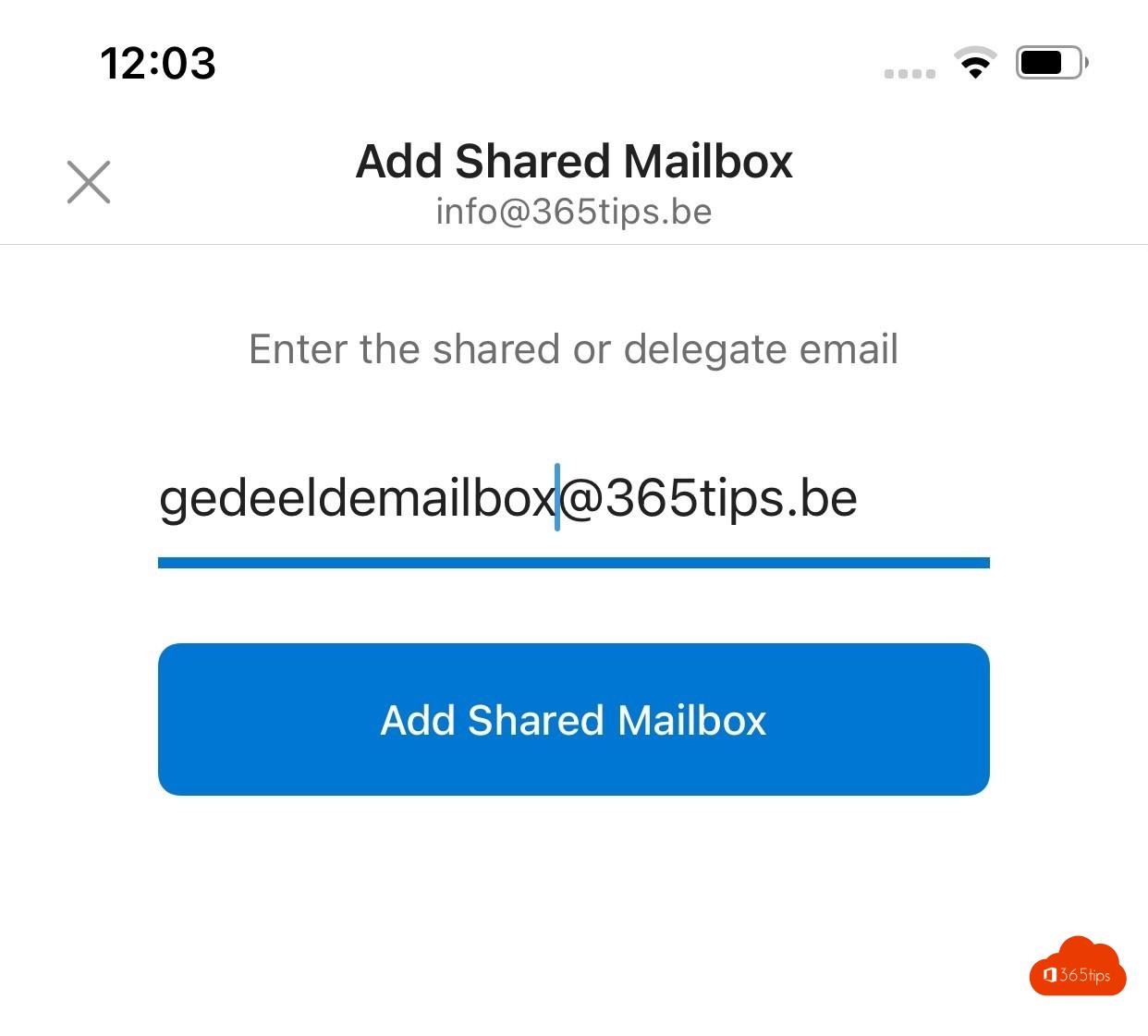
Do you manage a shared mailbox such as info@ or support@ with colleagues? Then you want those emails on your phone too. In the Outlook app for iPhone and Android you add a shared mailbox as a separate account. This article shows how.
What do you need?
- Full Access permission on the shared mailbox, and Send As to reply from it. Read set mailbox permissions.
- The Outlook app already set up with your own work account. Read set up Outlook on your phone.
Add a shared mailbox
- In the Outlook app, tap your profile picture at the top left.
- Tap the plus sign (Add account) > Add a shared mailbox.
- Choose your work account and type the shared mailbox address.
- Tap Add shared mailbox.
The shared mailbox now appears as a separate account. Tap your profile picture to switch, or choose All accounts.

Reply from the shared mailbox
Open the shared mailbox and reply to the email. Outlook then sends the reply from the shared address. Check the From field before sending, especially for a new message.
Tips
- Don't see the option? Update the app. The shared mailbox sometimes only shows up an hour after permissions are granted.
- Want sent emails kept in the shared mailbox? An admin can turn that on with MessageCopyForSentAsEnabled.
- Turn off notifications for the shared mailbox if you don't want to be reachable all the time.
- Set an automatic reply on the mailbox: read out of office on a shared mailbox.
Nederlandstalige versie: Een gedeeld postvak toevoegen in Outlook voor iPhone en Android
Related articles
▸Set up your work email in the Outlook app on iPhone or AndroidSet up your Microsoft 365 mailbox in the Outlook app on iPhone or Android, with Authenticator, app protection…
▸Automatically keep sent items in a shared mailboxKeep a copy of email sent as or on behalf of a shared mailbox in that mailbox, via the Exchange admin center…
▸Set an automatic reply (Out of Office) in OutlookSet an out-of-office reply in the new Outlook, on the web, in classic Outlook or on your phone. Separate…
▸How to set out of office on a shared mailbox in Microsoft 365Set an automatic reply (out of office) on a shared mailbox in Microsoft 365: via the admin center, the…
▸Send email from an alias in Exchange Online and OutlookTurn on SendFromAliasEnabled in Exchange Online and send email from an alias in the new Outlook, on the web…