An update that starts installing just as you need to give a presentation, or a restart in the middle of your work: nobody wants that. Still, turning Windows updates off completely is a bad idea, because they fix security holes. This article shows how to pause updates in Windows 11 for up to five weeks, prevent unwanted restarts with active hours, hold back updates on a mobile connection, and what companies can do.
Pause updates (1 to 5 weeks)
- Open Settings (
Windows + I) > Windows Update. - Next to Pause updates, click Pause for 1 week, or click the arrow next to it and pick a longer period.
- You can pause for a maximum of 5 weeks (35 days) in total.
- After that, Windows must install all pending updates before you can pause again.
- Click Resume updates to end the pause early.

No restarts while you work: active hours
Often the problem isn't the update but the restart. With active hours you tell Windows when you use the PC; during those hours it won't restart automatically.
- Go to Settings > Windows Update > Advanced options.
- Click Active hours and choose Manually, for example 8 am to 6 pm. Or let Windows set them automatically based on your activity.
When a restart is pending, you can also pick a time yourself in Windows Update with Schedule the restart. In Advanced options, also turn on Notify me when a restart is required to finish updating.
No updates on a mobile connection
Working through your phone's hotspot? Mark that connection as metered. Windows then won't download most updates while you're on it.
- Go to Settings > Network & internet > Wi-Fi and open the network's properties.
- Turn on Metered connection.
Windows may still download critical security updates. In Advanced options, leave Download updates over metered connections off.
Optional updates and the latest features
Windows Update has a toggle Get the latest updates as soon as they're available. Leave it off if you'd rather not be first to get new features. Under Advanced options > Optional updates you'll find drivers and preview updates; only install those if you really need them.
Windows 11 Pro: defer updates with Group Policy
In Windows 11 Pro, Enterprise and Education the Local Group Policy Editor gives you more control:
- Press
Windows + R, typegpedit.mscand press Enter. - Go to Computer Configuration > Administrative Templates > Windows Components > Windows Update.
- Under Configure Automatic Updates, choose for example Notify for download and auto install. Windows then asks before downloading.
- Under Manage updates offered from Windows Update you can defer quality updates by up to 30 days and feature updates for longer.
Windows 11 Home doesn't have the Group Policy Editor.
Can you turn updates off completely?
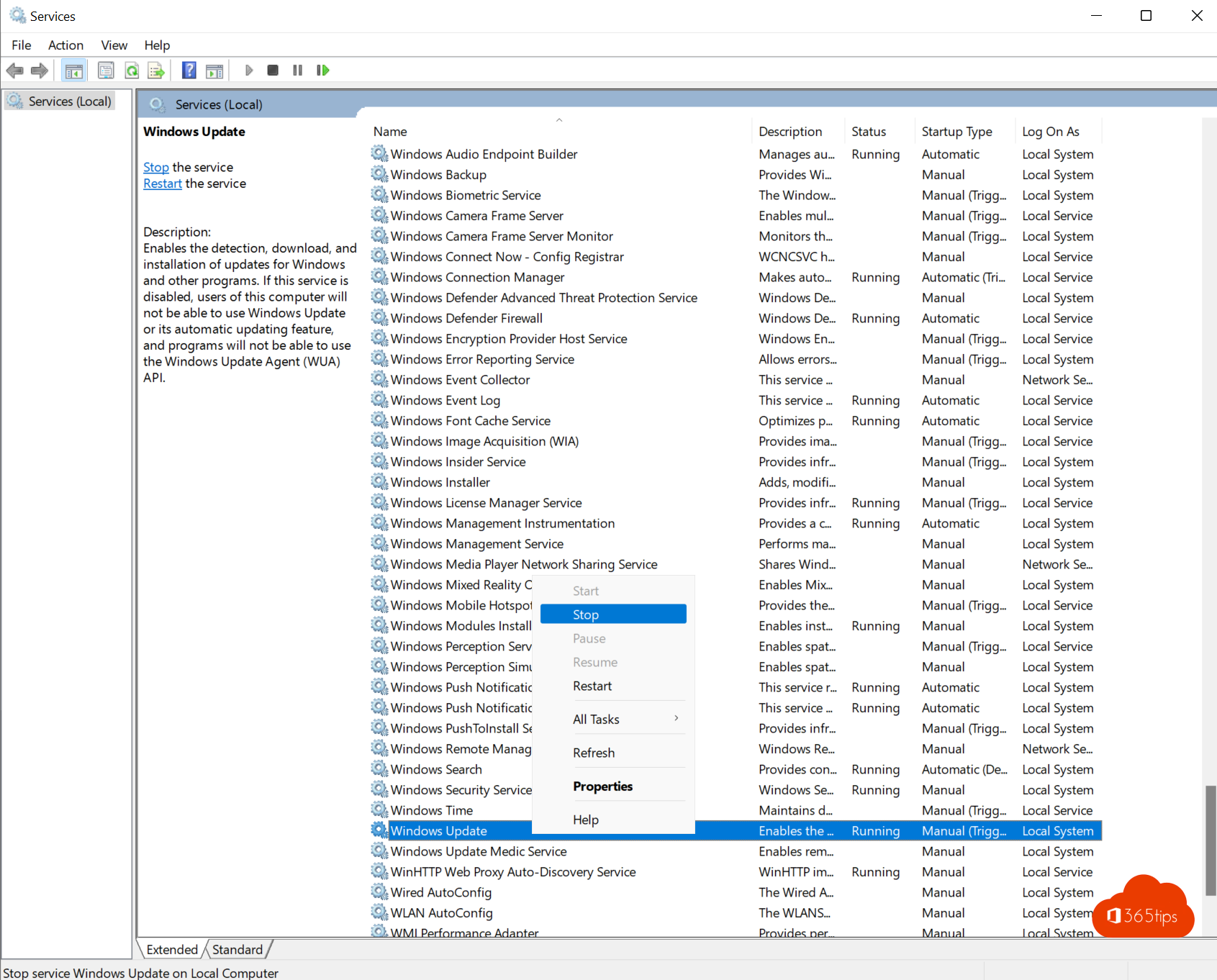
Technically you can disable the Windows Update service in services.msc, but we don't recommend it:
- Your PC no longer gets security updates and becomes vulnerable to attacks.
- The Microsoft Store, Defender definitions and some apps work less well.
- Windows often turns the service back on itself through the Windows Update Medic service.
Pausing, active hours and a metered connection almost always give you enough control.
For companies: Intune and Windows Autopatch
Organizations manage updates centrally with Windows Update for Business rings in Microsoft Intune, or with Windows Autopatch. A test group gets updates first, then everyone else, with deadlines and fixed restart windows. Users don't have to pause anything themselves.
And Windows 10?
Windows 10 has not received free security updates since 14 October 2025. Pausing updates makes little sense there: move to Windows 11, or enrol in Extended Security Updates (ESU) if your PC can't upgrade.
Read also
Turn Windows features on or off in Windows 11 and 10: 4 ways
Find and delete large files in Windows 11 and 10: 5 ways
How to check your PowerShell version in Windows
Nederlandstalige versie: Windows 11-updates pauzeren, uitstellen of herstarts voorkomen