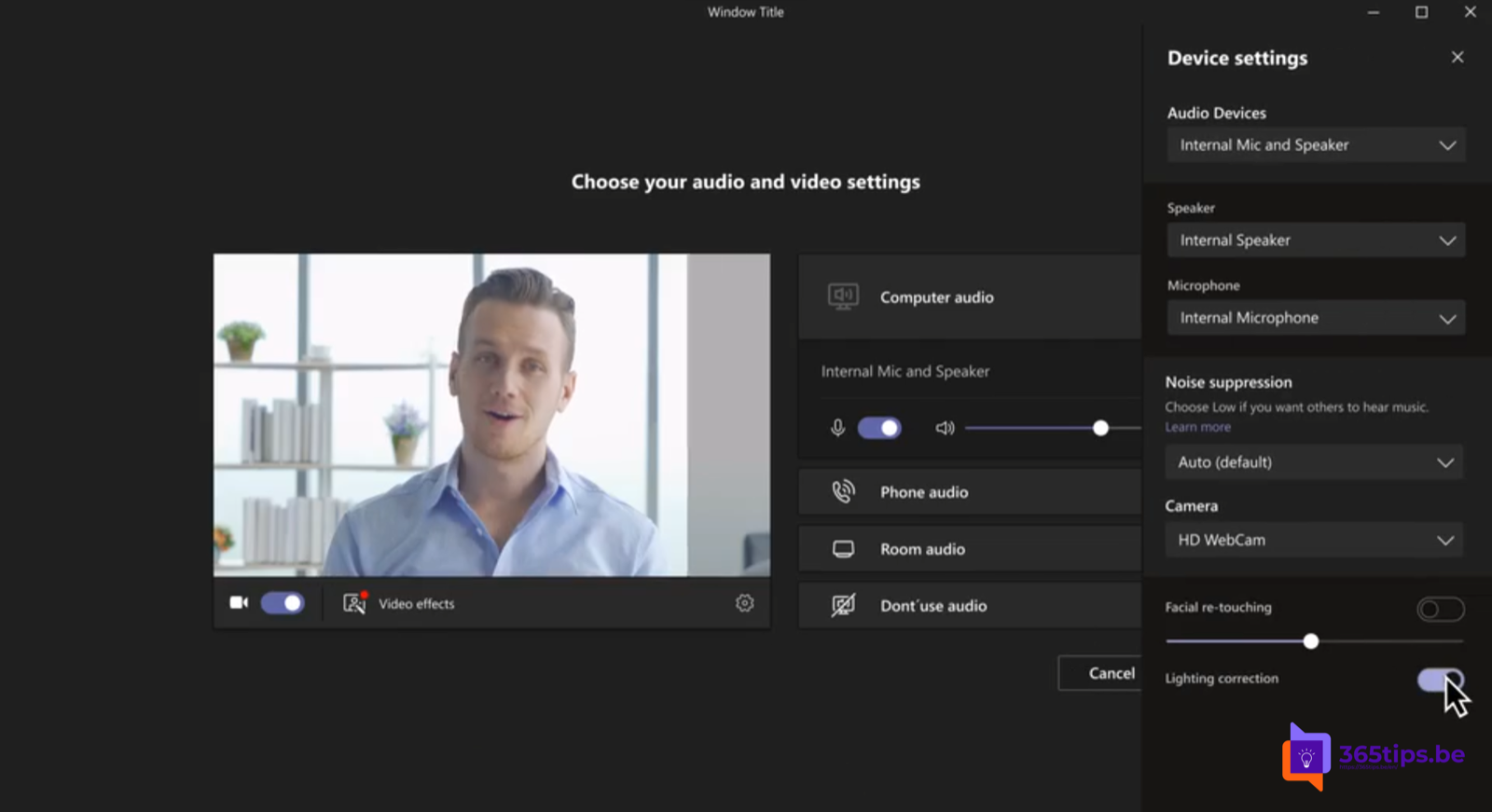
With a window behind you or in a dark room, people in a Teams meeting often see you as a silhouette. Microsoft Teams has two built-in video filters that help: Adjust brightness and Soft focus. This article shows where to find them before and during a meeting, and what else you can do for a better picture.
What do the filters do?
- Adjust brightness: Teams automatically corrects your video in low light or backlight.
- Soft focus: a subtle smoothing effect for your face. A slider sets the strength.
Before the meeting
- Select Join. You arrive at the pre-join screen.
- Select Video effects and settings (or the gear next to your camera).
- Turn on Adjust brightness and, if you like, Soft focus.

During the meeting
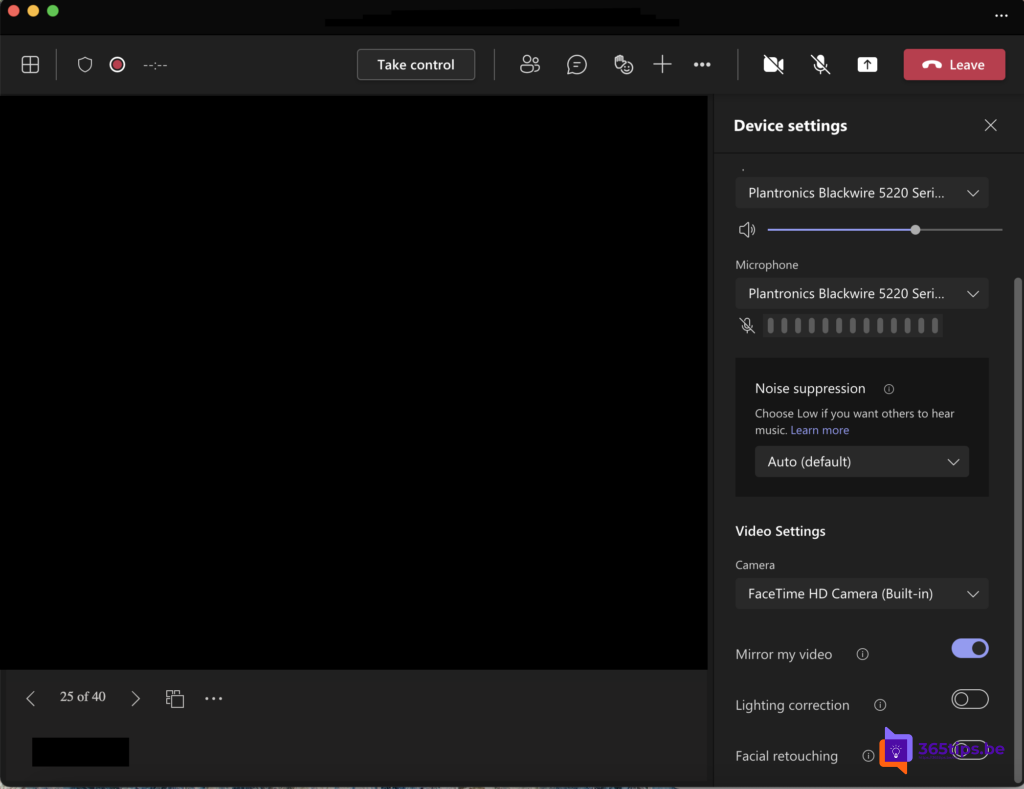
- Select the arrow next to Camera at the top, or More (...).
- Choose Video effects and settings.
- Turn the filters on and drag the soft focus slider as you like.
Teams remembers your choice for future meetings. The same options are also under Settings > Devices next to your camera.

Windows Studio Effects
On a Copilot+ PC or a laptop with an NPU, Windows has its own camera effects, such as automatic framing, eye contact and background blur. Find them in Quick Settings (Windows + A) > Studio effects. They work in every app, including Teams. Avoid blurring twice in Windows and Teams: it costs processing power.
More tips for a better picture
- Put your camera at eye level and face the window rather than sitting with your back to it.
- A small LED light behind your screen helps more than any filter.
- Video looks mirrored? Read how to mirror your video in Teams.
- Background noise? Turn on noise suppression.
Read also
Mirror or unmirror your video in Microsoft Teams
Set up noise suppression and voice isolation in Microsoft Teams
Black screen when sharing your screen in Microsoft Teams: causes and fixes
Nederlandstalige versie: Verlichtingscorrectie en zachte focus inschakelen in Microsoft Teams