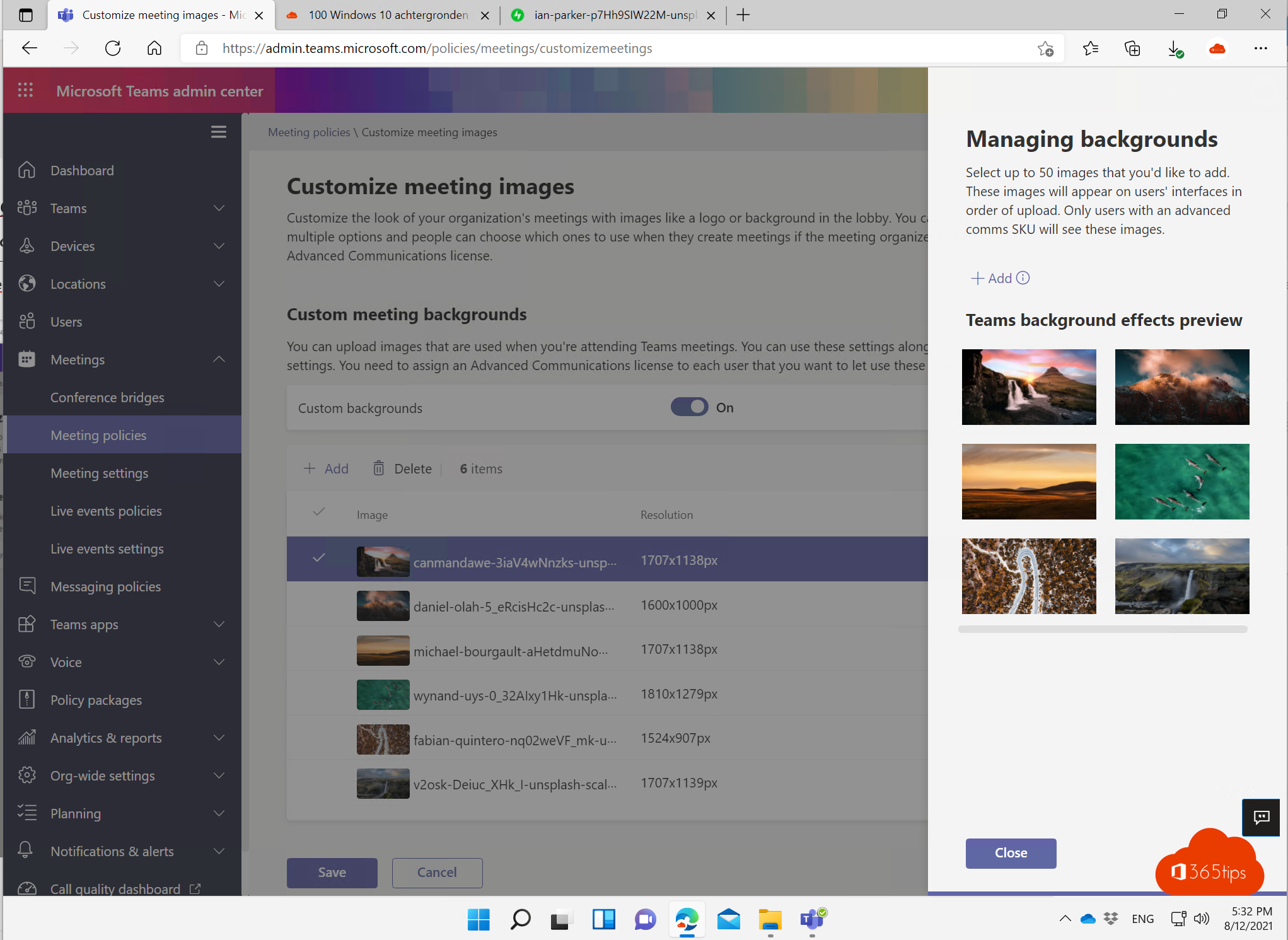
Want everyone in your organization to be able to pick the same official backgrounds in Teams meetings, for example with your logo or your office? As an admin, you provide them centrally in the Teams admin center. They then appear automatically in the users' list of backgrounds. Organization backgrounds were in preview in 2021 and now require a Teams Premium license; the exact name and location of the setting in the admin center can vary.
Requirements
- A Teams administrator role (or higher).
- Teams Premium for the users who should see the backgrounds. Check Microsoft's current licensing terms.
- Images in JPG, PNG or BMP, landscape (16:9), for example 1920 × 1080 pixels.
Provide the backgrounds
- Go to the Teams admin center (admin.teams.microsoft.com).
- Select Meetings and open the settings for background images or meeting customization (the name can vary).
- Turn on organization backgrounds.
- Select Add images and upload your backgrounds. At launch you could add up to 50; check the current limit in the documentation.
- Select Save. It can take a while before the backgrounds show up for everyone.
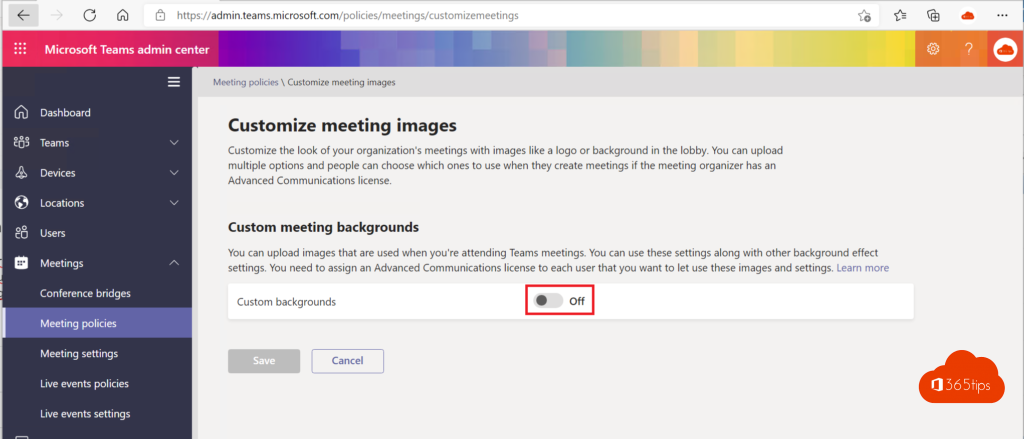

Want employees to use only your official backgrounds? You can restrict custom backgrounds with a meeting policy. Only do that if your organization really needs it.
For users
Users find the organization's backgrounds in Video effects and settings, next to the standard backgrounds. Also see set a custom background in Teams and the Teams admin center.
Read also
Set a custom background in Microsoft Teams
A tour of the Microsoft Teams admin center
Turn off attendees' cameras in a Microsoft Teams meeting
Nederlandstalige versie: Organisatiebrede achtergronden instellen in Microsoft Teams