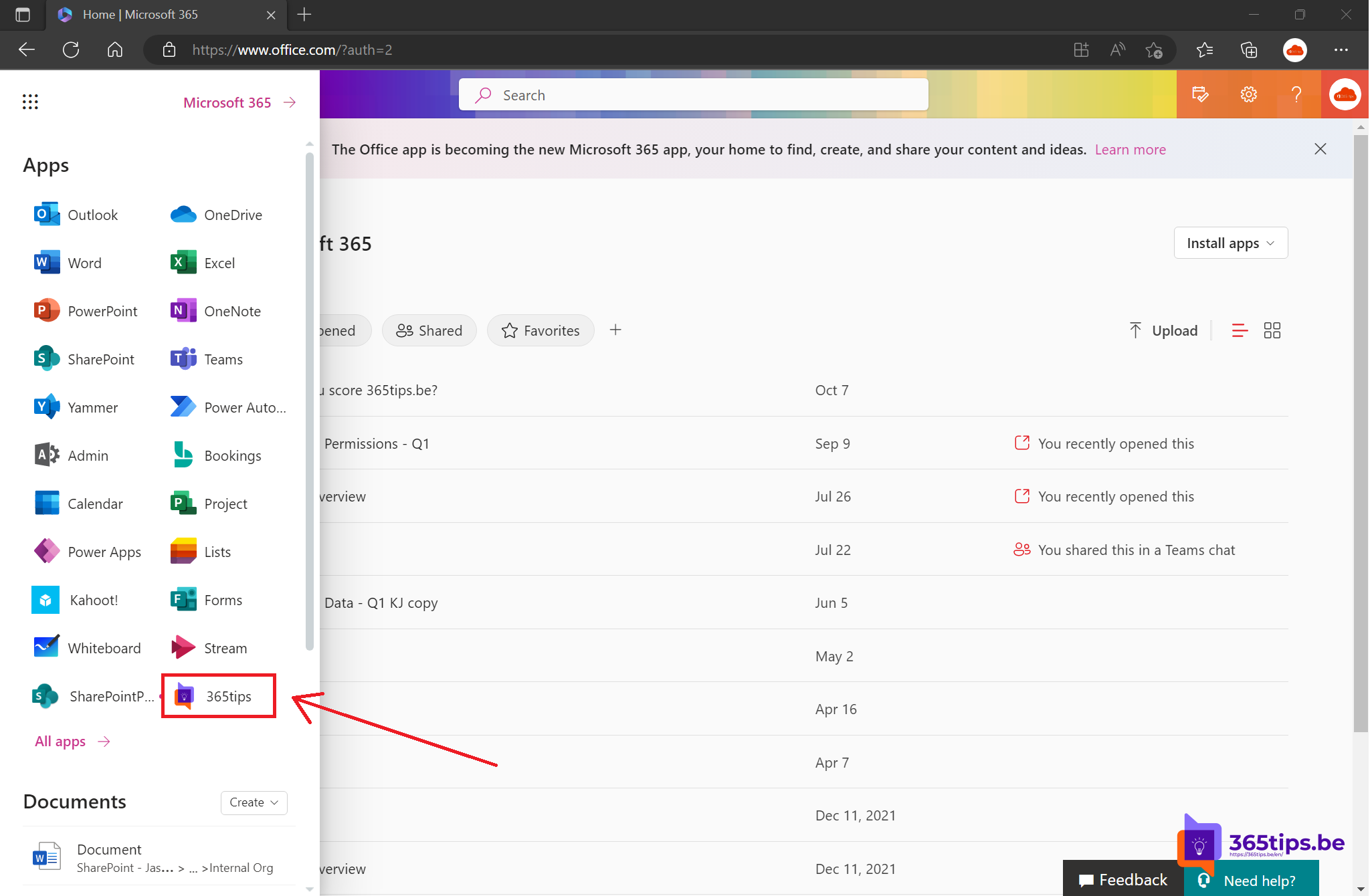
Every organisation has a few web applications everyone needs: the intranet, the HR portal for leave, the planning tool, the helpdesk ticket system. Colleagues keep hunting for the link in their favourites or emails. So put them in the Microsoft 365 app launcher, the nine dots in the top-left corner, as a custom tile. Then they sit right next to Outlook, Teams and Word, on every PC and in every browser.
What is the app launcher?
The app launcher is the menu behind the nine dots on Microsoft365.com, in Outlook on the web, SharePoint and other Microsoft 365 web apps. It shows the apps you have a licence for. As an admin you can add custom tiles that appear for everyone in the organisation.
Add a custom tile
- Sign in to the Microsoft 365 admin center with a Global admin or another suitable admin role.
- Go to Settings > Org settings > the Organization profile tab.
- Choose Custom app launcher tiles > Add a custom tile.
- Enter a short name, the URL of the application, a description and the URL of an image.
- Click Save.


A good icon
- Use a square, simple icon, such as the application's logo. A small size like 60 x 60 pixels is enough.
- The image must be reachable through an https link. Store it, for example, in a SharePoint library everyone can read, or on your own website.
- Pick a recognisable colour so the tile stands out among the Microsoft icons.
- Keep the name short: "Leave", "Intranet", "Helpdesk". Long names get cut off.
Where do users see the tile?
Users click the app launcher > All apps (or More apps). The custom tile sits among the organisation's apps. With the three dots next to the tile they can pin it, so it always stays at the top. A new tile doesn't show up instantly: expect a delay, and ask colleagues to sign out and back in if needed.

Change or remove tiles
In the same place in the organisation profile you see the list of all custom tiles. Click a tile to change its name, link or image, or delete it when the application is no longer used. If an application moves to a new address, just change the URL: everyone goes to the right place straight away.
Good to know
- A tile is only a link. It doesn't grant access: the application itself decides who can sign in.
- Tiles apply to the whole organisation. You can't show them to just one department.
- Applications connected to Microsoft Entra ID (single sign-on) often already appear for the users who have access, through the My Apps portal. A custom tile is mainly useful for links without such a connection.
Alternatives and extras
- Build a SharePoint communication site as your intranet and set it as your organisation's home site. It then appears with a house icon at the top of SharePoint.
- Also add the intranet as an app in Teams, so it sits in the left bar.
- For people who prefer Windows, create a desktop shortcut.
Looking for the right place in the admin center? Read the quick guide to the Microsoft 365 admin center or see all Microsoft admin portals.