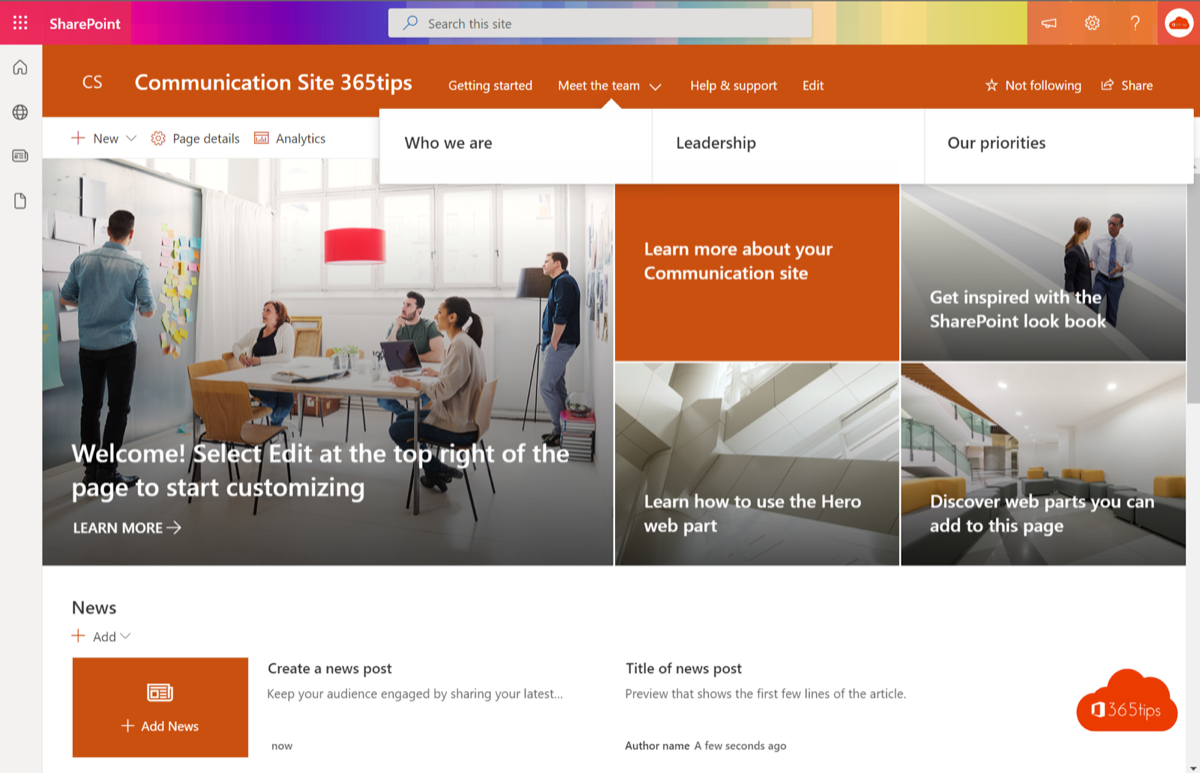
A new SharePoint site doesn't have to start empty. Site templates give you a ready-made layout with pages, web parts and sample content, for example for a department, a project or an HR portal. In this article you apply a template.
Apply a template
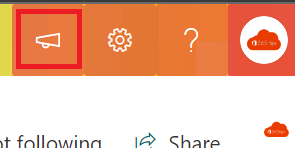
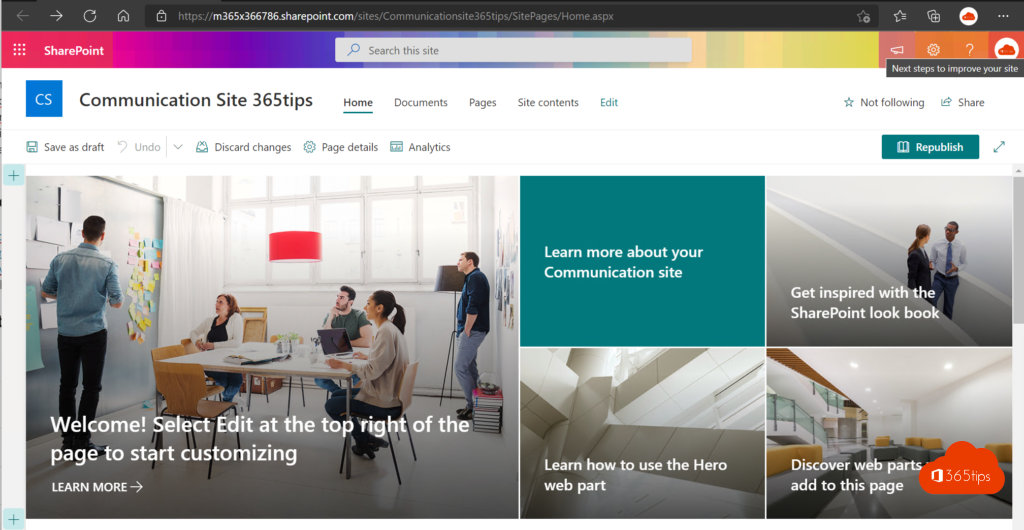
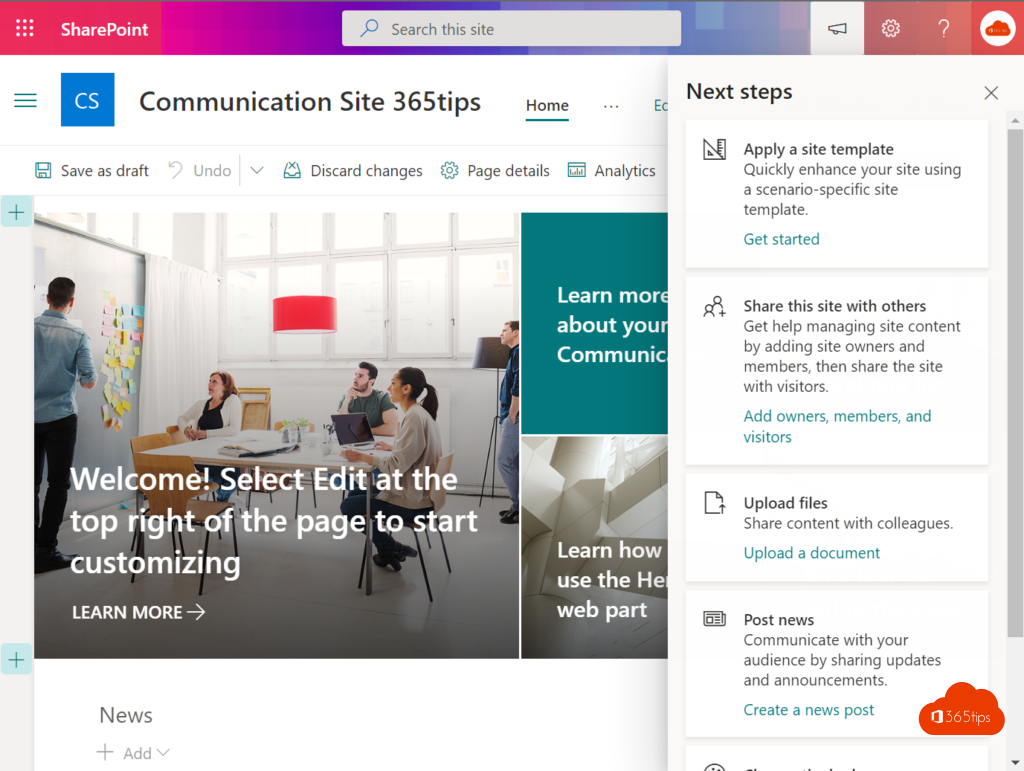
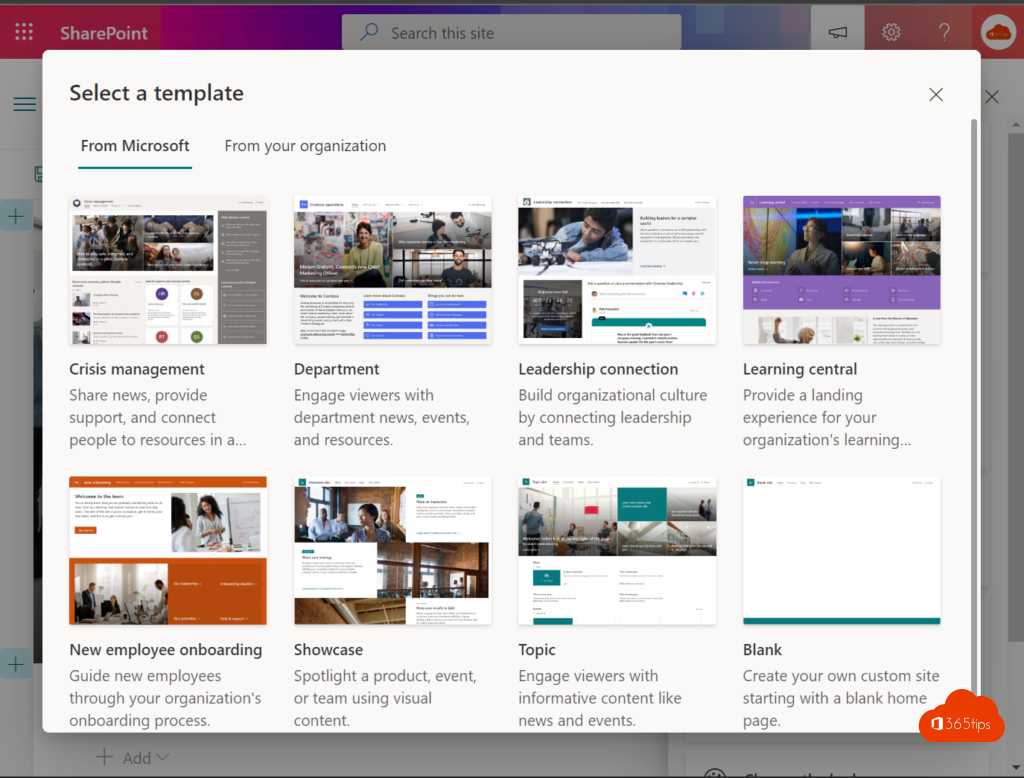
- Open the site as an owner and select Settings (gear) > Apply a site template. On a new site, the chooser often appears by itself.
- Choose the From Microsoft or From your organization tab.
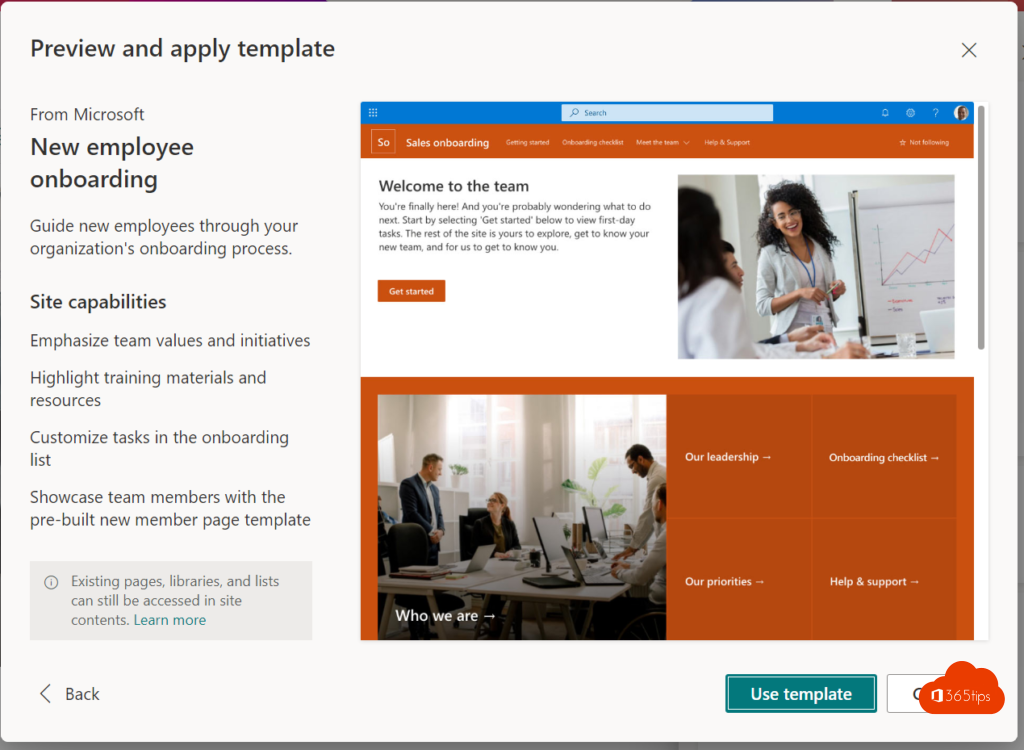
- Review the preview and select Use template.
What does a template do?
- It adds pages and web parts, with sample text you replace.
- It sometimes changes the theme and navigation.
- Existing pages and files stay put.
Examples
- Team sites: Project management, Team collaboration, Training.
- Communication sites: Department, Human resources, Showcase, Event.

Your own templates
Admins can create organization site templates with PowerShell, based on a site script. They then appear under From your organization. Also see create a communication site and create a page.
Read also
Create a communication site in SharePoint Online
Create and publish a page in SharePoint Online
Set up good governance for SharePoint Online
Nederlandstalige versie: Sitesjablonen toepassen in SharePoint Online
More in English
▸Add a SharePoint page, site or list to Microsoft TeamsAdd a SharePoint page, list or full communication site as a tab in a Teams channel, or bring your intranet…
▸Create and manage team templates in the Teams admin centerDefine channels, tabs and apps in a team template and use templates policies to control which templates users…
▸Give folders a colour in Microsoft Teams, SharePoint and OneDriveGive folders their own colour in OneDrive, SharePoint and Teams so you find them faster, with tips for using…
▸Get started with Microsoft Lists in 3 stepsCreate a list in Microsoft Lists, add columns and views, then share and automate it. Plus when to use Lists…