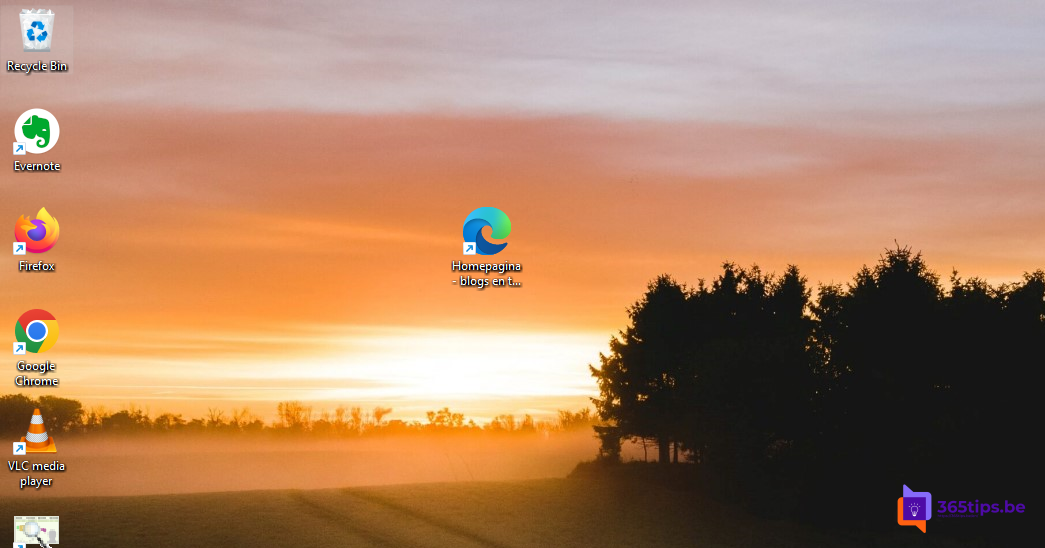
Open the same website every day, such as your intranet, an accounting package or a web application? A desktop shortcut or taskbar icon opens it in one click. This article covers three ways in Windows 11: dragging a website to the desktop, a shortcut that always opens in Microsoft Edge, and installing a website as an app with its own window.
Option 1: drag the website to the desktop
- Open the website in Edge.
- Make the window smaller so you can see part of the desktop.
- Drag the padlock on the left of the address bar to the desktop.
The shortcut opens in your default browser. If that's Chrome, it opens in Chrome.
Option 2: a shortcut that always opens in Edge
- Right-click an empty spot on the desktop and choose New > Shortcut.
- Enter as location:
"C:\Program Files (x86)\Microsoft\Edge\Application\msedge.exe" https://intranet.contoso.com
- Select Next, name the shortcut and select Finish.
The site then always opens in Edge, even if another browser is the default. Handy for web apps that only work properly in Edge. To use a specific profile, add --profile-directory="Profile 1" before the URL.
Option 3: install the website as an app
- Open the website in Edge.
- Select ... > Apps > Install this site as an app.
- Name the app and select Install.
- Choose whether to pin it to the taskbar, Start menu or desktop, and whether it starts automatically at sign-in.
The site then opens in its own window without address bar or tabs, with its own taskbar icon. That works well for Outlook on the web, Teams, your intranet or web tools. Manage or remove them at edge://apps.
Pin to the taskbar
An installed app can be pinned straight away. For a regular website: open it in Edge, select ... > More tools > Pin to taskbar.
For admins: roll out shortcuts
Want the intranet as an app on every PC? In Intune, use the Edge policy Configure list of force-installed Web Apps (WebAppInstallForceList). Enter the URL and choose whether a desktop shortcut is created. The app then appears for everyone automatically. See also sync passwords and favorites in Edge.
Read also
Sync passwords, favorites and settings in Microsoft Edge
How to customize the Windows 11 Start menu: left, without Recommended or like Windows 10
How to put windows side by side in Windows 11 with Snap
Nederlandstalige versie: Een snelkoppeling naar een website maken op het bureaublad of de taakbalk