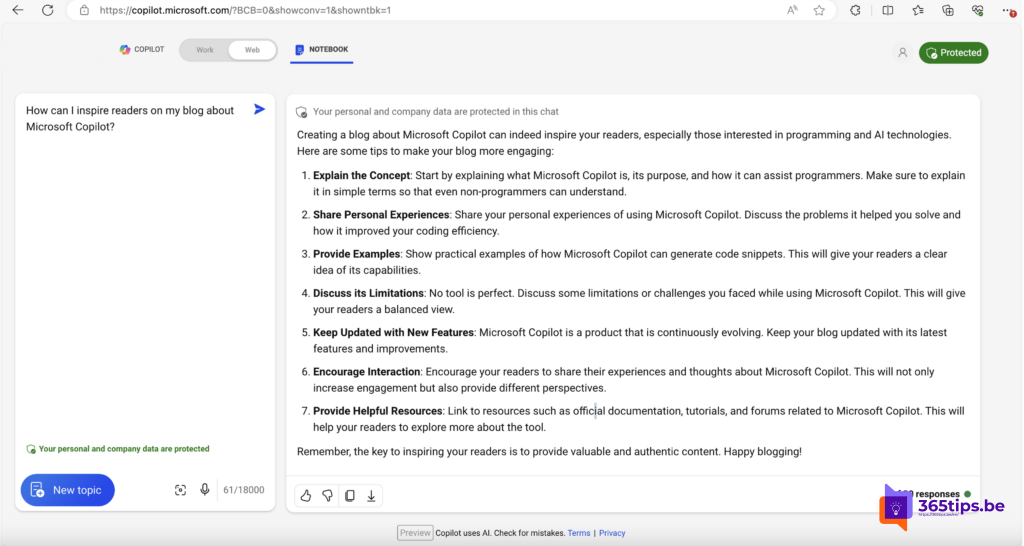
Working with Copilot on a bigger project, like a report or a customer proposal? Then you want your files, notes and earlier chats in one place. That's what Copilot Notebooks are for. This article originally covered the Notebook mode on copilot.microsoft.com (2024), with long prompts of up to 18,000 characters. That mode no longer exists in that form. Today you'll find Copilot Notebooks in Microsoft 365 Copilot and in OneNote, and their features and limits are still changing.
What is a Copilot Notebook?
A notebook is a workspace where you collect references to files, Loop pages, OneNote pages and notes. Copilot uses those sources as context. You can then ask questions, get summaries or have a new document drafted based on everything in the notebook.
- You don't have to add files again for every question.
- Answers and notes stay saved in the notebook.
- Copilot only uses files you have access to.
Create a notebook
- Open the Microsoft 365 Copilot app or go to m365copilot.com and sign in with your work account.
- Choose Notebooks in the left menu and select New notebook (the exact name may differ).
- Name the notebook, for example after your project.
- Add references: files from OneDrive or SharePoint, pages or earlier Copilot chats.
- Ask your question in the notebook, for example: "Summarize the key decisions from these files."
Copilot Notebooks usually require a Microsoft 365 Copilot license. Whether a limited version works without a license may differ per organization.
Notebooks in OneNote
You'll also find Copilot Notebooks in the new OneNote for Windows and on the web. That lets you combine your OneNote notes with files and ask Copilot to summarize everything. Availability depends on your version and license.
Tips for better results
- Be specific: say who the result is for, how long it can be and what format you want.
- Limit the sources to what's really relevant. Too many old files lead to vaguer answers.
- Work step by step: ask for an outline first, then the details per section.
- Check the answers and the source references.
Also see OneNote getting-started tips and compare files with Copilot.
Read also
Get started with OneNote in Microsoft 365: guide and tips
Compare two files or PDFs with Microsoft 365 Copilot
How to enable and use Microsoft Loop in Microsoft 365
Nederlandstalige versie: Copilot Notebooks: je bestanden en notities bundelen voor Copilot