You can quickly keep Word, Excel and PowerPoint files in OneNote. That way you put them in a logical section, add notes and tags, and find them more easily with OneNote's search. You can do this by printing the document to OneNote, or by inserting it as an attachment. OneNote for Windows 10 has been out of support since October 2025, so these steps use the OneNote desktop app from Microsoft 365, formerly OneNote 2016.
Print a document to OneNote
- Open the document in Word, Excel or PowerPoint.
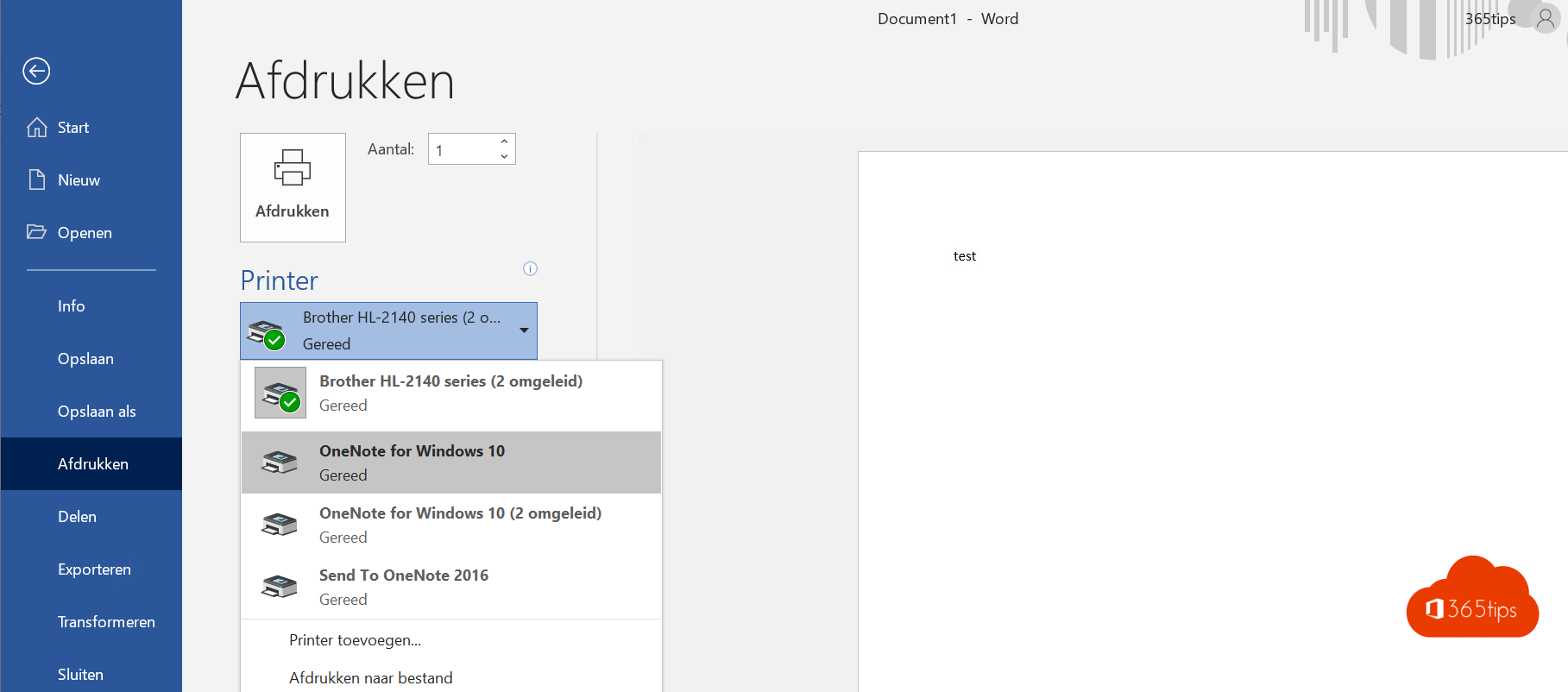
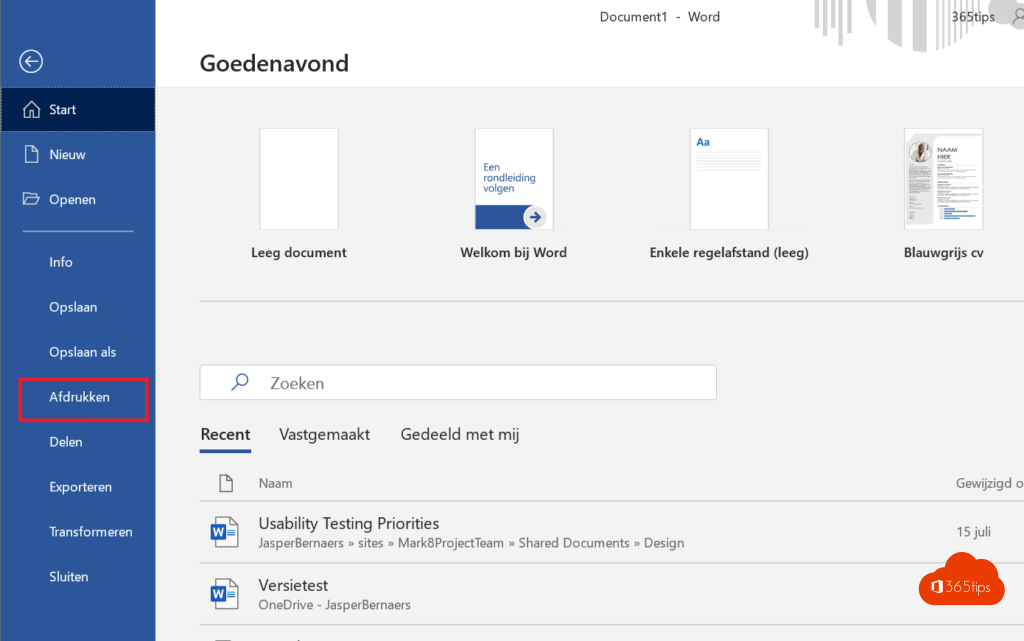
- Select File > Print, or press Ctrl+P.
- Under Printer, choose the OneNote printer, for example OneNote (Desktop) or Send to OneNote. The exact name may differ.
- Select Print.
- OneNote asks which section or page the document should go to. Pick a location and select OK.


The result is an image of each page. You can draw on it and add notes, but you can't edit the text anymore. OneNote can still search the text in printouts.
Always the same location
Print to OneNote often? Set a default location so OneNote doesn't ask every time. In OneNote, go to File > Options and look under Save & Backup or Advanced for the default location of sent content. The exact place may differ per version.

Or: insert the file
- Insert > File Attachment: the file is added to the page as an attachment. If it's in OneDrive or SharePoint, you can choose a link or a preview.
- Insert > File Printout: the same result as printing to OneNote, without the print dialog.
Don't see the OneNote printer?
- Check that the OneNote desktop app is installed. It's included again by default with Microsoft 365 Apps.
- Used OneNote for Windows 10 before? Its printer is gone. Install the OneNote desktop app and open your notebooks there.
- On a Mac or in the browser, use Insert > File.
Also see tips to get started with OneNote and OneNote for Windows 10 end of support.
Read also
Get started with OneNote in Microsoft 365: guide and tips
OneNote for Windows 10 end of support: use OneNote instead
Move your OneNote notebooks to OneDrive
Nederlandstalige versie: Word-, Excel- en PowerPoint-bestanden opslaan in OneNote