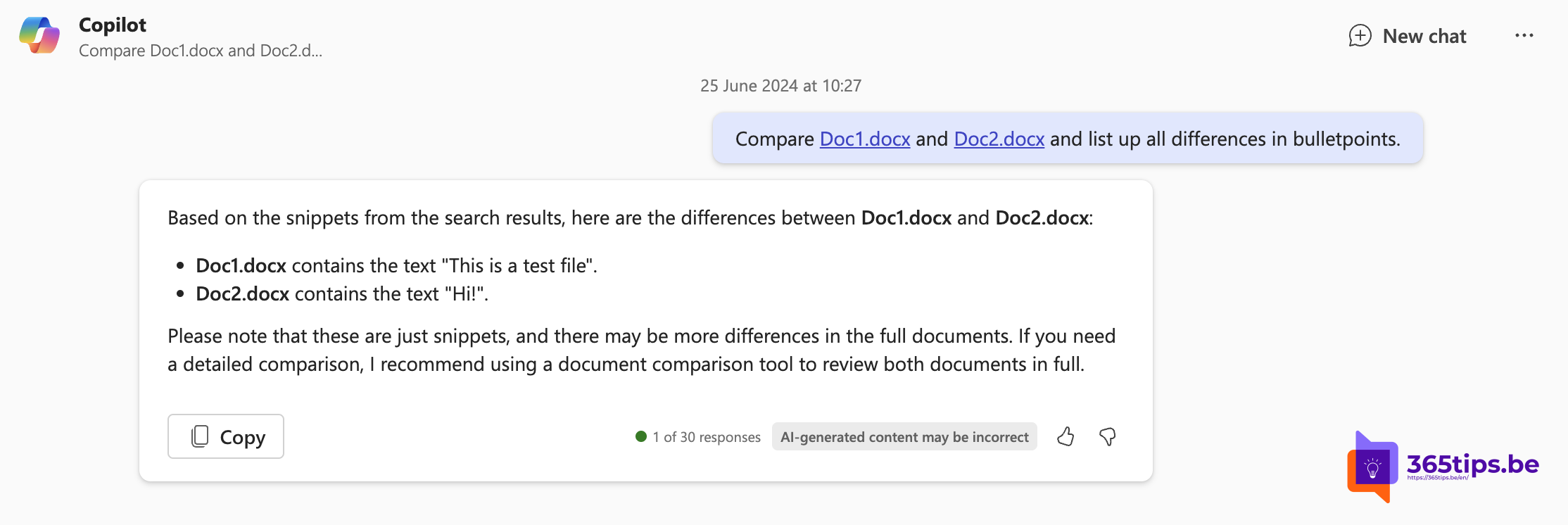
Need to compare two versions of a contract, quote or policy? With Microsoft 365 Copilot you simply ask for the differences. That works with PDF files too. Comparing files now happens in Microsoft 365 Copilot Chat, in the Microsoft 365 Copilot app or at m365copilot.com. With a Copilot license you reference files in OneDrive and SharePoint; without one you can upload files, possibly with limits.
Compare two files
- Open Copilot via microsoft365.com, the Microsoft 365 Copilot app or Teams, and sign in with your work account.
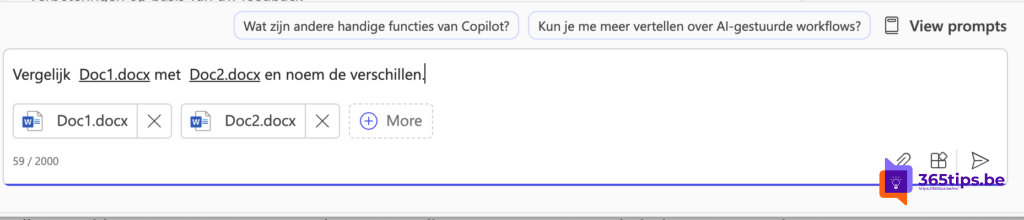
- Type / in the prompt box or select the + icon to pick a file. You'll see your recent files, or you can search by name.
- Add the first and the second file.
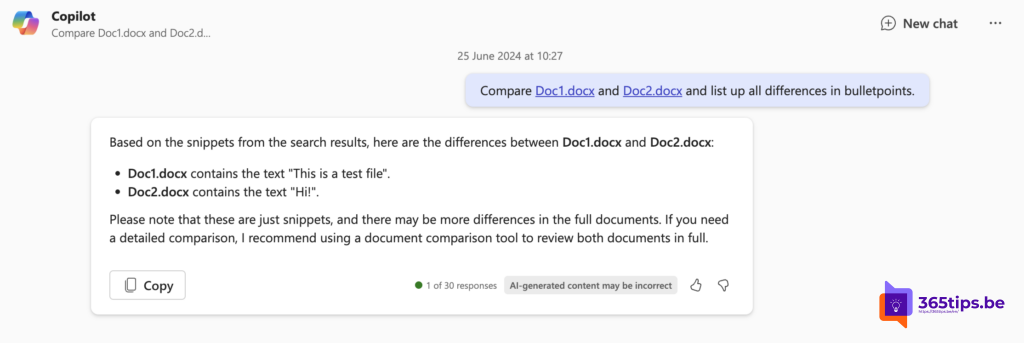
- Write your prompt, for example: "Compare [file 1] with [file 2] and list the differences in a table."
- Ask follow-up questions, such as: "Which changes relate to prices or deadlines?"
Useful prompts
- Compare these two contracts and list the differences per clause.
- What's in the new version that wasn't in the old one?
- Summarize both quotes in a table with price, delivery time and terms.
- Summarize this PDF in five points.
PDF files
Copilot reads PDF files just like Word documents. A scanned PDF without a text layer works less well; run text recognition (OCR) on it first.
Need exact differences?
Copilot gives a summary of the differences, but it can miss details. If you want to see every changed character, use Review > Compare in Word. Feel free to combine both: Word for the exact changes, Copilot for the explanation.
Also see getting started with Microsoft 365 Copilot Chat and Copilot Notebooks.
Read also
Get started with Microsoft 365 Copilot Chat (formerly Bing Chat Enterprise)
Copilot Notebooks: bring your files and notes together for Copilot
Restore an earlier version with version history in OneDrive and SharePoint
Nederlandstalige versie: Twee bestanden of PDF's vergelijken met Microsoft 365 Copilot