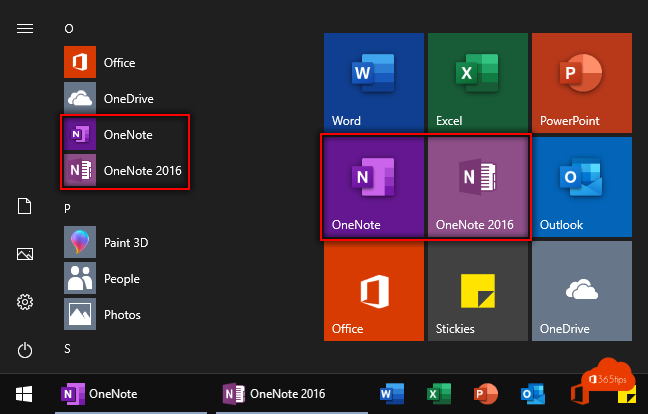
There used to be two OneNote apps on Windows: OneNote 2016 and OneNote for Windows 10. Microsoft first planned to retire OneNote 2016, but eventually did the opposite. Today there's one app: OneNote. OneNote for Windows 10 has been out of support since October 2025. Here's what that means for you.
What changed?
- The desktop app formerly called OneNote 2016 is now simply OneNote. It's included by default with Microsoft 365 Apps.
- New features, such as Copilot in OneNote, arrive in this desktop app.
- OneNote for Windows 10 no longer gets feature or security updates. Microsoft recommends switching.
Why the desktop app?
- Outlook integration: take meeting notes with the meeting details, or send an email to OneNote.
- Local and shared notebooks: works with OneDrive, SharePoint and Teams.
- More options, such as printing to OneNote and extended tags.
Install the OneNote app
- Sign in at microsoft365.com with your work account.
- Choose Install apps > Microsoft 365 apps. OneNote is installed along with them.
- Microsoft 365 is already on your PC but OneNote is missing? Search the Microsoft Store for OneNote, or ask your IT department.
For admins
If you deploy Microsoft 365 Apps with Intune, check that OneNote isn't excluded in your configuration. Also look for devices where OneNote for Windows 10 is still in use, and help users switch.
Switching from OneNote for Windows 10
- Open OneNote for Windows 10 and check that all notebooks have synced.
- Open the OneNote desktop app and sign in with the same account.
- Open your notebooks via File > Open.
Also see move your OneNote notebooks to OneDrive and tips to get started with OneNote.
Read also
Move your OneNote notebooks to OneDrive
Get started with OneNote in Microsoft 365: guide and tips
Install the Microsoft 365 apps (Office) on your Windows PC
Nederlandstalige versie: OneNote voor Windows 10 niet meer ondersteund: gebruik OneNote