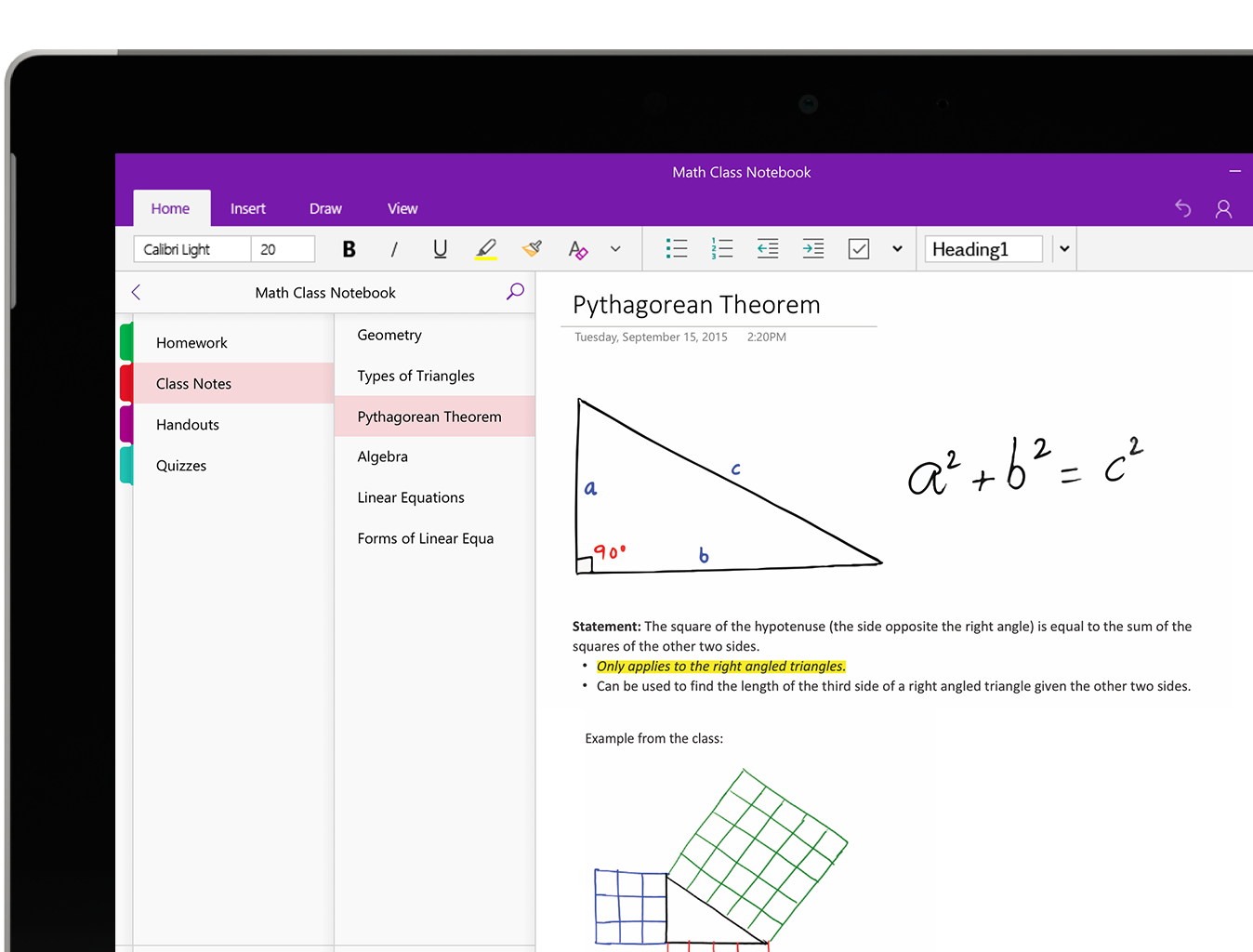
Are your OneNote notebooks still on your own drive or a USB stick? Then it's best to move them to OneDrive. You get a backup in the cloud, you can open your notes on your phone and in the browser, and you can share them with colleagues. Here's how, and which OneNote app to use today.
Which OneNote should you use?
| App | Status |
|---|---|
| OneNote (desktop, Microsoft 365) | Recommended. Still gets updates and is included with Microsoft 365 Apps. Formerly OneNote 2016. |
| OneNote for Windows 10 | Out of support since October 2025. |
| OneNote for the web, Mac, iOS and Android | Work with notebooks stored in OneDrive or SharePoint. |
Why OneDrive?
- Backup: your notes aren't lost when your laptop crashes or you lose your USB stick.
- Available everywhere: open your notes on your phone, tablet or at onenote.com.
- Collaboration: share a notebook and work on it at the same time.
Move a local notebook to OneDrive
- Open the notebook in the OneNote desktop app.
- Select File > Share.
- Choose your OneDrive (work or school) as the location, and optionally a folder.
- Select Move Notebook.
- OneNote uploads the notebook and keeps it in sync from then on.
Afterwards, check under File > Info that the notebook path points to OneDrive.
Or: export and import
- Select File > Export, choose Notebook and the OneNote Package (*.onepkg) format.
- Open the .onepkg file later on another computer. OneNote asks where the notebook should go.
- Choose a folder in OneDrive.
Used OneNote for Windows 10?
That app already stored notebooks in OneDrive. Install the OneNote desktop app, sign in with the same account and open your notebooks via File > Open. Check that everything has synced before you remove the old app. Also see OneNote for Windows 10 end of support and migrate your files to OneDrive.
Read also
OneNote for Windows 10 end of support: use OneNote instead
Get started with OneNote in Microsoft 365: guide and tips
Migrate personal files and network drives to OneDrive
Nederlandstalige versie: Je OneNote-notitieblokken naar OneDrive verplaatsen