OneNote is a digital notebook for meeting notes, project info, class notes or ideas. Everything lives in the cloud, you search all your notes at once and you share a notebook with your team. This article explains how OneNote works and gives tips to get more out of it.
The structure
- Notebook: for example Work or Project X.
- Sections: the tabs in the notebook, such as Meetings and Ideas.
- Pages: your notes themselves. A page is a free canvas: click anywhere and type.
Get started
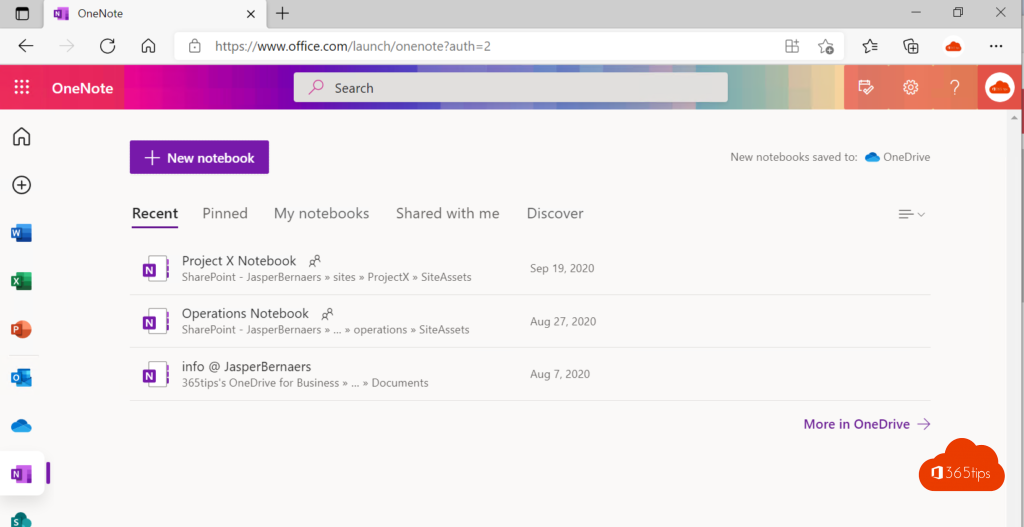
- Open the OneNote app (part of the Microsoft 365 apps) or onenote.com.
- Select New notebook and save it in OneDrive or SharePoint.
- Create sections and pages.
Still using OneNote for Windows 10? That app is no longer supported. Switch to the OneNote app from Microsoft 365; your notebooks are already in the cloud.
10 handy tips
- To-do lists: press Ctrl + 1 for a checkbox.
- Tags: mark items as Important, Question or Follow up and find them later with Find Tags.
- Search all notebooks with Ctrl + E, including text in images.
- Draw with a pen or finger on the Draw tab.
- Insert files and printouts, such as a PDF as an image on the page.
- Record audio during a conversation, linked to your notes.
- Meeting notes: choose Home > Meeting Details to insert date and attendees from Outlook.
- Page templates for fixed formats, such as a weekly report.
- Links to pages: right-click a page > Copy Link to Page.
- Copilot (with a licence): summarise a page or turn your notes into a task list.

OneNote in Teams
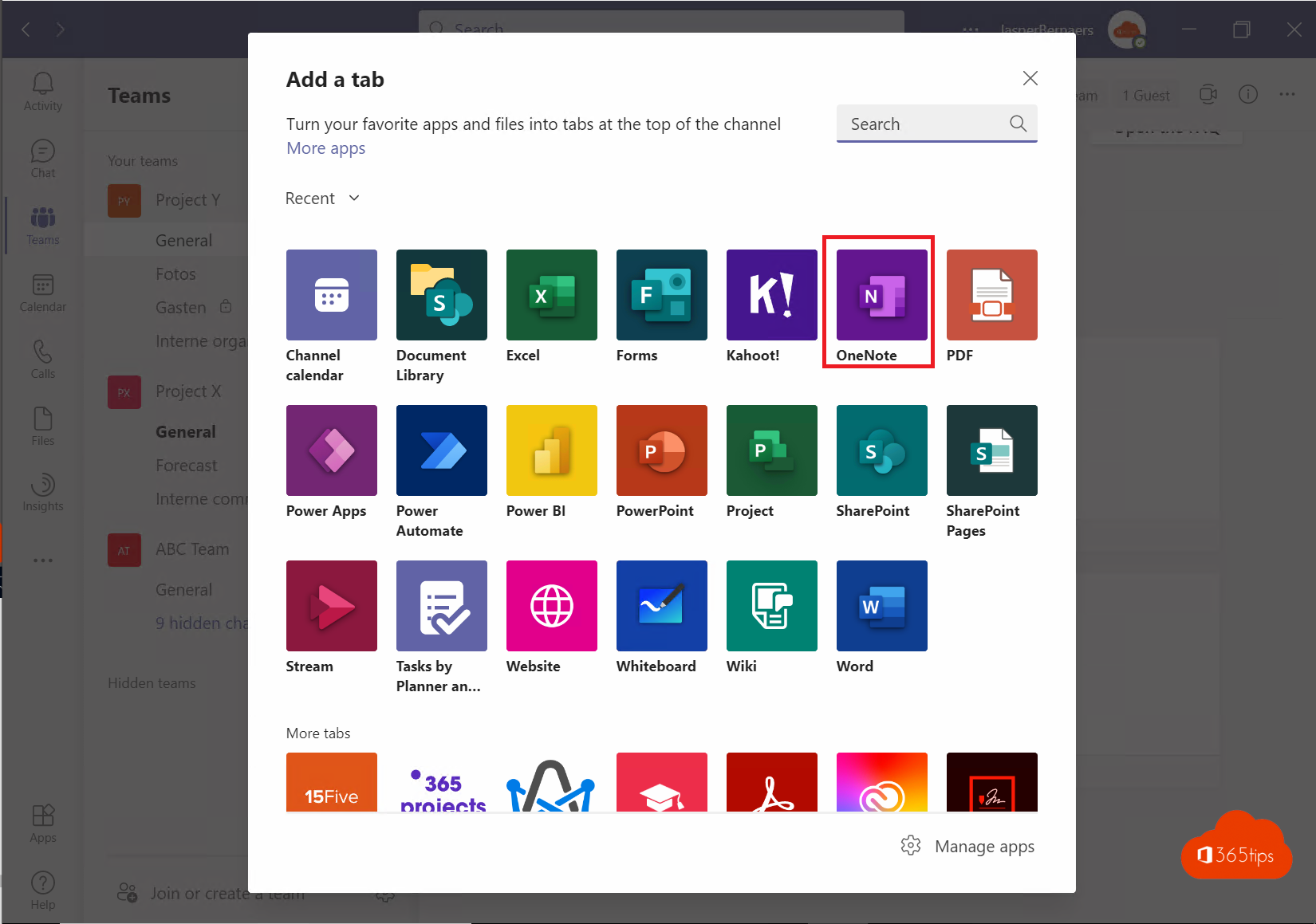
Add a notebook as a tab in a Teams channel so everyone in the team sees the same notes. Every team already has a default notebook on its team site. For live co-editing in chats, also see Loop components.
Read also
Use Loop components in Teams chats, channels and meetings
Manage tasks with the Planner app in Microsoft Teams
Use Microsoft Whiteboard in Teams channels and meetings
Nederlandstalige versie: Aan de slag met OneNote in Microsoft 365: uitleg en tips