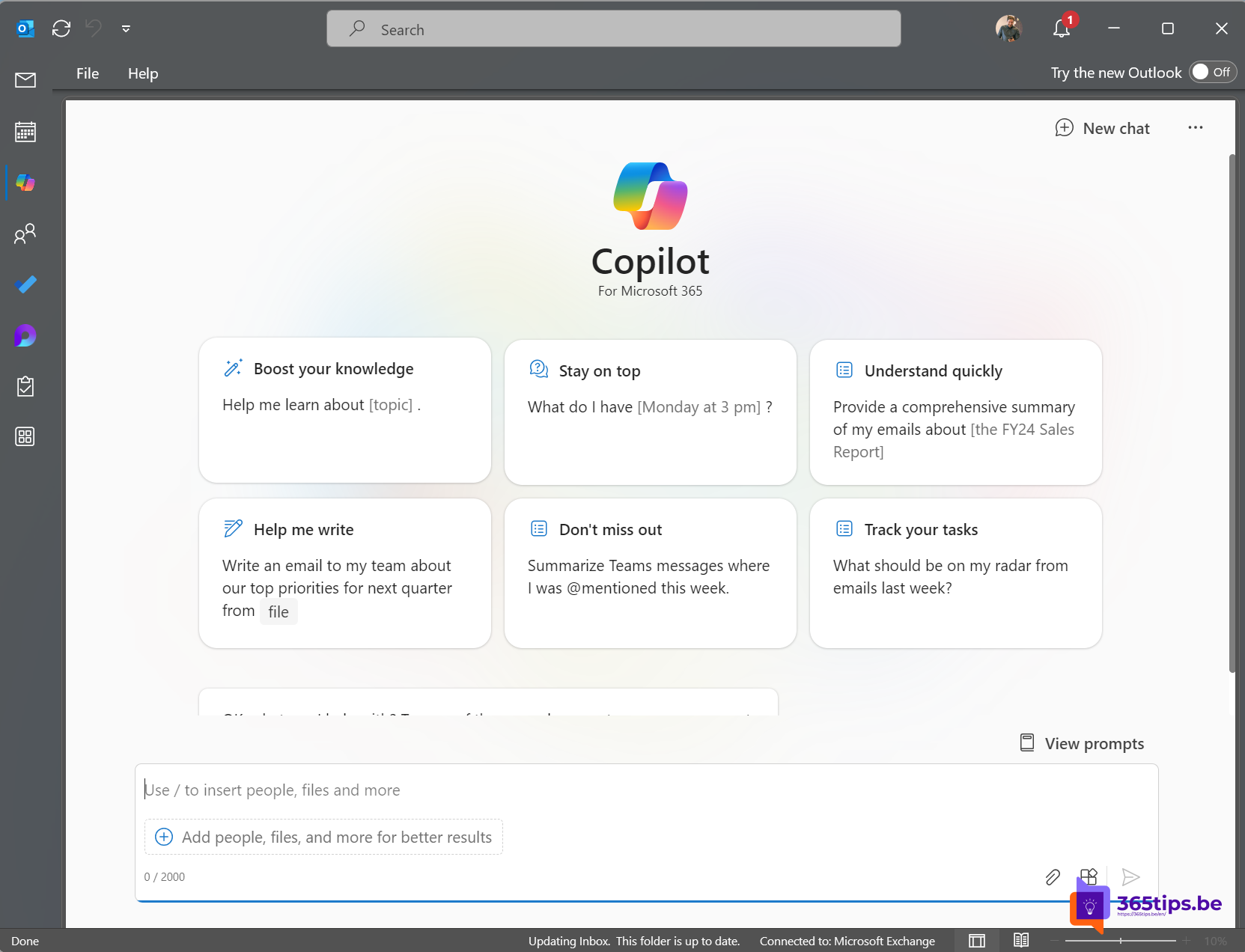
Still working in classic Outlook on Windows 11? Copilot helps you with email there too: drafting a message, improving your text and summarizing long conversations. Here is what you need and how to use Copilot in Outlook Classic in practice.
For the full Copilot features in Outlook (drafting, coaching and summarizing in your mailbox) you need a Microsoft 365 Copilot license. A work account without that license still gets Copilot Chat, but not every feature inside Outlook itself.
Why use Copilot in Outlook?
- Save time: a first version of an email is ready in seconds.
- Write more clearly: Copilot makes your text shorter, more formal or friendlier.
- Get the overview faster: summarize a long email thread in a few points.
What do you need?
- Outlook for Windows (classic) from Microsoft 365 Apps, kept up to date on a supported update channel.
- A work or school account with a Microsoft 365 Copilot license for the in-mailbox features.
- No Copilot button? Update Office, restart Outlook and ask your admin whether the license is assigned.
Draft or rewrite an email
- Create a new email or open a reply.
- Click the Copilot icon in the ribbon or the message window and choose Draft with Copilot (the exact label can differ).
- Describe what you want to say, or let Copilot rewrite your existing text.
- Pick a tone or length, for example more formal or shorter, and click Generate.
- Read the result, adjust where needed and choose Keep it or try again.
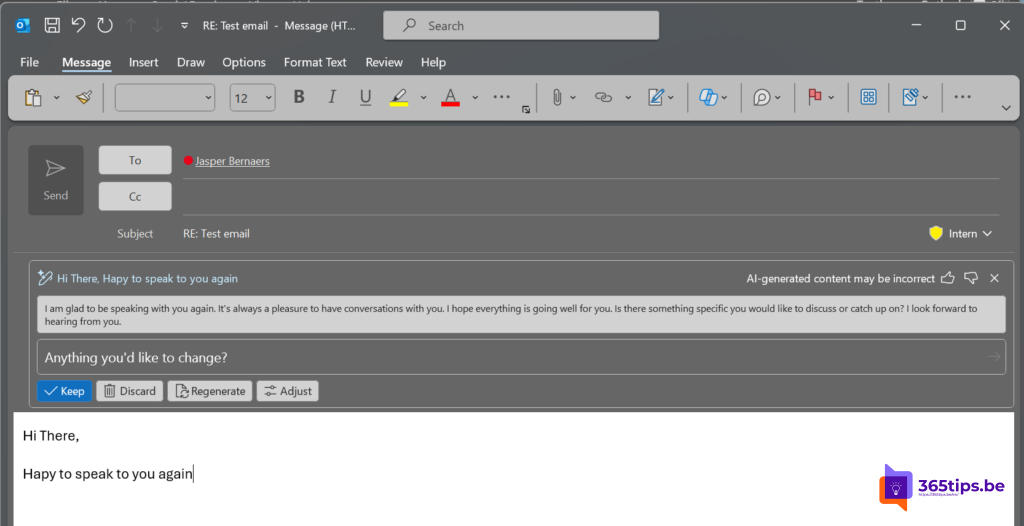
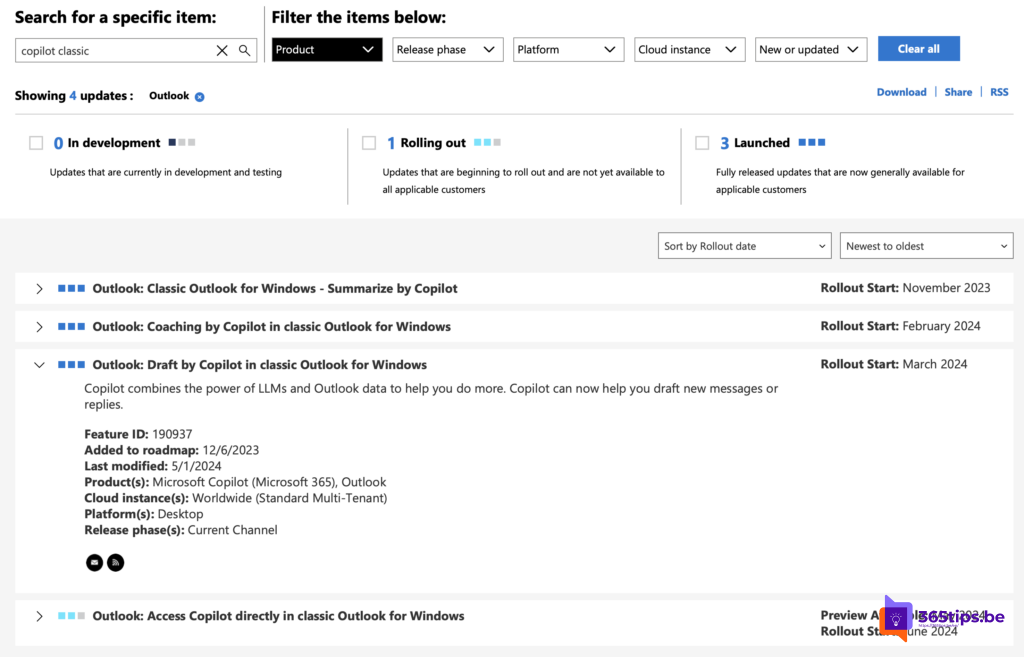
With Coaching by Copilot you get tips on tone, clarity and how your email will come across, without Copilot replacing your text.
Summarize an email or thread
- Open a long email or a conversation with many replies.
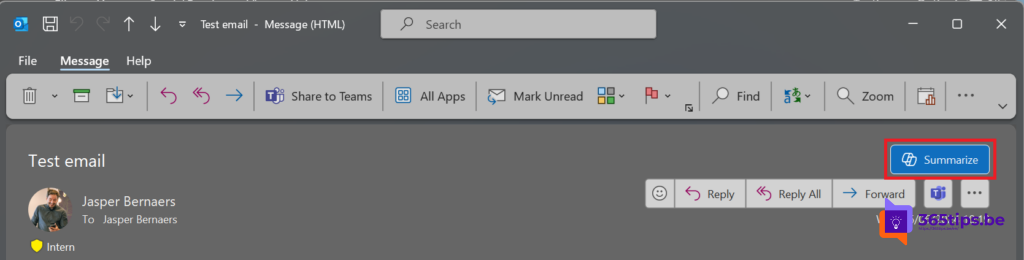
- Click Summarize (Summary by Copilot) at the top of the message.
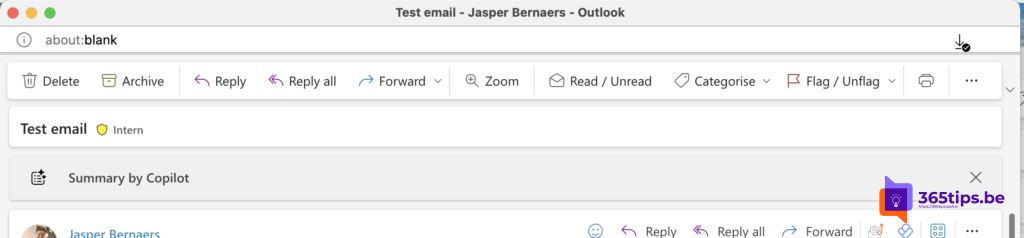
- Copilot shows the key points, with references to the messages they come from.
Copilot in Outlook on the web and the new Outlook
Outlook on the web and the new Outlook for Windows work the same way: Summarize at the top of a message and the Copilot icon when you write. New Copilot features often show up in the new Outlook first.
Tips
- Always check what Copilot writes before you click Send, especially names, dates and amounts.
- Give context in your prompt: who the email is for, what the goal is and which tone you want.
- Copilot only uses data you already have access to.
Also see what is Microsoft 365 Copilot and the new Outlook for Windows.
Nederlandstalige versie: Copilot gebruiken in de klassieke Outlook op Windows 11