Admin accounts should be protected with MFA, and that includes PowerShell. With the ExchangeOnlineManagement module you sign in to Exchange Online with MFA, just as in the browser. This article shows how, and how to run scripts without a sign-in window.
Interactive sign-in with MFA
- Install the module if you haven't yet. Read install the Exchange Online PowerShell module.
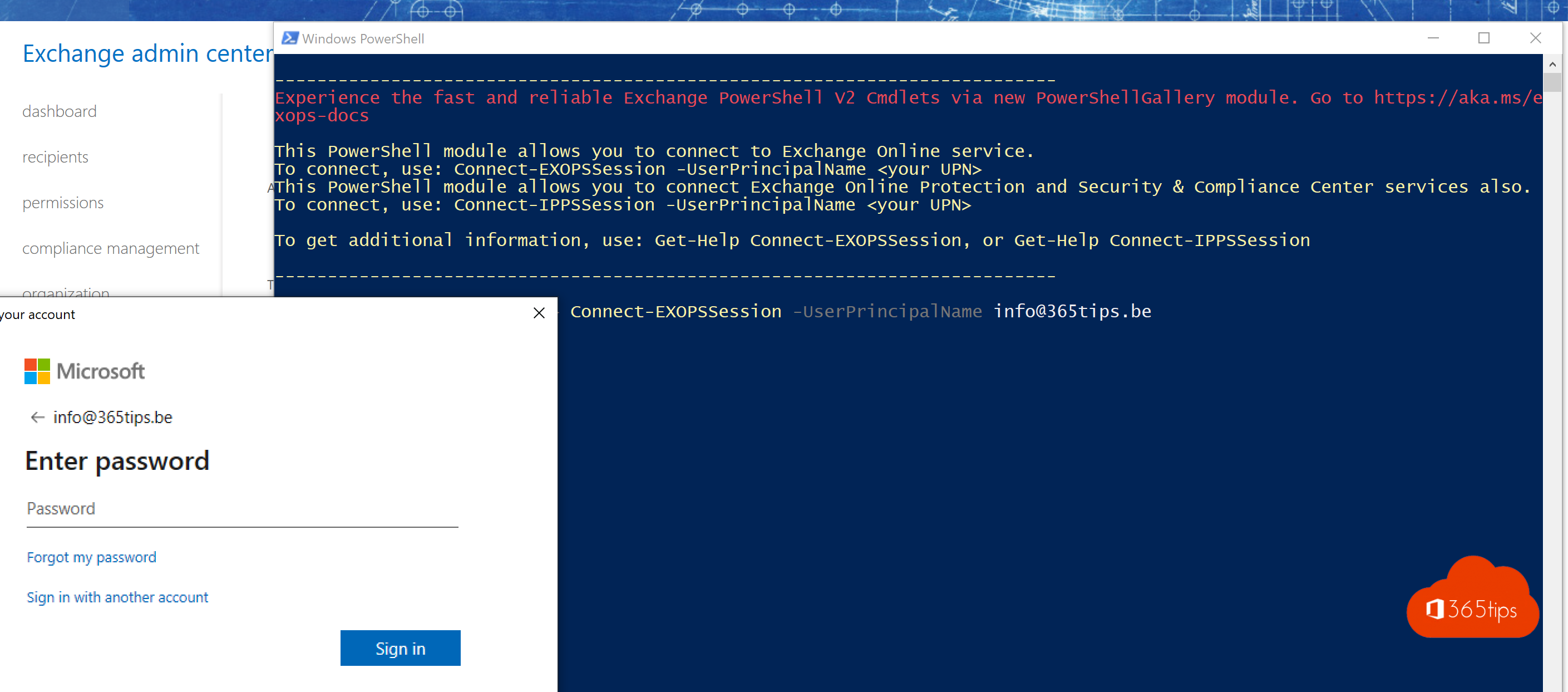
- Type: Connect-ExchangeOnline -UserPrincipalName admin@contoso.com
- Sign in in the window and confirm with the Authenticator app.

Without a browser on the device
Working on a server or in a session without a browser? Use Connect-ExchangeOnline -Device. You get a code to enter on another device at microsoft.com/devicelogin.
For unattended scripts
For scheduled tasks, use certificate-based authentication (app-only):
- Create an app registration in Entra ID and add a certificate.
- Give the app the API permission Exchange.ManageAsApp and assign an Exchange role, such as Exchange Administrator.
- Connect with Connect-ExchangeOnline -AppId <id> -CertificateThumbprint <thumbprint> -Organization contoso.onmicrosoft.com.
In Azure Automation or Azure Functions you can use a managed identity (-ManagedIdentity). Never store passwords in a script.
Troubleshooting
- Error about Basic Authentication? You're using an old module or the old New-PSSession method. Update the module.
- No permissions? Check that your account has an Exchange admin role. Read admin roles in Microsoft 365.
- MFA not set up yet? Read enable MFA.
Read also
Install the Exchange Online PowerShell module (ExchangeOnlineManagement)
Enable multi-factor authentication (MFA) in Microsoft 365
Assign admin roles in Microsoft 365
Nederlandstalige versie: Aanmelden op Exchange Online PowerShell met MFA of een certificaat