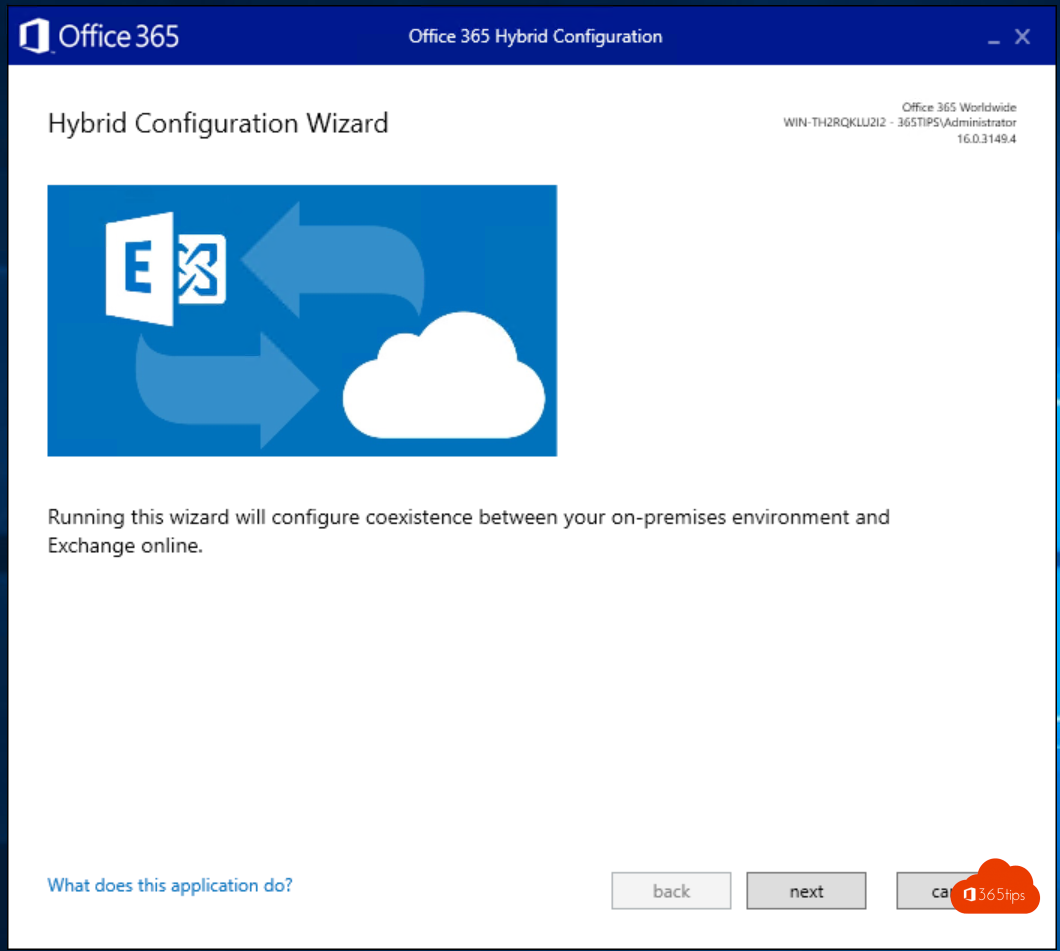
Want to move mailboxes from your on-premises Exchange to Exchange Online, or keep managing your synced users correctly? Then you need a hybrid Exchange server. In this article you install Exchange Server and configure it as a hybrid with the Hybrid Configuration Wizard. Exchange 2016 and 2019 reached end of support in October 2025; the current version is Exchange Server Subscription Edition (SE). Azure AD Connect is now called Microsoft Entra Connect Sync.
1. Install the prerequisites
Always check the current requirements on Microsoft's Exchange Server prerequisites page. They change with every update. Broadly, you need:
- a supported version of Windows Server, joined to your domain;
- the Windows features Microsoft lists, installed with
Install-WindowsFeaturein PowerShell as administrator; - .NET Framework 4.8 or later, the Visual C++ Redistributable packages, Unified Communications Managed API 4.0 and the IIS URL Rewrite module;
- an account with Schema Admins and Enterprise Admins rights if you need to prepare the schema and Active Directory.
2. Install Exchange
- Download the latest version of Exchange Server SE and start Setup.
- Let the wizard check for updates.
- Choose the Mailbox role. The management tools are installed along with it.
- Run the Readiness Checks and fix any errors.
- Select Install and wait for all steps to finish. Select Finish.
Then immediately install the latest Cumulative Update and security updates, and configure a valid certificate for your public names.
3. The Hybrid Configuration Wizard
- Sign in on the Exchange server.
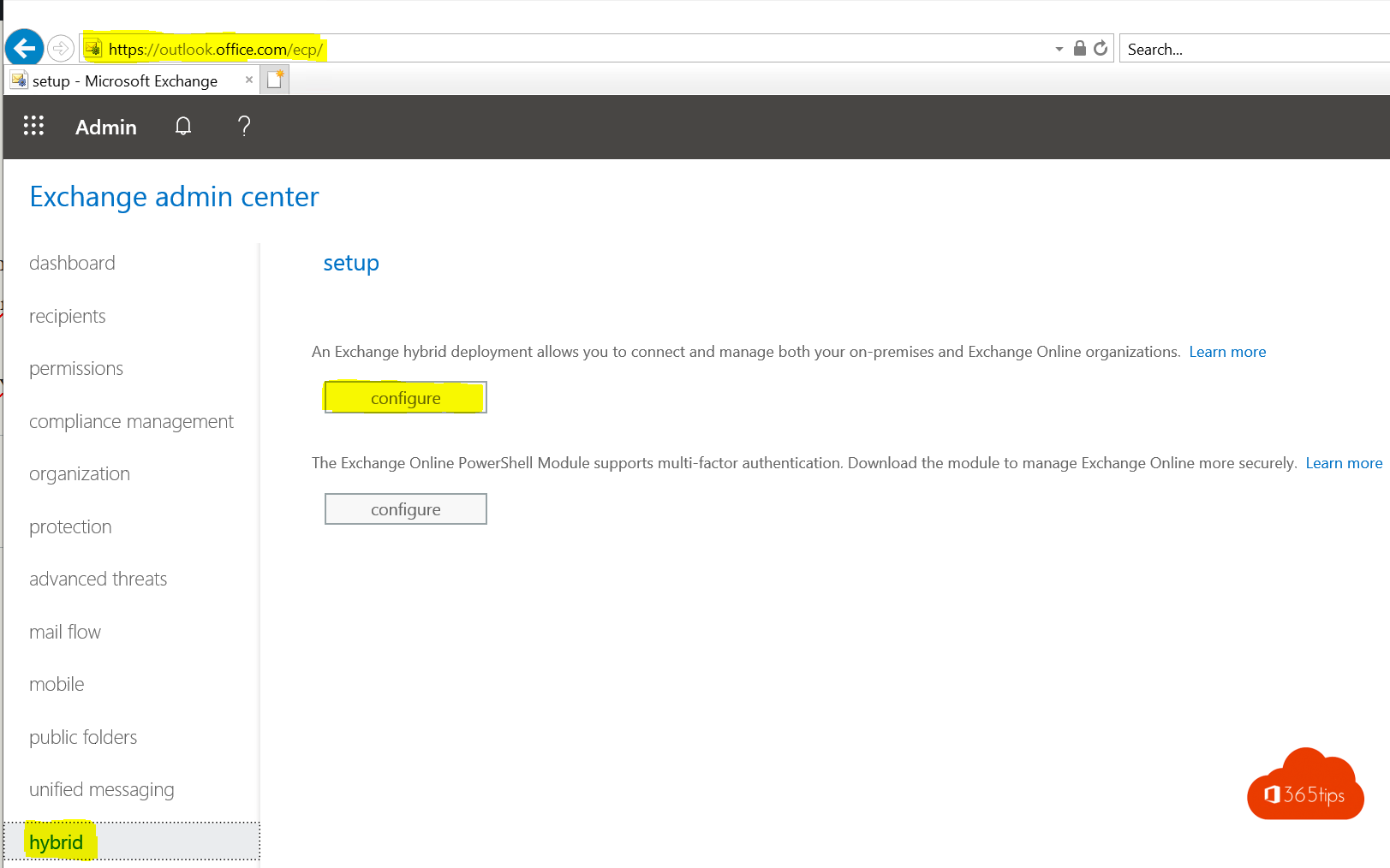
- Open the Exchange admin center of Exchange Online, go to Hybrid and select Configure. Or download the wizard via aka.ms/HybridWizard.
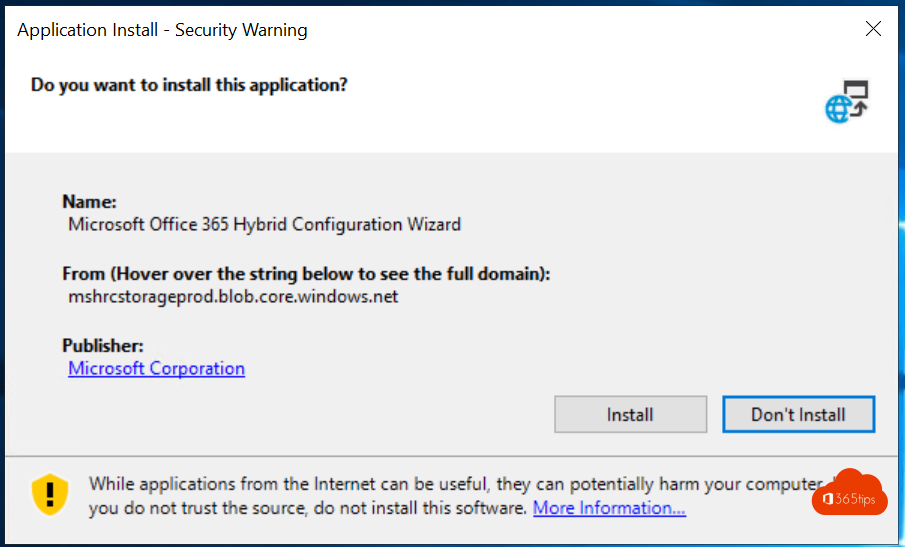
- Install the wizard and start it.
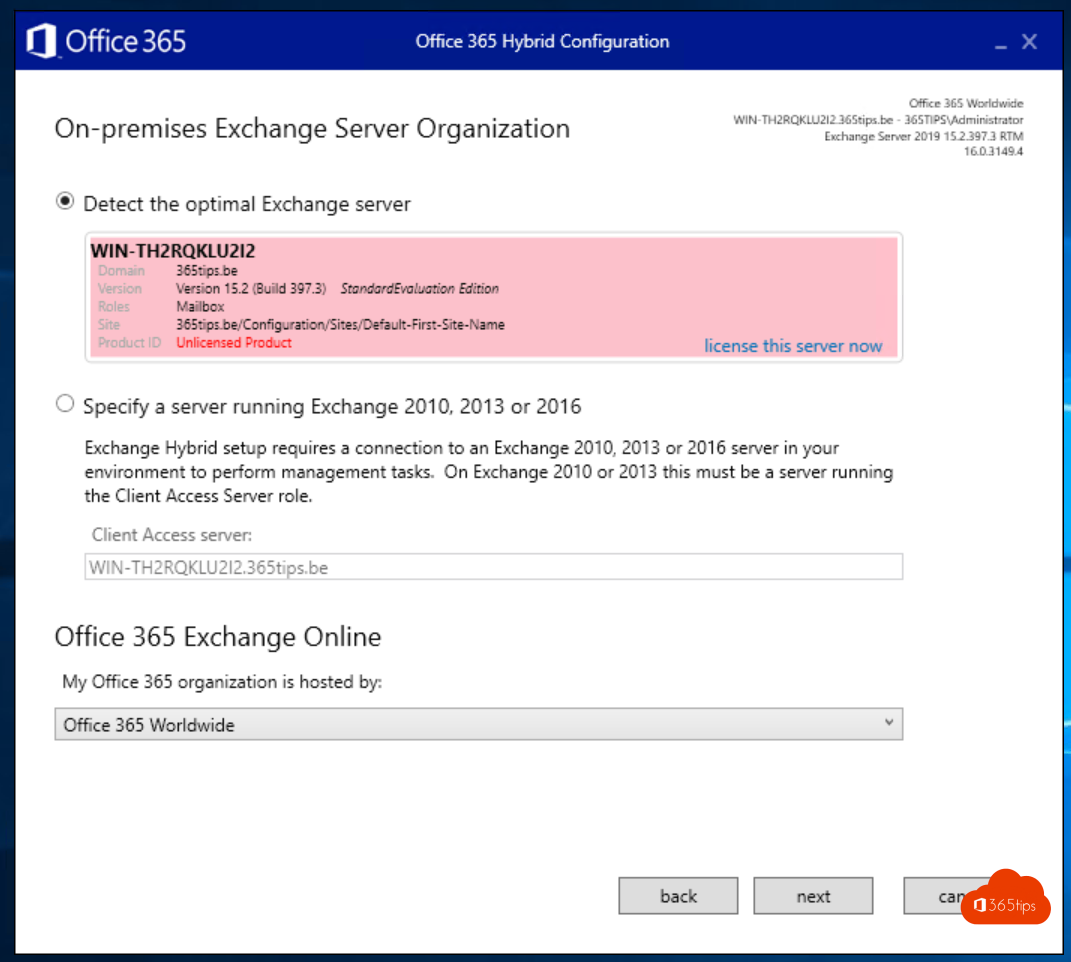
- Choose the on-premises Exchange server the wizard should use.
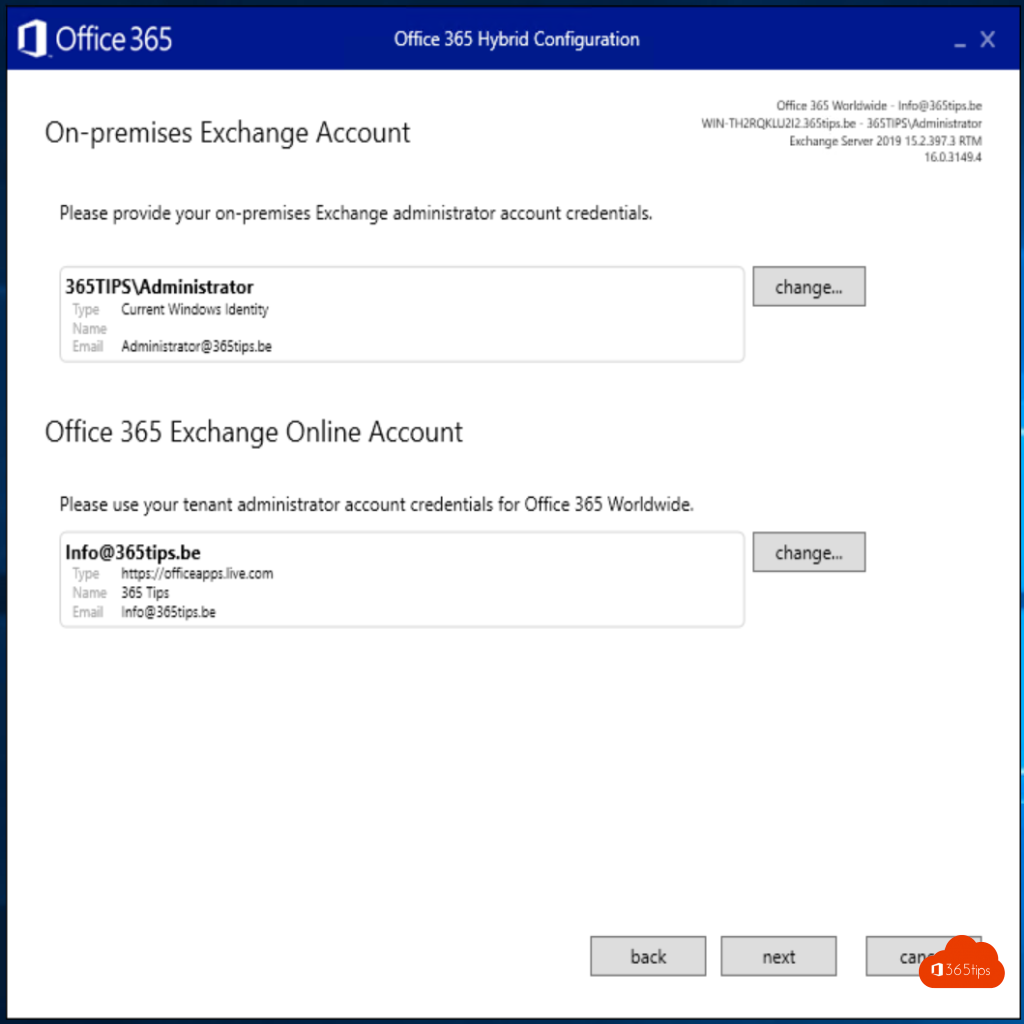
- Sign in with an on-premises Exchange admin account and an Exchange Online admin.
- Choose the hybrid type:
- Classic Exchange Hybrid: your Exchange server is reachable from the internet. This is the full hybrid.
- Modern Hybrid: uses the Hybrid Agent, without opening inbound ports. It does have limitations, so check whether they fit your situation.
- Choose full or minimal hybrid, fill in your domains, certificate and connector settings and select Update.
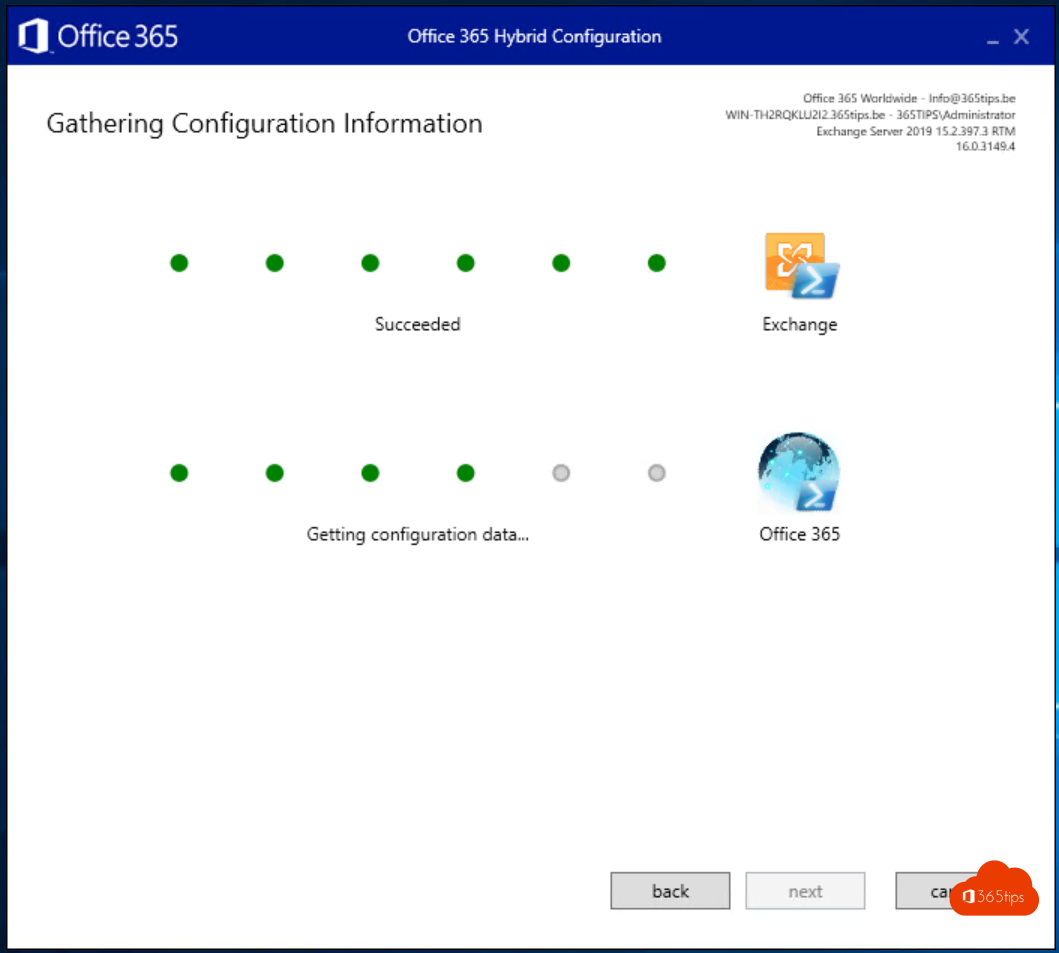
Since 2025 Microsoft also requires a dedicated Exchange hybrid application in Microsoft Entra ID. So always use the latest version of the wizard and follow Microsoft's current instructions on this.
4. Update Entra Connect
Tell Microsoft Entra Connect Sync that you have a hybrid. Otherwise the right Exchange properties aren't written back, for example.
- Open Microsoft Entra Connect on your sync server.
- Choose Customize synchronization options.
- Sign in and click through to Optional features.
- Check Exchange hybrid deployment and complete the wizard.
Also see why choose an Exchange hybrid and set up Microsoft Entra Connect.
Read also
Why and when to choose an Exchange hybrid
Install and configure Microsoft Entra Connect (Azure AD Connect)
Exchange migration to Microsoft 365: an action plan
Nederlandstalige versie: Exchange Server installeren en configureren als hybride server