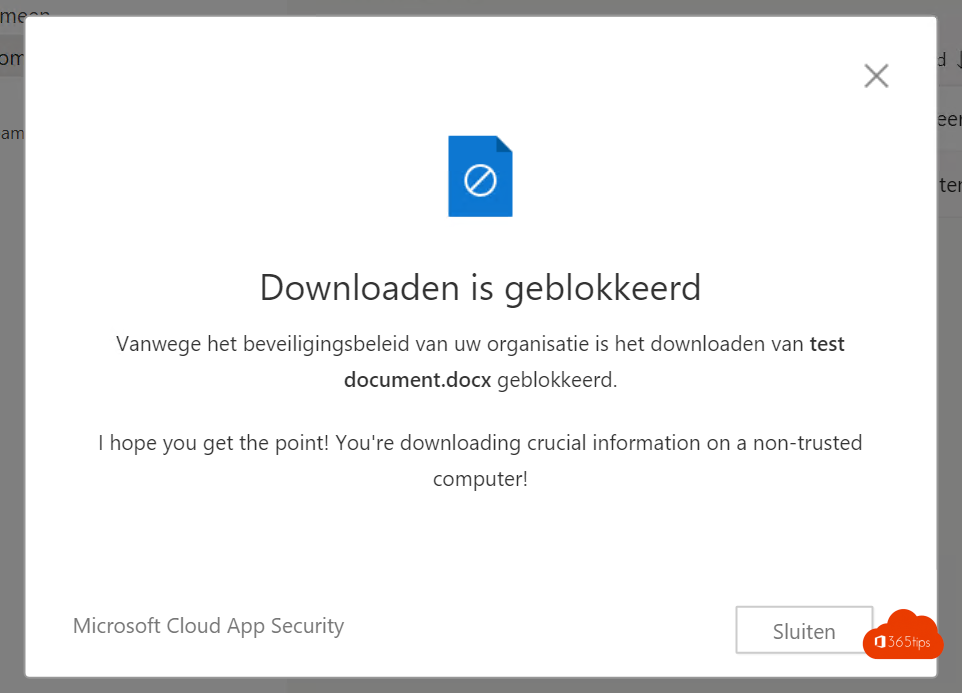
Employees signing in on a home PC or a hotel computer can easily download company files. With the unmanaged devices setting in SharePoint, those devices only get limited, web-only access: view and edit online, but no downloading, printing or syncing. This article shows how.
What is an unmanaged device?
A device that isn't Entra joined or hybrid joined, and isn't marked compliant in Intune. For example a personal laptop or a shared computer.
Set limited access
- Go to the SharePoint admin center > Policies > Access control > Unmanaged devices.
- Choose Allow limited, web-only access, or Block access.
- Select Save.
SharePoint automatically creates two Conditional Access policies in Entra ID. Check them there, and exclude your break-glass accounts.

What does the user see?
On an unmanaged device the user sees a banner: Your organization doesn't allow you to download, print, or sync from this device. Opening files in Word, Excel and PowerPoint for the web still works. It applies to Teams files and OneDrive too.

Only for certain sites
Only want this for sensitive sites such as HR or Finance? Keep the organisation setting on Full access and set it per site with PowerShell:
Set-SPOSite -Identity https://contoso.sharepoint.com/sites/hr -ConditionalAccessPolicy AllowLimitedAccess
Or use a sensitivity label that enforces the restriction.
Licence
You need Entra ID P1 for Conditional Access, for example through Microsoft 365 Business Premium or E3. Read what Entra ID P1 gives you.
Tips
- Test with a few users first using your own Conditional Access policy.
- Offer a good alternative: laptops managed with Intune keep full access.
- Combine it with DLP for sensitive data.
Nederlandstalige versie: Downloaden van Microsoft 365-bestanden blokkeren op onbeheerde toestellen