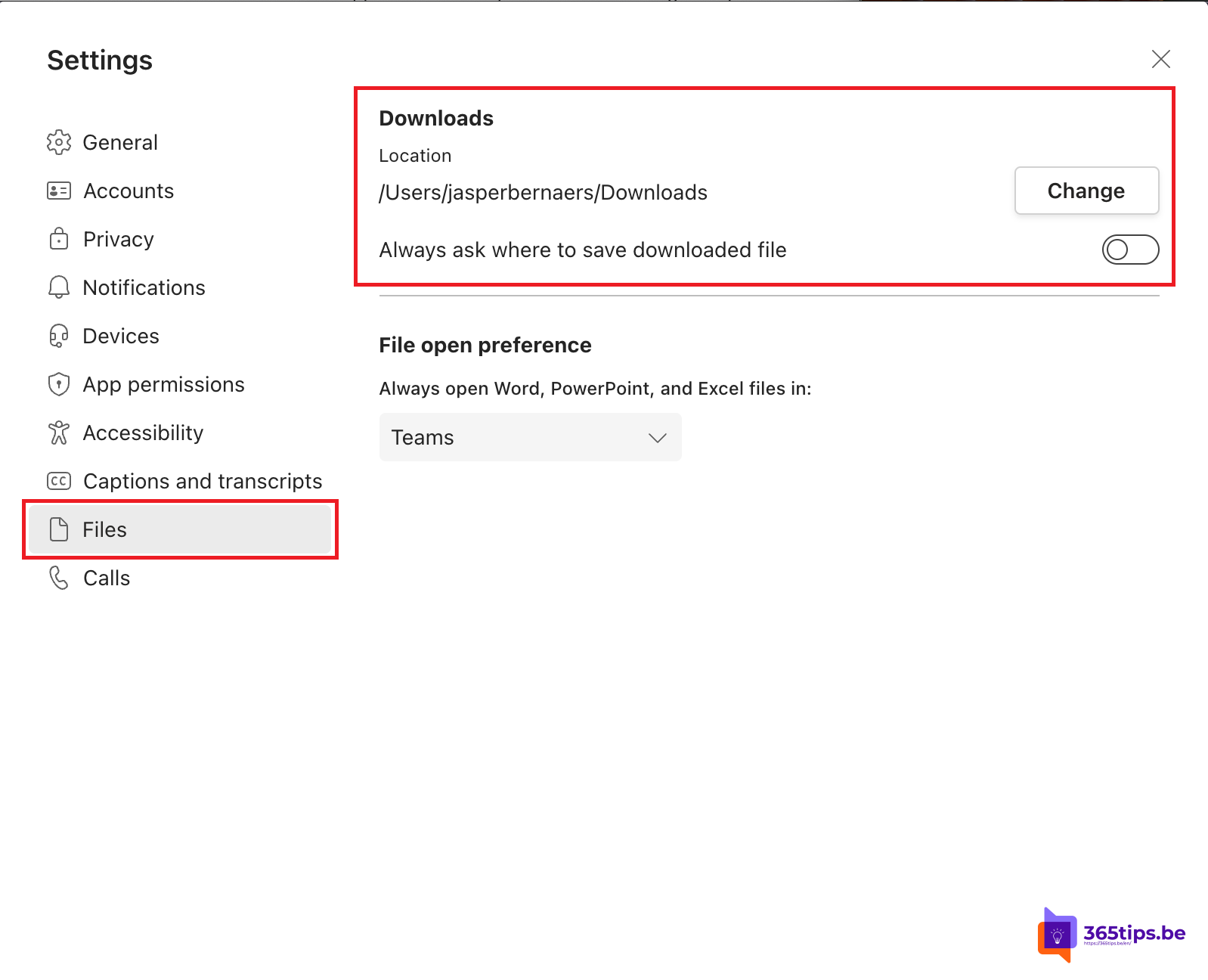
When you download a file from a Teams chat or channel, it goes to your Downloads folder by default. Prefer to choose where each file goes, or need it on another drive or folder? You set that in Teams settings. This article shows how, and when you're better off opening or syncing files instead of downloading.
Change the download location
- In Teams, select ... next to your profile picture > Settings.
- Choose Files and links.
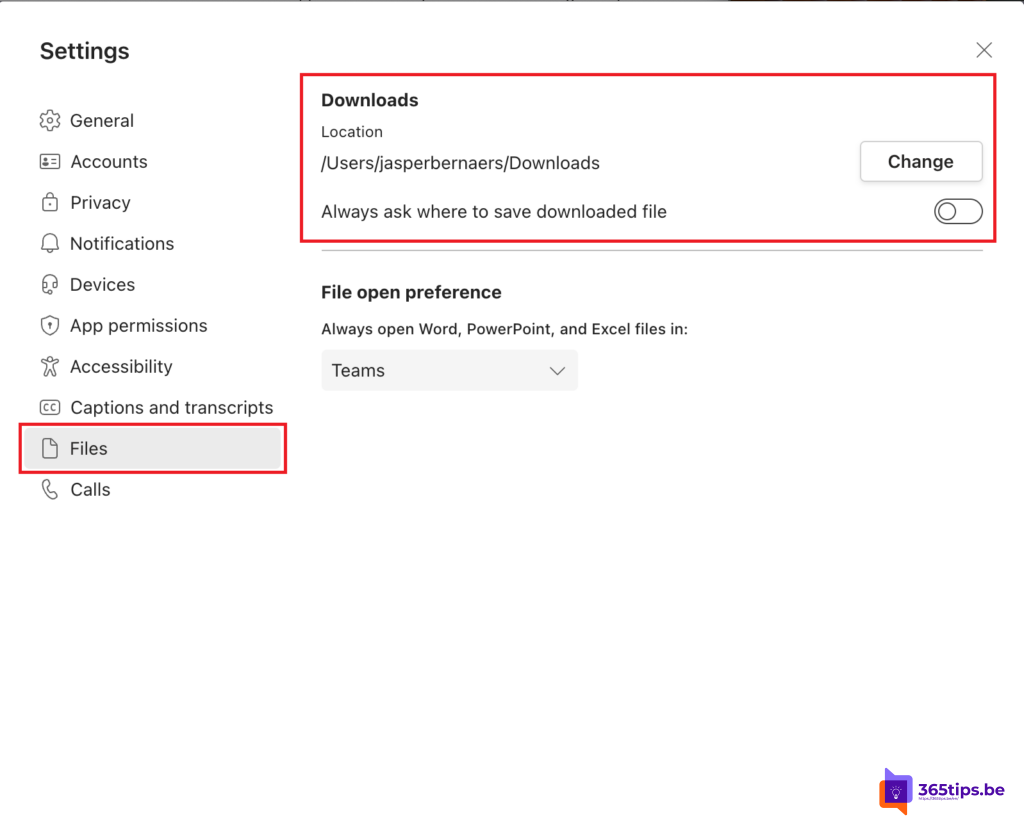
- Next to Download location, select Change and pick another folder.
- Or turn on Always ask where to save files to choose per file.
The change applies immediately to new downloads.
Download a file
Select ... next to a file in a chat or the Files tab > Download. To find out where it went, select the notification that appears or open the download folder.

Download, open or sync?
| What do you want? | Best option |
|---|---|
| Edit a file | Don't download; open it in the desktop app so you work in the shared file |
| Always have a team's files in File Explorer | Sync, or Add shortcut to OneDrive |
| A copy for yourself or to send | Download |
| Work offline on a laptop | Sync and set the folder to Always keep on this device |
A downloaded file is a separate copy: changes you make don't go back to Teams. That quickly leads to report_final_v3.docx chaos.
Problems
- The option is missing: if you use Teams in the browser, the browser decides the download folder. Change it in Edge or Chrome settings under Downloads.
- Downloading is blocked: your organization may restrict downloads on unmanaged devices with Conditional Access.
- File won't open after downloading: check that your antivirus or SmartScreen didn't block it. See also clear the Teams cache.
Read also
Open Word, Excel and PowerPoint from Teams in the desktop app or browser
Clear the Microsoft Teams cache on Windows and Mac
How to restore deleted files in Microsoft Teams and SharePoint
Nederlandstalige versie: De map wijzigen waar Microsoft Teams bestanden downloadt