Want employees to view documents on their personal PC, but not download or sync them? Then limit access to SharePoint and OneDrive on unmanaged devices. You do this straight from the SharePoint admin center, together with Conditional Access in Microsoft Entra ID (formerly Azure AD).
Why limit access?
Documents used to live on a file server and were shared by email at most. Today you open them anywhere, on any device. Convenient, but a document downloaded to a personal PC is out of your control. With this setting people work in the browser, without the files landing on the device.
What is a managed device?
A device counts as managed if it is:
- hybrid joined (joined to your domain and to Entra ID), or
- compliant according to Microsoft Intune.
All other devices are unmanaged. You need Microsoft Entra ID P1, for example via Microsoft 365 Business Premium or E3.
1. The setting in the SharePoint admin center
- Open the SharePoint admin center.
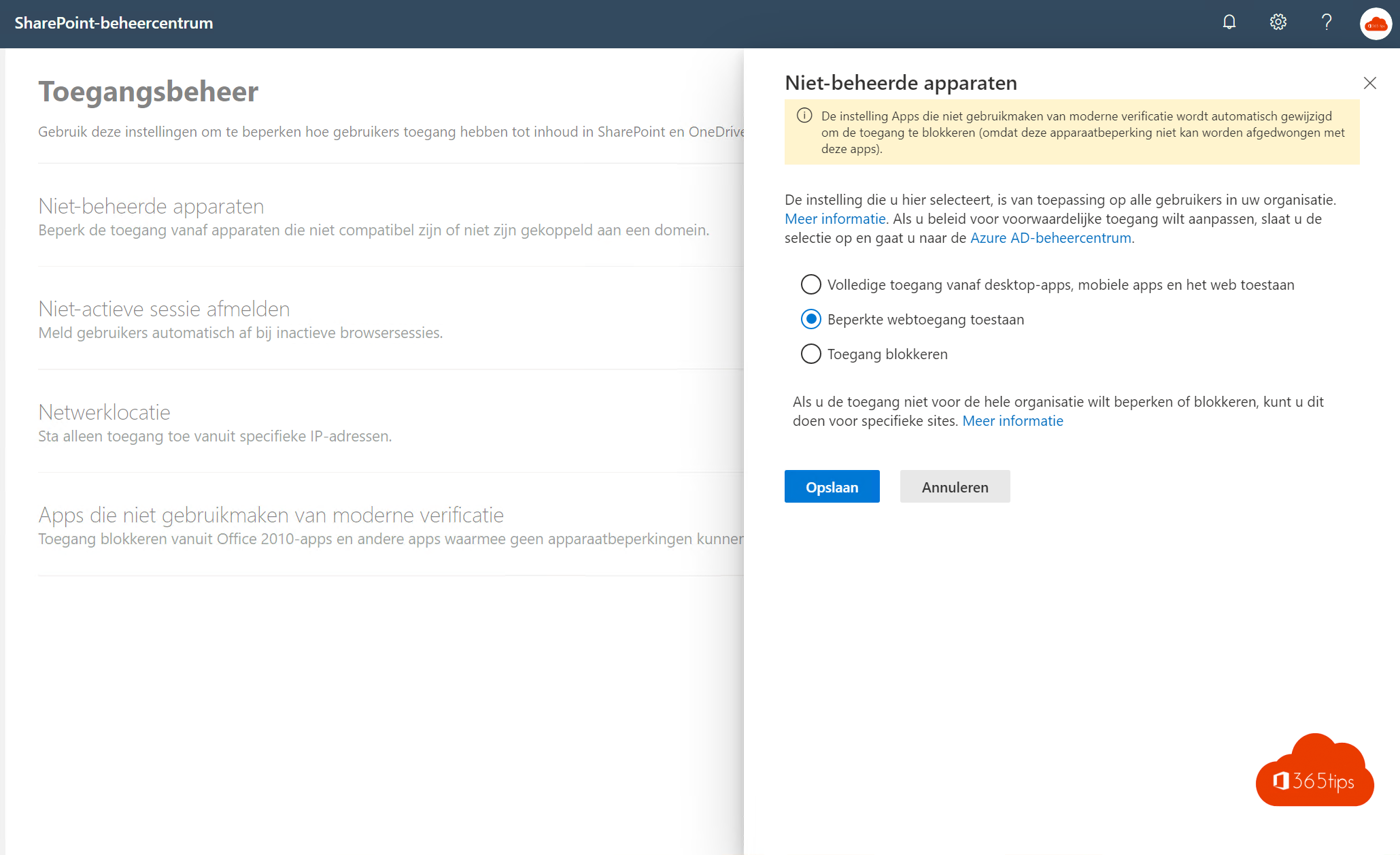
- Go to Policies > Access control > Unmanaged devices.
- Choose one of three options:
- Allow full access from desktop apps, mobile apps, and the web;
- Allow limited, web-only access: view and edit in the browser, but no downloading, printing or syncing;
- Block access.
- Select Save.

You can also set the restriction per site with PowerShell, for example for sensitive sites only:
Set-SPOSite -Identity https://contoso.sharepoint.com/sites/HR -ConditionalAccessPolicy AllowLimitedAccess2. Conditional Access in Entra ID
Conditional Access means granting access under conditions, such as the device, the location or the sign-in risk.
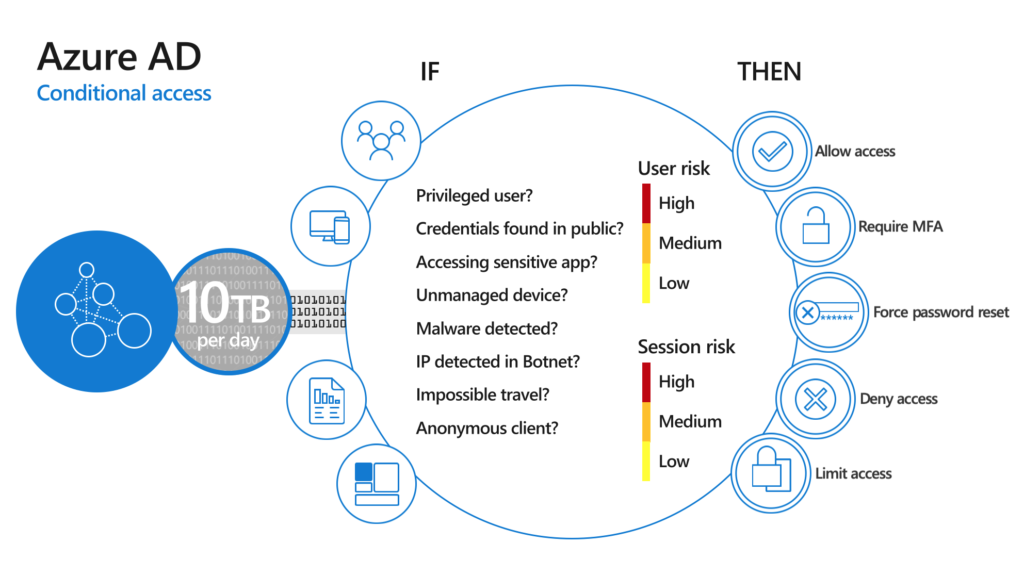
When you choose limited or blocked access in SharePoint, Microsoft automatically creates Conditional Access policies.
- Open the Microsoft Entra admin center (entra.microsoft.com).
- Go to Protection > Conditional Access > Policies.

You see the policy created by the SharePoint setting.

The policy uses app enforced restrictions for the Office 365 cloud apps, such as SharePoint, OneDrive, Exchange and Teams.

A second policy makes sure only browsers and apps with modern authentication can connect.

Review these policies, test with a small group first and only then set them to On.
Tips
- Combine this with blocking downloads via Defender for Cloud Apps for more control.
- Don't forget Outlook on the web: you can also restrict attachments on unmanaged devices there.
- Tell users why they can only work in the browser on their personal PC.
Also see SharePoint Online governance and security defaults in Microsoft Entra ID.
Read also
Block downloading Microsoft 365 files on unmanaged devices
Set up good governance for SharePoint Online
Microsoft Entra ID P1 in Microsoft 365 Business Premium: what do you get?
Nederlandstalige versie: Toegang tot documenten beperken op niet-beheerde toestellen