Who deleted that file? Who shared the folder with an external person? Who changed a mailbox permission? The audit log in Microsoft Purview records what users and admins do in SharePoint, OneDrive, Exchange, Teams and Entra ID. This article shows how to search it.
Is the audit log on?
The audit log is on by default. Go to purview.microsoft.com > Audit. If you see a banner to Start recording user and admin activity, select it to turn it on.
Run a search
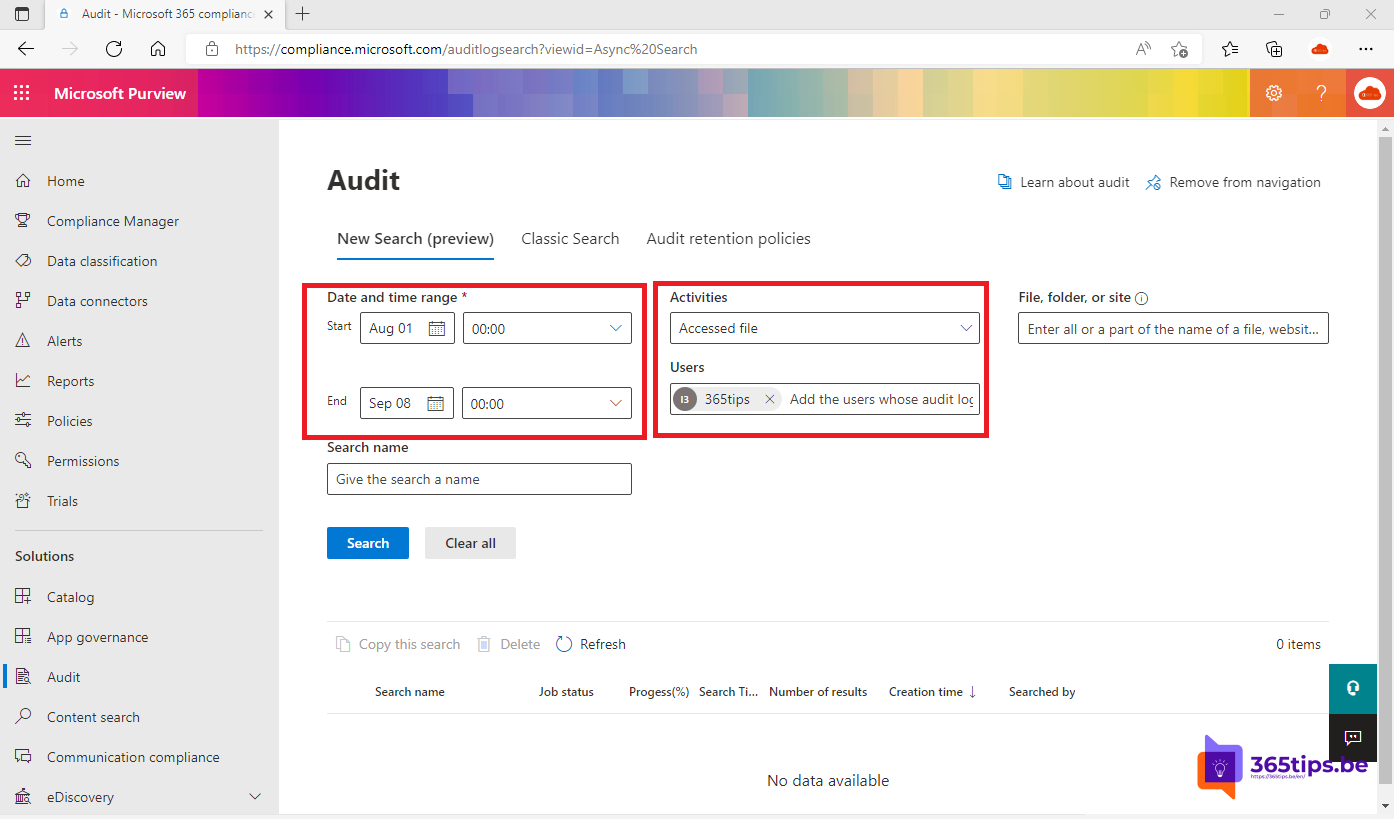
- Open Audit > New search.
- Choose the date and time range.
- Under Activities, pick what you're after, such as Deleted file, Created sharing link or Added permissions to mailbox.
- Optionally fill in users, a file, folder or site.
- Select Search. The search runs in the background; open it when it's done.

Export
Select Export for a CSV file. Open it in Excel; the AuditData column holds all details in JSON. Use Data > Get & Transform to split it into columns.
How long is data kept?
- Audit (Standard): 180 days.
- Audit (Premium): 1 year by default, up to 10 years with an add-on, for example with Microsoft 365 E5.
Need to go back further? Export regularly or send the logs to Microsoft Sentinel.
With PowerShell
In Exchange Online PowerShell: Search-UnifiedAuditLog -StartDate 2026-10-01 -EndDate 2026-10-19 -Operations FileDeleted -UserIds john@contoso.com
Usage reports
Want to see overall usage rather than one event, such as how many files are shared? Read usage reports and Adoption Score. See also alert policies.
Read also
Set up alert policies in Microsoft 365
Usage reports and Adoption Score in the Microsoft 365 admin center
How to restore deleted files in Microsoft Teams and SharePoint
Nederlandstalige versie: Zoeken in het auditlogboek van Microsoft 365 met Purview