A user creates a rule forwarding all their email outside, someone suddenly gets admin rights, or hundreds of files are deleted at once. With alert policies in Microsoft 365 you get an email about it straight away. This article covers the built-in alerts and how to create your own.
Built-in alerts
Microsoft 365 already includes a set of built-in policies, such as:
- Creation of forwarding/redirect rule.
- Elevation of Exchange admin privilege.
- Suspicious email sending patterns and users restricted from sending.
- Unusual external sharing and unusual volumes of file deletion (depending on your licence).
Find alert policies
- Defender portal: security.microsoft.com > Email & collaboration > Policies & rules > Alert policy.
- Purview portal: purview.microsoft.com > Policies > Alert policies.
For the built-in policies, check who receives the email. Often only global admins are listed; add your security mailbox.

Create your own alert
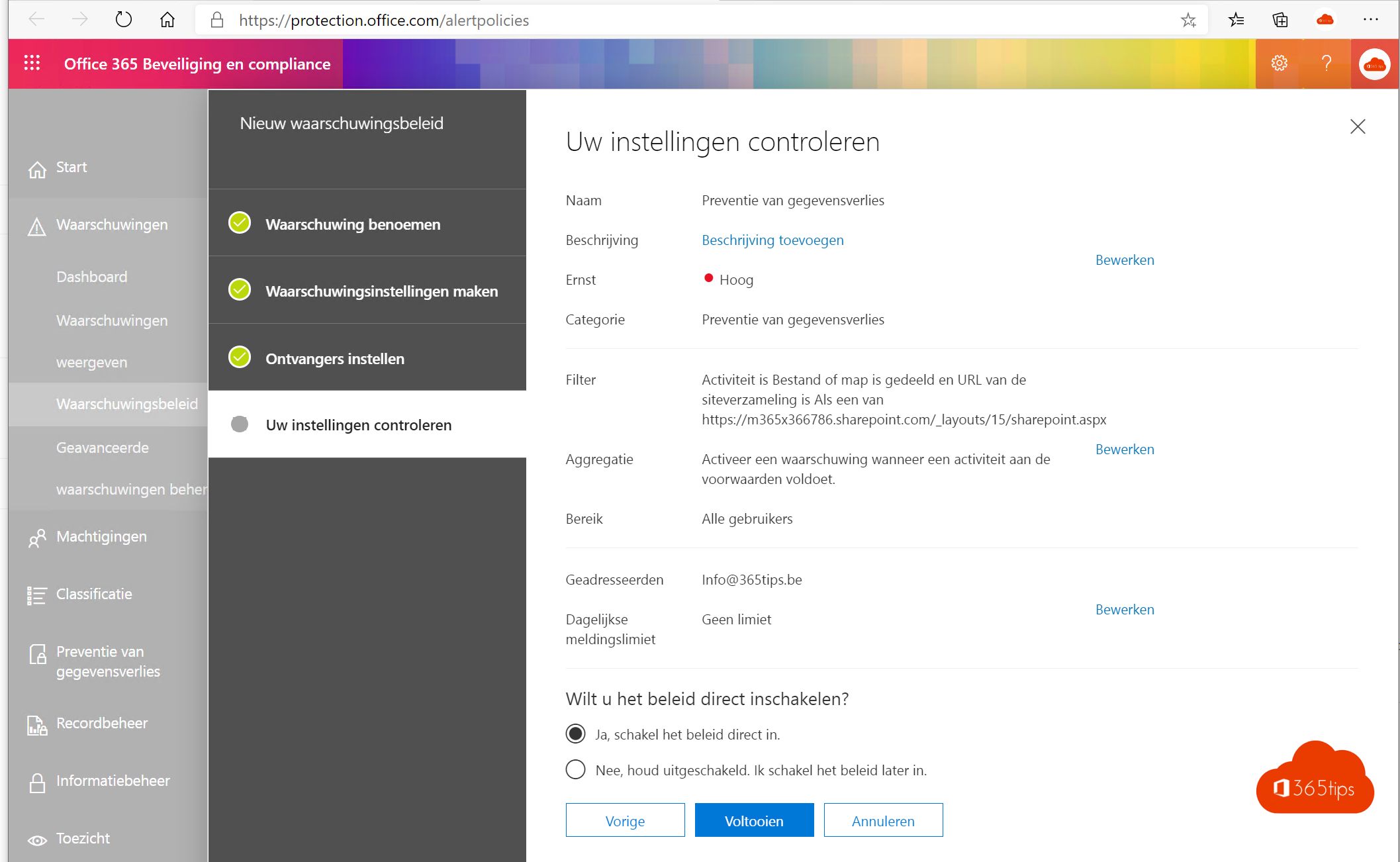
- Select New alert policy.
- Enter a name, severity and category, such as Threat management.
- Choose the activity, such as Deleted file, Added member to role or Added guest.
- Choose whether to alert on every occurrence or only above a threshold (such as 100 times in an hour).
- Choose who gets the email and select Create.

Requirement: the audit log
Alerts are based on the audit log. It's on by default, but check it. Read search the audit log.
Follow up on alerts
All alerts also come together in the Defender portal under Incidents & alerts. Agree who follows them up, or they become emails nobody reads. Related: block automatic forwarding.
Read also
Search the Microsoft 365 audit log with Purview
Block automatic forwarding and outgoing email in Microsoft 365
Improve your security with Microsoft Secure Score
Nederlandstalige versie: Waarschuwingsbeleid instellen in Microsoft 365