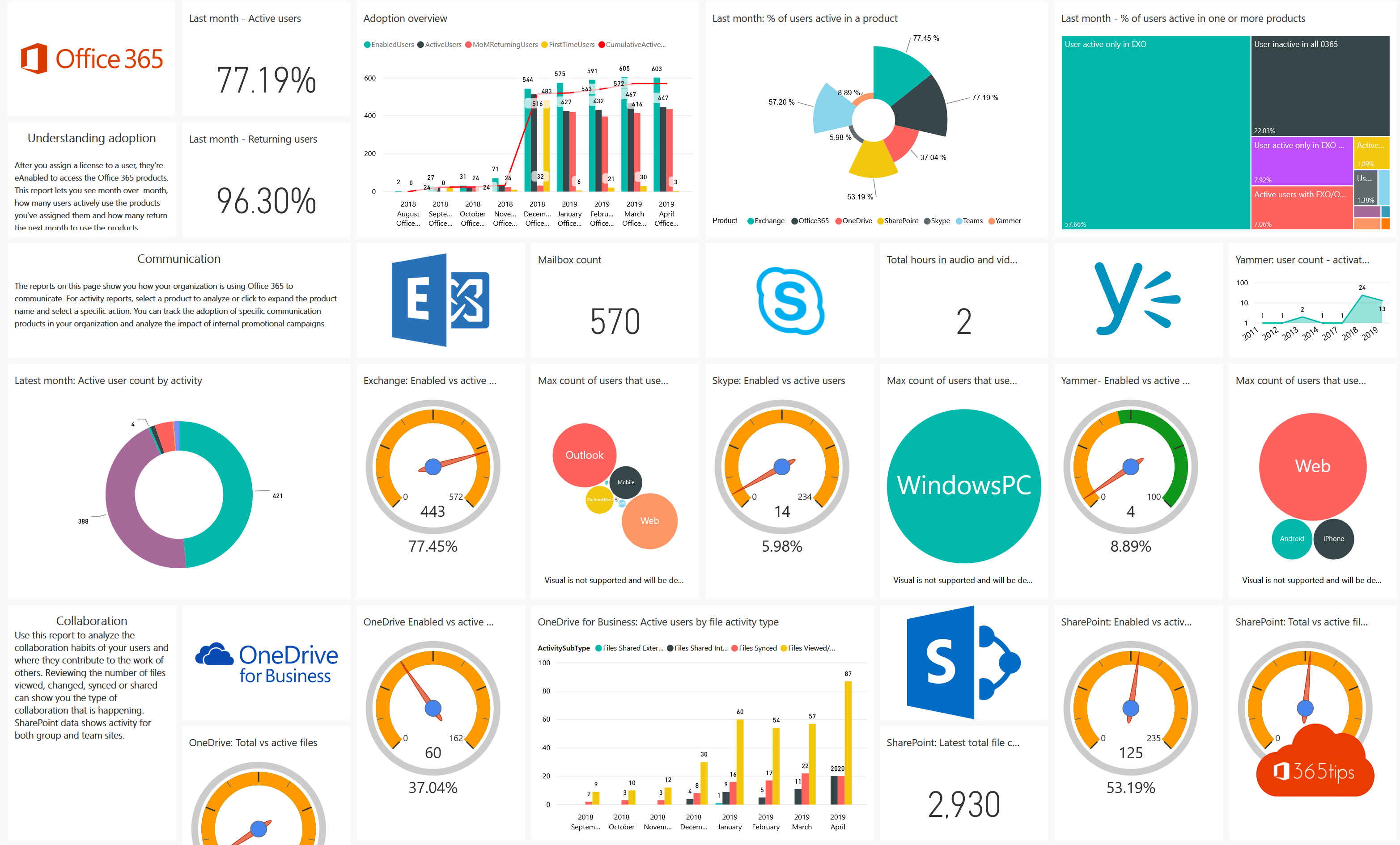
Do your colleagues really use Teams, or only for meetings? How many people work in OneDrive, which mailboxes are still active, and who uses Copilot? The Microsoft 365 admin center has built-in usage reports and an Adoption Score that answer such questions. This article covers which reports exist, how to open and export them, how to see real names, and how to use them in Power BI.
Open the usage reports
- Go to the Microsoft 365 admin center.
- Choose Reports > Usage.
- You see an overview, and tabs per service: Teams, Exchange, OneDrive, SharePoint, Microsoft 365 apps, Viva Engage and more.
- Pick a period of 7, 30, 90 or 180 days. Select Export for a CSV file per user.
You need the Reports Reader role, Global Reader or higher. Give managers who only need numbers the Reports Reader role, nothing more.
What do the reports tell you?
| Report | Useful questions |
|---|---|
| Teams user activity | Who chats, calls, meets? How many channel posts versus private chats? |
| OneDrive and SharePoint | How many files are shared and synced? Which sites are inactive? |
| Email activity and mailbox usage | Which mailboxes are nearly full or unused for months? |
| Microsoft 365 apps | Who uses the desktop version, the web or mobile? |
| Active users | Who isn't using their license, so you can reassign it? |
You see codes instead of names
Since 2021 Microsoft hides user, group and site names in reports by default. To see real names, go to Settings > Org settings > Reports and clear Display concealed user, group, and site names in all reports. Discuss it with your privacy officer or works council first: usage data per person is personal data.
Adoption Score
Under Reports > Adoption Score, Microsoft scores your organization on how people work together (communication, meetings, content collaboration, mobility) and how well the technology performs (devices, network, app health). You also get recommendations, such as sharing files instead of attachments. Adoption Score only shows organization-level numbers, never per person. A Global Administrator has to turn it on once.
Reports in Power BI
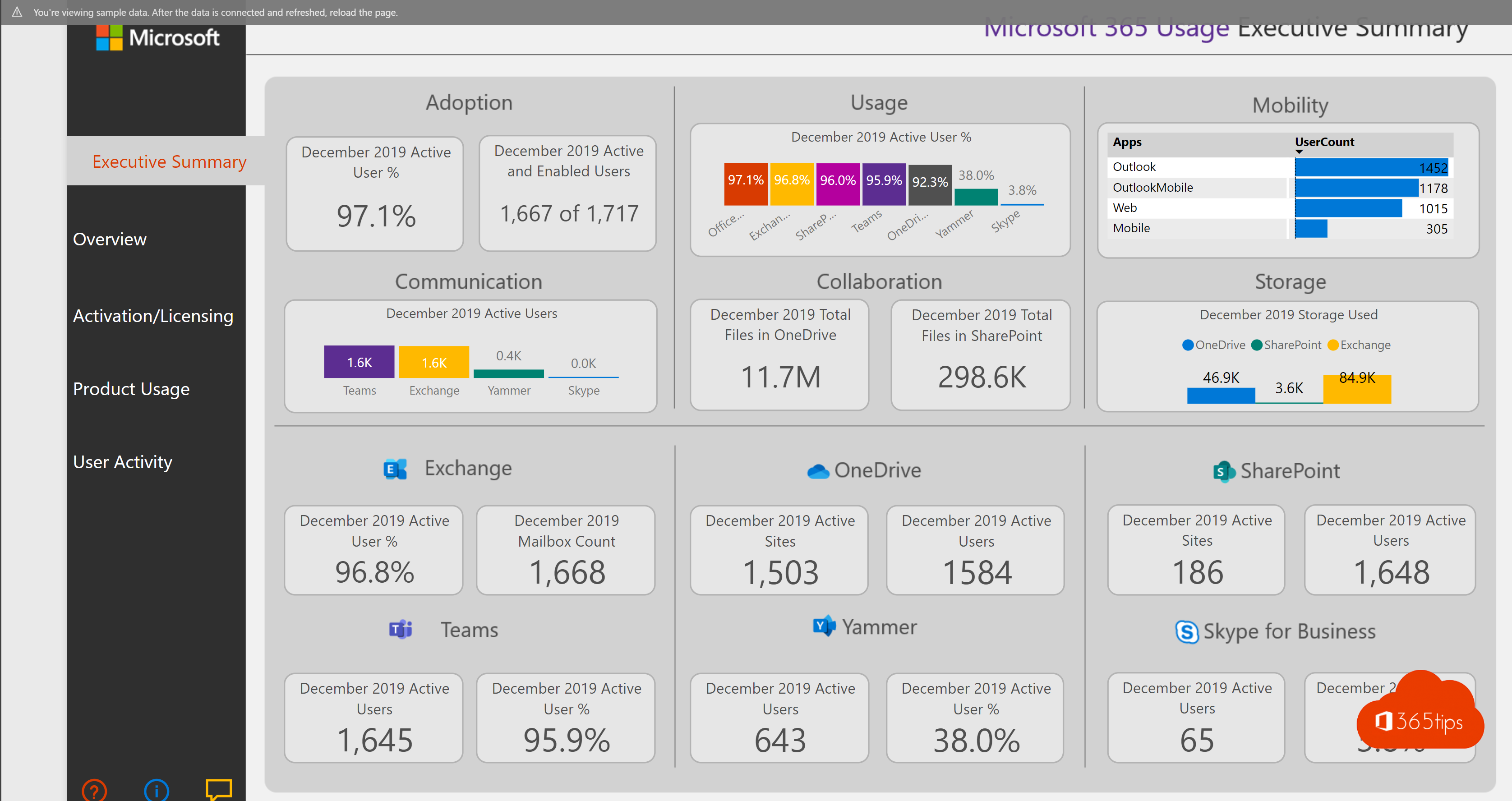
For your own dashboards or a longer history, install the Power BI app Microsoft 365 Usage Analytics:
- In the admin center under Settings > Org settings > Reports, turn on Make report data available to Microsoft 365 usage analytics for Power BI and note the tenant ID.
- In Power BI, go to Apps > Get apps, search for Microsoft 365 Usage Analytics and install it.
- Enter the tenant ID and sign in. The first report is ready after a few hours and contains up to twelve months of history.
You need a Power BI Pro license to share the app with colleagues.
See also which Microsoft 365 license do I have and the overview of Microsoft 365 admin portals.
Read also
Which Microsoft 365 licence do I have? How to check
All Microsoft 365 admin portals in one list: the right URLs in 2026
Where is your Microsoft 365 tenant's data stored?
Nederlandstalige versie: Gebruiksrapporten en Adoption Score in het Microsoft 365 admin center