An alias is an extra email address for the same mailbox. That way John also receives email at j.peters@contoso.com or john@newdomain.com after a name change or acquisition. This article shows how to add an alias in the Microsoft 365 admin center, the Exchange admin center, with PowerShell or in on-premises Active Directory.
In the Microsoft 365 admin center
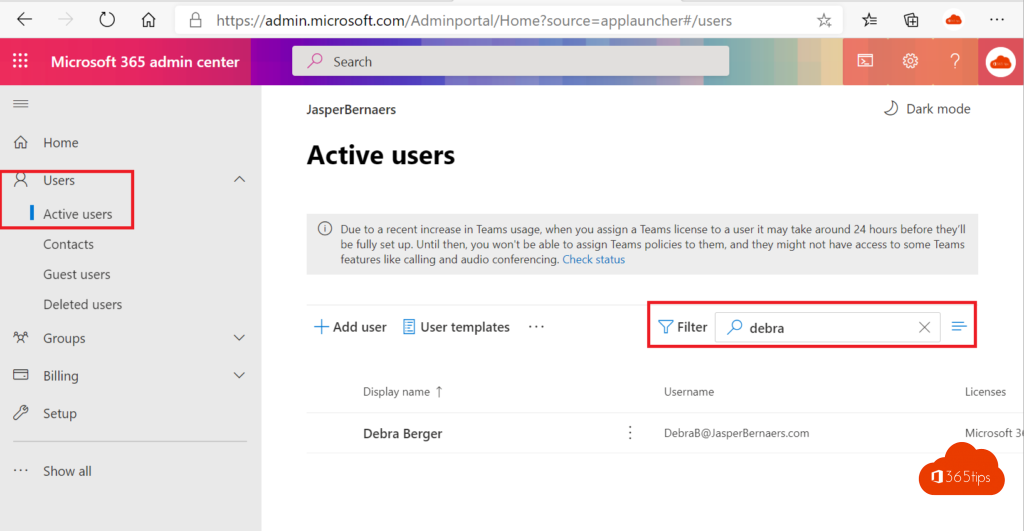
- Go to admin.microsoft.com > Users > Active users and select the user.
- On the Account tab, select Manage username and email.
- Type the alias, choose the domain and select Add > Save changes.
In the Exchange admin center
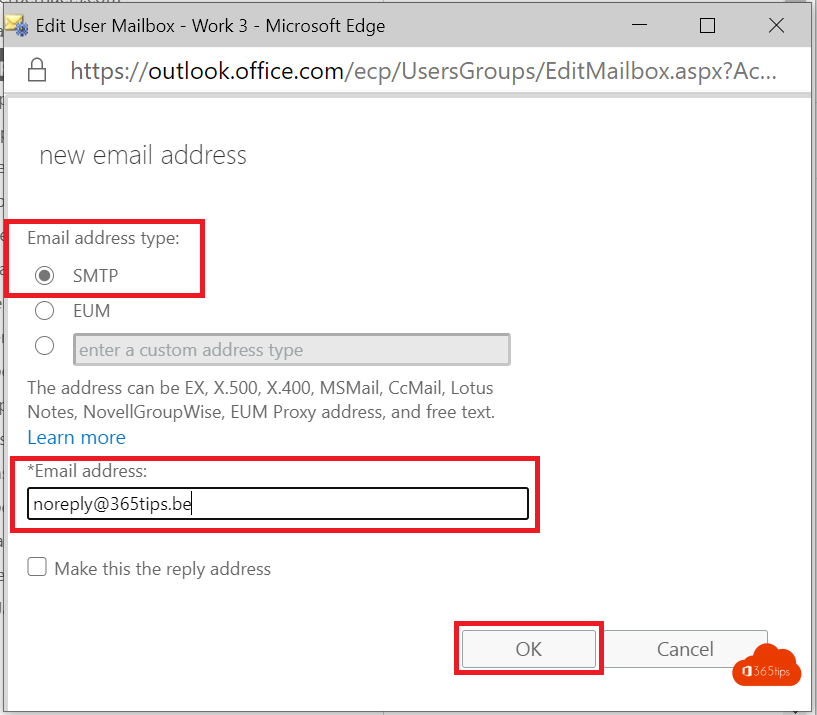
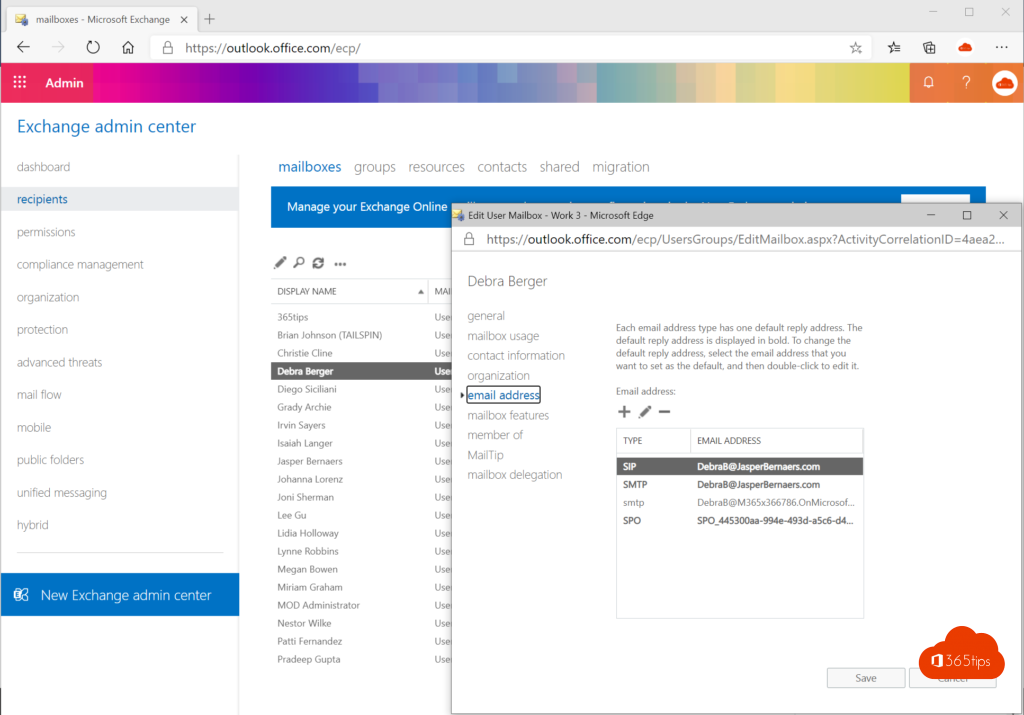
Go to Recipients > Mailboxes, select the mailbox > Manage email address types > Add email address type > SMTP. This also works for shared mailboxes and groups.
With PowerShell
Set-Mailbox -Identity john@contoso.com -EmailAddresses @{Add="smtp:j.peters@contoso.com"}
Note: uppercase SMTP: makes the address the primary address, lowercase smtp: makes it an alias.
Users from on-premises Active Directory
Is the user synced with Entra Connect? Then you can't add the alias in Microsoft 365. Add it in Active Directory to the proxyAddresses attribute (in Active Directory Users and Computers > Attribute Editor), and wait for the next sync.
Tips
- The alias domain must be verified in Microsoft 365. Read add a domain.
- An alias needs no extra licence. You can add up to 400 per mailbox.
- Want to send from the alias too? Read send from an alias.
- A shared address for a team? Use a shared mailbox or a distribution group.
Nederlandstalige versie: Een e-mailalias toevoegen in Microsoft 365, Exchange of Active Directory