
The main reason to move distribution groups to Exchange Online, even in a hybrid environment: putting management with the owners instead of IT. In this article you convert a synced group into a cloud group step by step with PowerShell, using the current Exchange Online PowerShell module and Microsoft Entra Connect Sync. Microsoft also offers a way to move the source of authority of synced groups to the cloud; check whether that's available for your tenant before choosing this manual method.
Preparation
- Install the Exchange Online PowerShell module and connect with
Connect-ExchangeOnline. - Pick a quiet moment: between step 4 and 5 the group's email address is briefly unreachable.
- These examples use the group Sales with the address sales@contoso.com. Adjust the names to your own environment.
Step 1: export the group
Save all properties and members. You need the LegacyExchangeDN later as an X500 address, so old replies and cached addresses in Outlook keep working.
Get-DistributionGroup -Identity "Sales" |
  Select-Object Name,DisplayName,Alias,PrimarySmtpAddress,LegacyExchangeDN,ManagedBy,RequireSenderAuthenticationEnabled,@{n='EmailAddresses';e={$_.EmailAddresses -join ';'}} |
  Export-Csv C:\Temp\Sales-props.csv -NoTypeInformation

Get-DistributionGroupMember -Identity "Sales" -ResultSize Unlimited |
  Select-Object Name,PrimarySmtpAddress |
  Export-Csv C:\Temp\Sales-members.csv -NoTypeInformation
Step 2: create the new group with a prefix
Create the group in Exchange Online with a temporary name, for example with the prefix NEW_, and a temporary address on your onmicrosoft.com domain.
New-DistributionGroup -Name "NEW_Sales" -Alias "NEW_Sales" `
  -PrimarySmtpAddress "NEW_Sales@contoso.onmicrosoft.com" `
  -ManagedBy "owner@contoso.com"
Step 3: add members and owners
Import-Csv C:\Temp\Sales-members.csv | ForEach-Object {
  Add-DistributionGroupMember -Identity "NEW_Sales" -Member $_.PrimarySmtpAddress
}
Also copy other settings, such as who may send to the group (AcceptMessagesOnlyFrom) and whether external senders are allowed (RequireSenderAuthenticationEnabled).
Step 4: remove the old group
- Delete the group in your on-premises Active Directory, or move it to an OU that isn't synced.
- Run a sync on your Entra Connect server:
Start-ADSyncSyncCycle -PolicyType DeltaThen check in Exchange Online that the old group is really gone.
Step 5: move the name and addresses
Only now can you assign the original address to the new group. Also add the X500 address with the value of the old LegacyExchangeDN.
Set-DistributionGroup -Identity "NEW_Sales" -Name "Sales" -DisplayName "Sales" `
  -Alias "Sales" -PrimarySmtpAddress "sales@contoso.com"

Set-DistributionGroup -Identity "Sales" `
  -EmailAddresses @{Add="X500:/o=Contoso/ou=Exchange Administrative Group (FYDIBOHF23SPDLT)/cn=Recipients/cn=sales"}
Did the old group have other addresses (aliases)? Add those too. Then send a test message from inside and outside the organization.
Delegate management
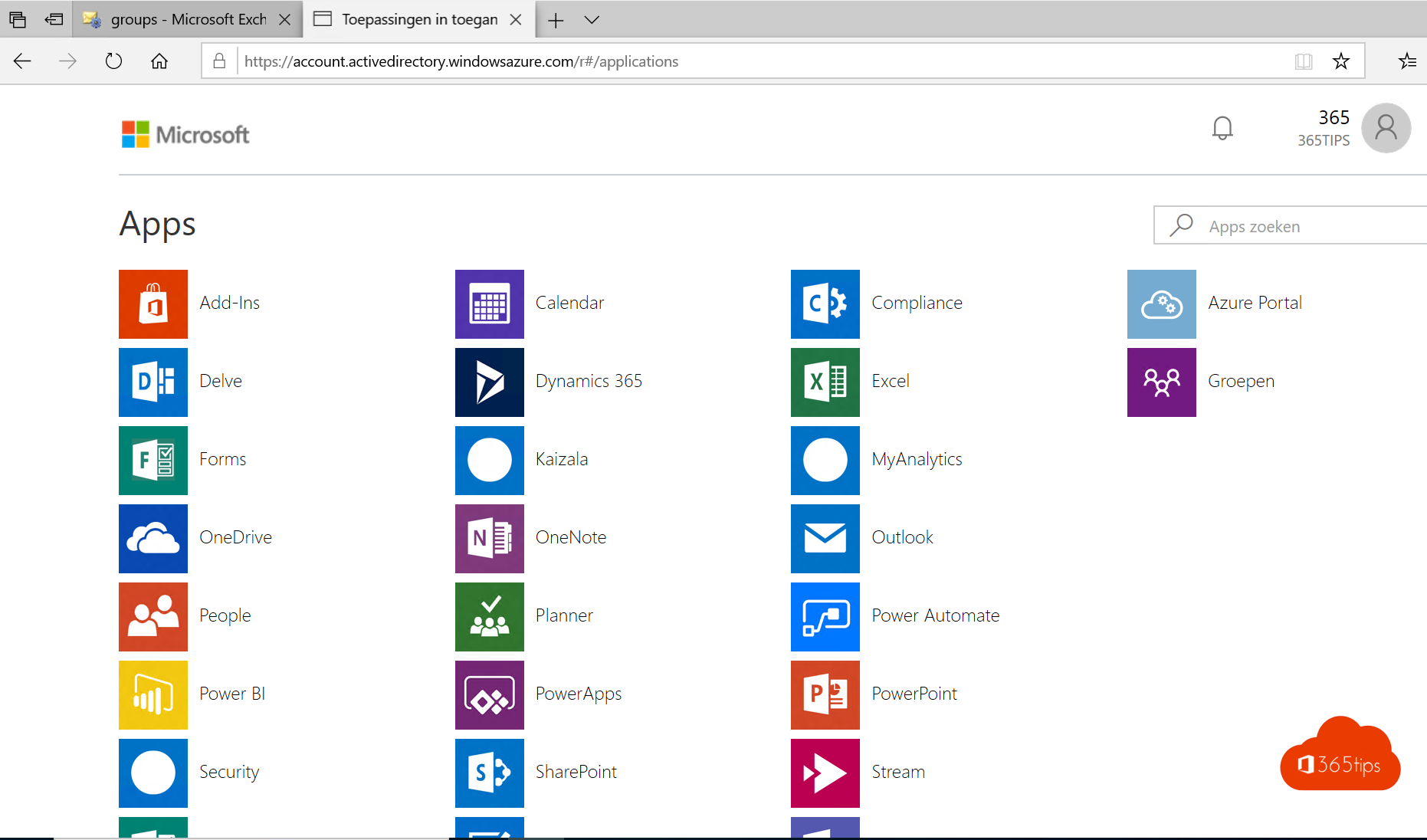
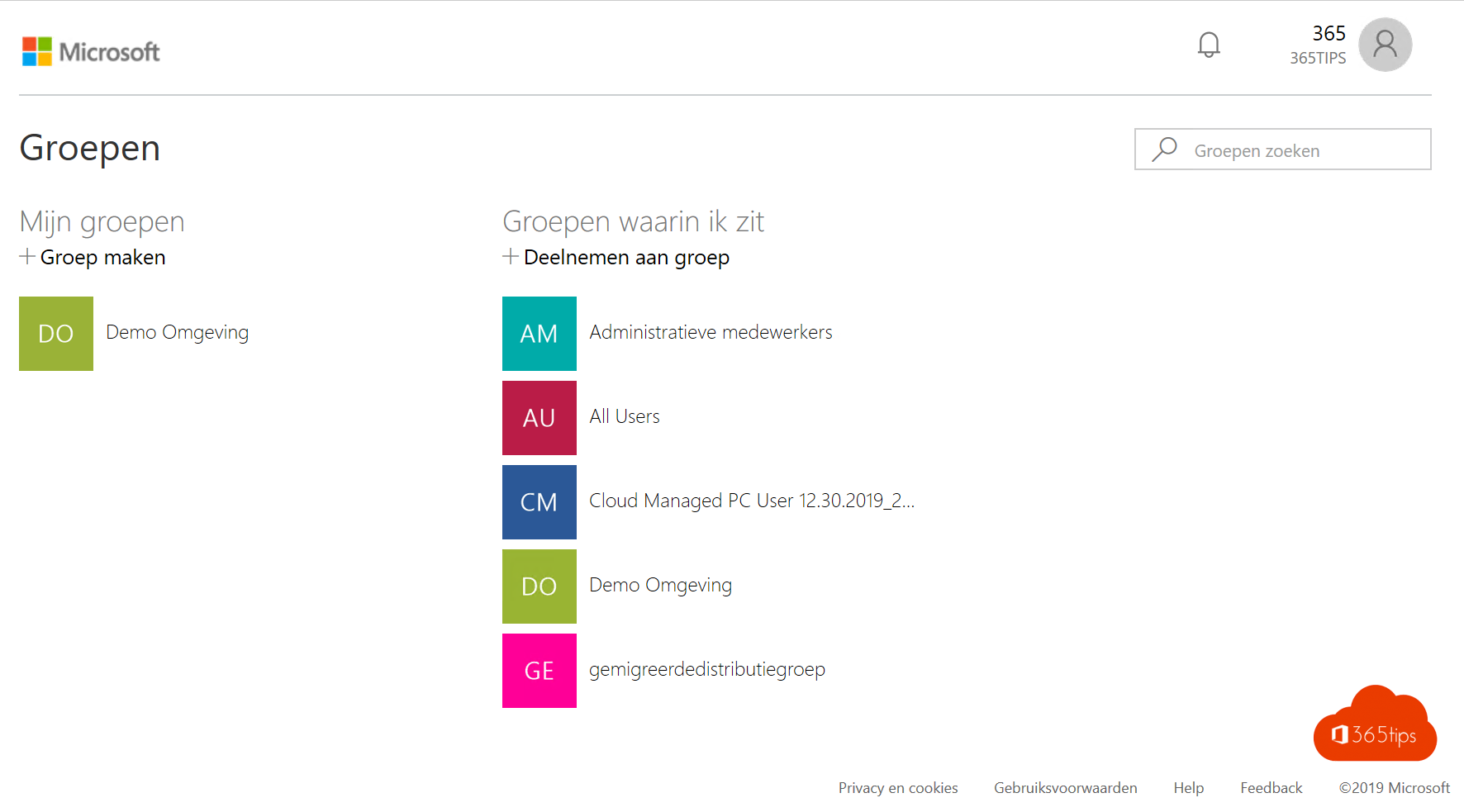
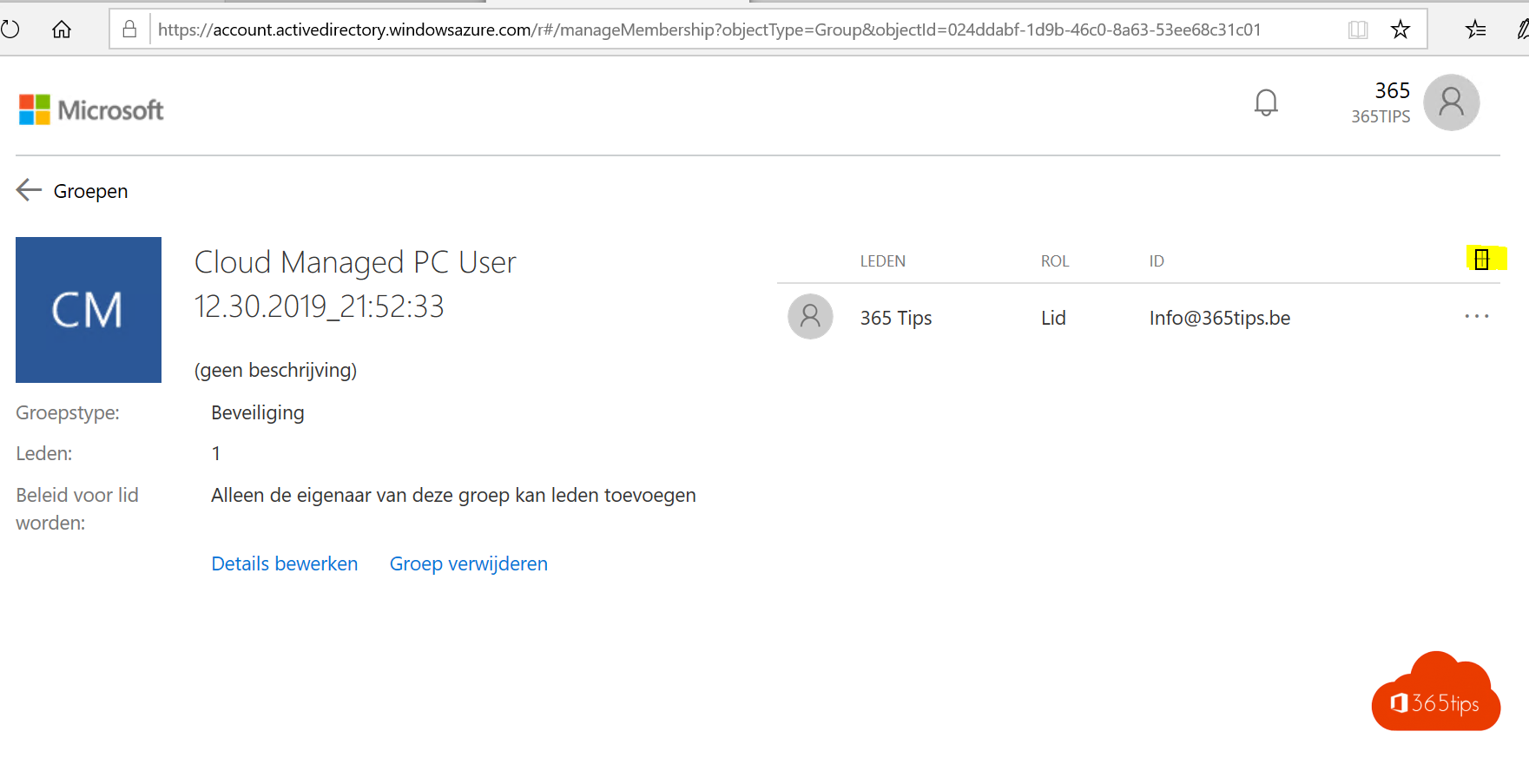
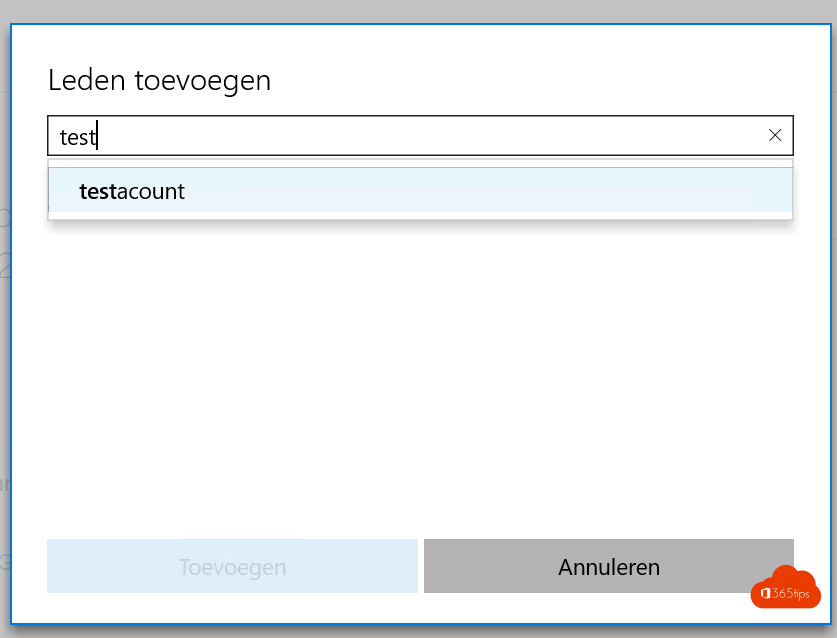
The owner you set with -ManagedBy now manages the group. That works via myaccount.microsoft.com > Groups, via Outlook on the web or via the address book in classic Outlook.
Also see why migrate distribution groups to Microsoft 365 and connect to Exchange Online PowerShell with MFA.
Read also
Why and how to migrate distribution groups to Microsoft 365
Connect to Exchange Online PowerShell with MFA or a certificate
Install the Exchange Online PowerShell module (ExchangeOnlineManagement)
Nederlandstalige versie: Distributiegroepen migreren naar Exchange Online met PowerShell