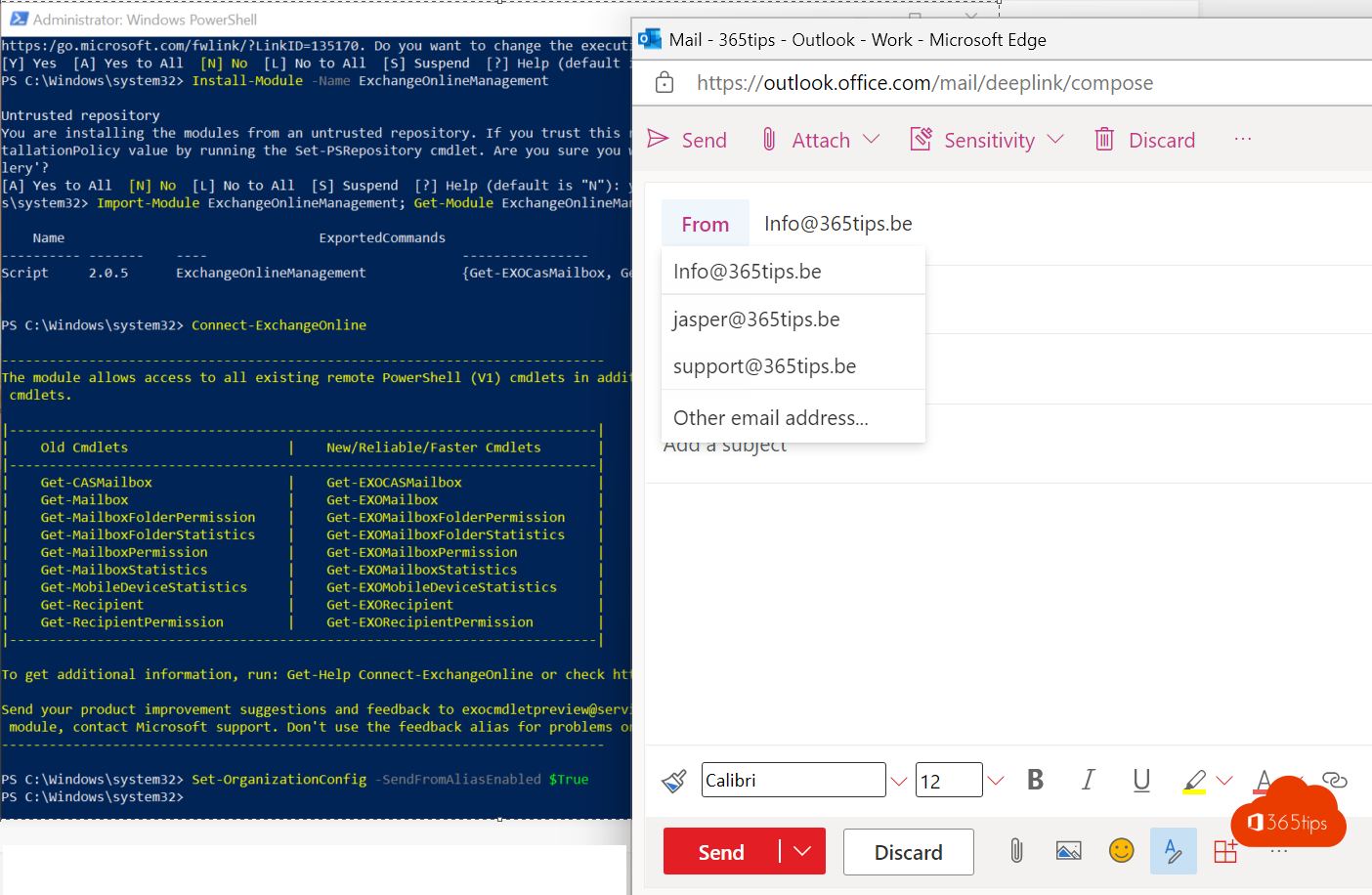
Besides john@contoso.com, do you also have an alias such as sales@contoso.com or an address on a second domain? Sometimes you want to send from that alias too, so the recipient sees that address and replies go there. Exchange Online supports it. This article shows how to turn it on and use it.
Step 1: the admin turns it on
Connect to Exchange Online PowerShell and run:
Set-OrganizationConfig -SendFromAliasEnabled $true
It can take up to an hour to work everywhere. User doesn't have an alias yet? Read add an email alias.
Step 2: send in the new Outlook and on the web
- Create a new message.
- Show the From field: select Options > Show From, or turn it on under Settings > Mail > Compose and reply.
- Select From and choose the alias. Not listed? Choose Other email address and type it.

In classic Outlook
Open a new message > Options tab > From. Select the From field > Other email address and type the alias. Outlook remembers it next time.
Replying to email sent to your alias
With the setting on, Outlook automatically replies to an email sent to your alias from that alias. Check the From field before sending.
Or: a shared mailbox
Does a team work together on an address like sales@? A shared mailbox is often better: everyone sees the emails and replies. Read set mailbox permissions.
Read also
Add an email alias in Microsoft 365, Exchange or Active Directory
Set up Full Access, Send As and Send on Behalf in Exchange Online
Add your own domain to Microsoft 365
Nederlandstalige versie: Een e-mail verzenden vanaf een alias in Exchange Online en Outlook