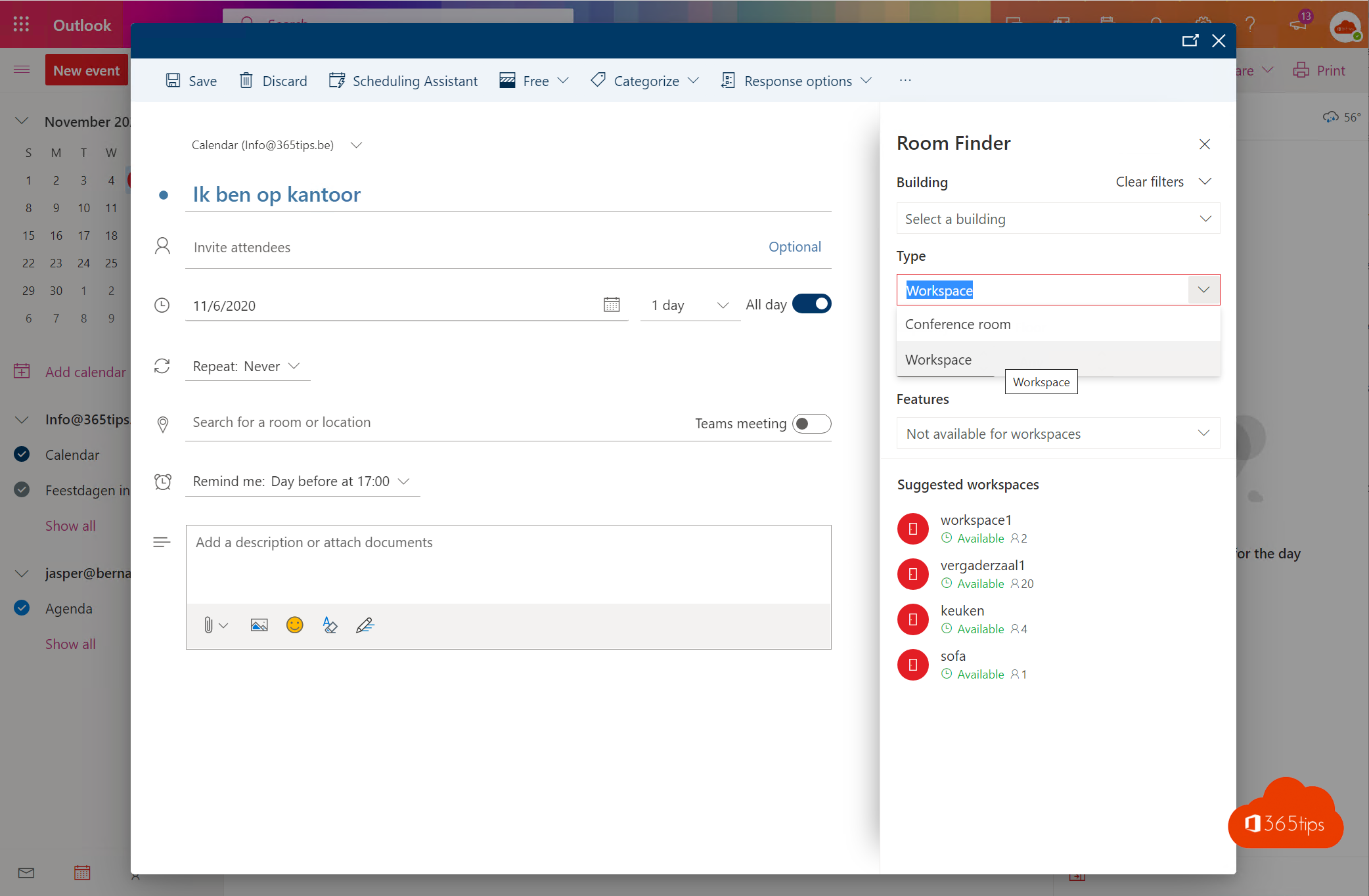
Want colleagues to book a desk or hot-desking spot in Outlook, just like a meeting room? You can with a workspace mailbox in Exchange Online. A workspace is a physical place with a maximum capacity. Several people can book it at the same time until it is full. Here is how to create workspaces with PowerShell and how users book them.
What is a workspace?
- A meeting room (room mailbox) usually accepts only one meeting at a time.
- A workspace has a capacity, for example 4 seats. As long as there is room, several people can book it for the same time slot.
- Once the workspace is full, new bookings are declined.
For richer planning of office days and desks, Microsoft also offers Microsoft Places; which features you get depends on your licenses.

Step 1: connect to Exchange Online
Install the ExchangeOnlineManagement module if you don't have it yet, and sign in with an account that has Exchange admin rights.
Import-Module ExchangeOnlineManagement
Connect-ExchangeOnline -UserPrincipalName admin@yourdomain.com
Step 2: create workspace mailboxes
First create a room mailbox, then change its type to Workspace.
New-Mailbox -Room -Name "Desk-Area-1st-Floor"
Set-Mailbox -Identity "Desk-Area-1st-Floor" -Type Workspace
Repeat this for every desk or zone you want to offer.
Step 3: create a room list
A room list groups workspaces by building, floor or department, so users find them more easily in the room finder.
New-DistributionGroup -Name "Ghent Office" -RoomList
Add-DistributionGroupMember -Identity "Ghent Office" -Member "Desk-Area-1st-Floor"
Check your work with Get-DistributionGroupMember -Identity "Ghent Office".
Step 4: set capacity and booking rules
Set how many people can book the workspace at once, and let Exchange enforce that capacity.
Set-Place -Identity "Desk-Area-1st-Floor" -Capacity 4
Set-CalendarProcessing -Identity "Desk-Area-1st-Floor" -EnforceCapacity $true
If you want people to book a full day, set a minimum duration, for example -MinimumDurationInMinutes 480 for a working day. Pick a value that fits how your organization works.
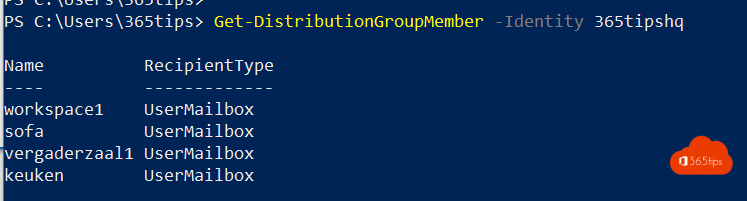
New workspaces don't appear in the room finder right away. Allow a few hours up to a day before everything shows up.
Book a workspace in Outlook
- Open your calendar in Outlook on the web or the new Outlook and create a new event.
- Open the Room finder (the exact label can differ).
- Choose a building or room list and set the type to Workspaces.
- Pick an available workspace and send the event. You get an acceptance or a decline back.


Tips
- Give workspaces clear names that include the building and floor.
- Fill in address, floor and equipment with
Set-Place, so users know what they are booking. - Need more, such as planning office days or a floor map? Have a look at Microsoft Places.
Also see install the Exchange Online PowerShell module and set up Microsoft Bookings.
Read also
Install the Exchange Online PowerShell module (ExchangeOnlineManagement)
Connect to Exchange Online PowerShell with MFA or a certificate
Set up Microsoft Bookings so others can schedule appointments themselves
Nederlandstalige versie: Workspaces aanmaken en boeken in Exchange Online en Outlook