Colleagues who can see when you're free, an assistant who manages your appointments or a partner who wants to follow your work calendar: in Outlook you share your calendar in a few clicks. You decide how much the other person sees, from just busy to every detail or even editing. This article shows how it works in the new Outlook, on the web and in classic Outlook.
Share your calendar
- Open Calendar in Outlook.
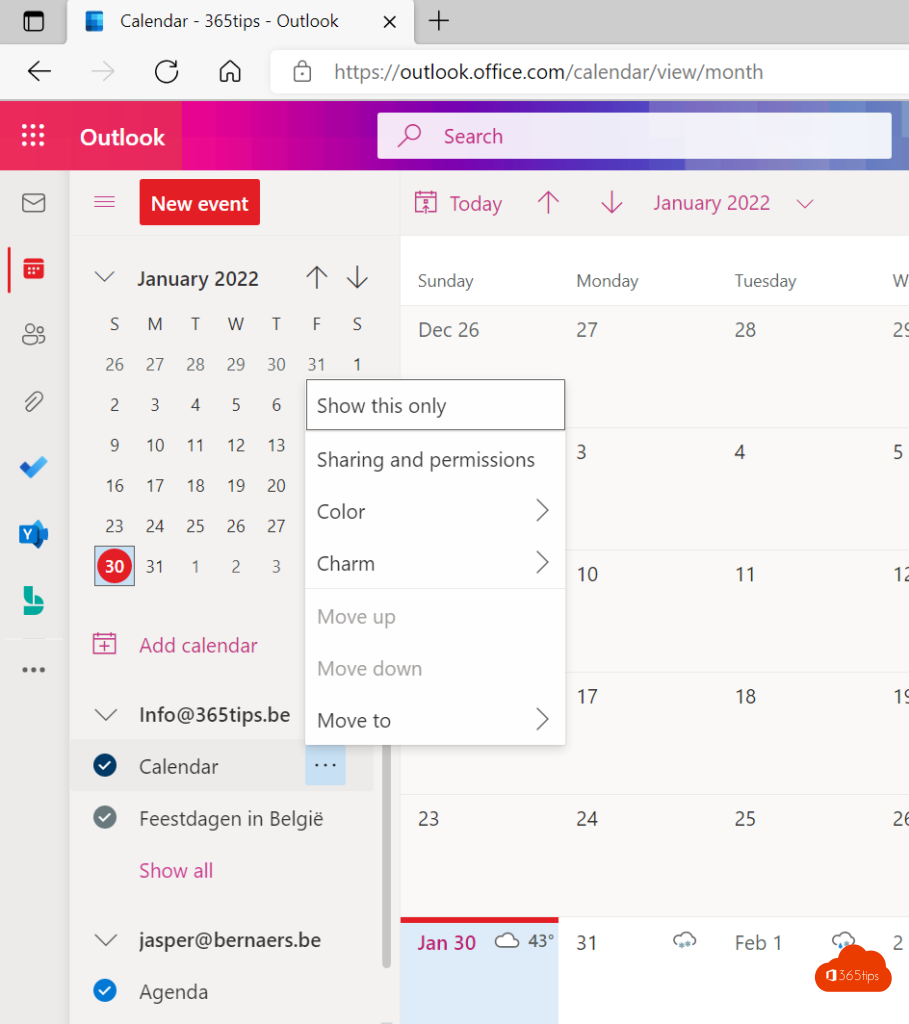
- Right-click your calendar (usually Calendar) > Sharing and permissions. In classic Outlook: Home > Share Calendar.
- Type the person's name or email address.
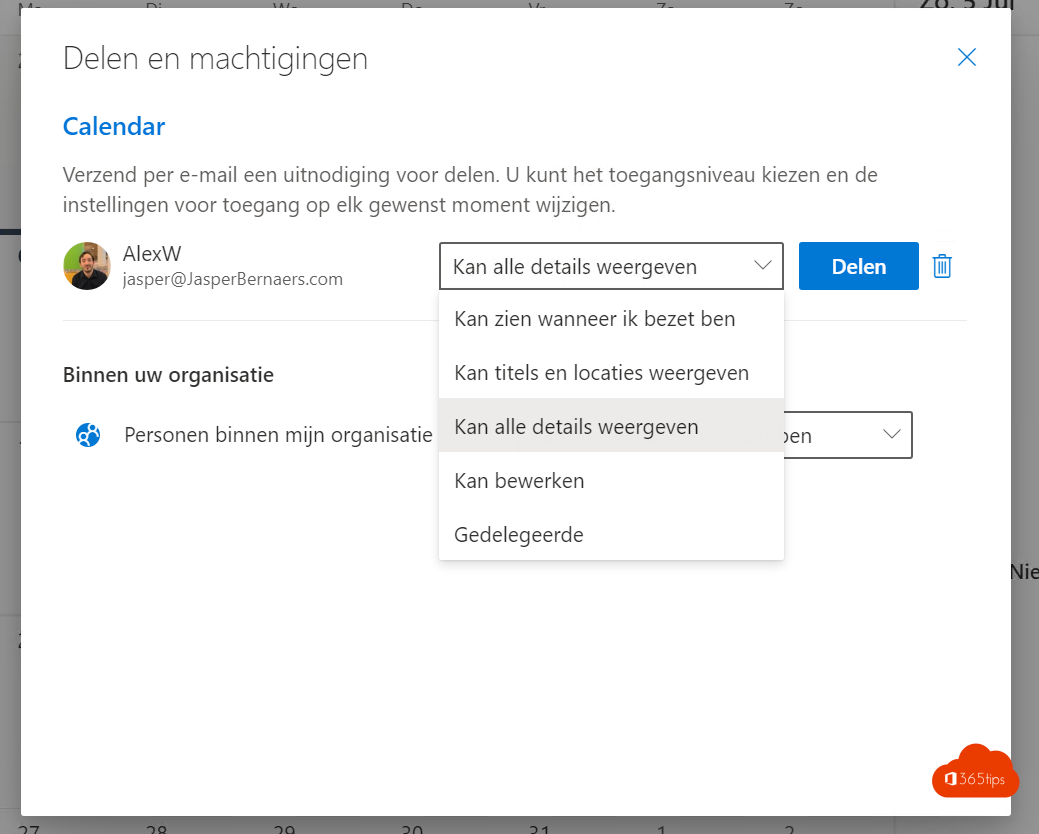
- Choose the permission level and select Share.
The other person receives an email and selects Accept. Your calendar then appears under Other calendars or Shared calendars.
Which permission should you choose?
| Level | What can the other person see or do? |
|---|---|
| Can view when I'm busy | Only free or busy, no subject |
| Can view titles and locations | Subject and location, no details |
| Can view all details | Everything except appointments you mark private |
| Can edit | Create, change and delete appointments |
| Delegate | Edit, and receive and respond to invitations on your behalf |
Within your organisation, everyone can already see when you're busy by default. Change that under People in my organization.

Share with someone outside your organisation
Just enter the external email address. Whether you can share more than busy depends on your admin's sharing policy. To publish your calendar as a link (for example to subscribe in Google Calendar), go to Outlook on the web settings > Calendar > Shared calendars > Publish a calendar.
Stop sharing
Open Sharing and permissions again, select the three dots next to the person and choose Remove permissions.
Tips
- Mark personal appointments as Private, even if you share all details.
- Looking for a time with several people outside your organisation? Use a scheduling poll.
- Want declined meetings to stay visible? See show declined meetings in your calendar.
Read also
Use a scheduling poll (formerly FindTime) in Outlook
Keep declined meetings on your Outlook calendar
Set an automatic reply (Out of Office) in Outlook
Nederlandstalige versie: Je Outlook-agenda delen met collega's of externen