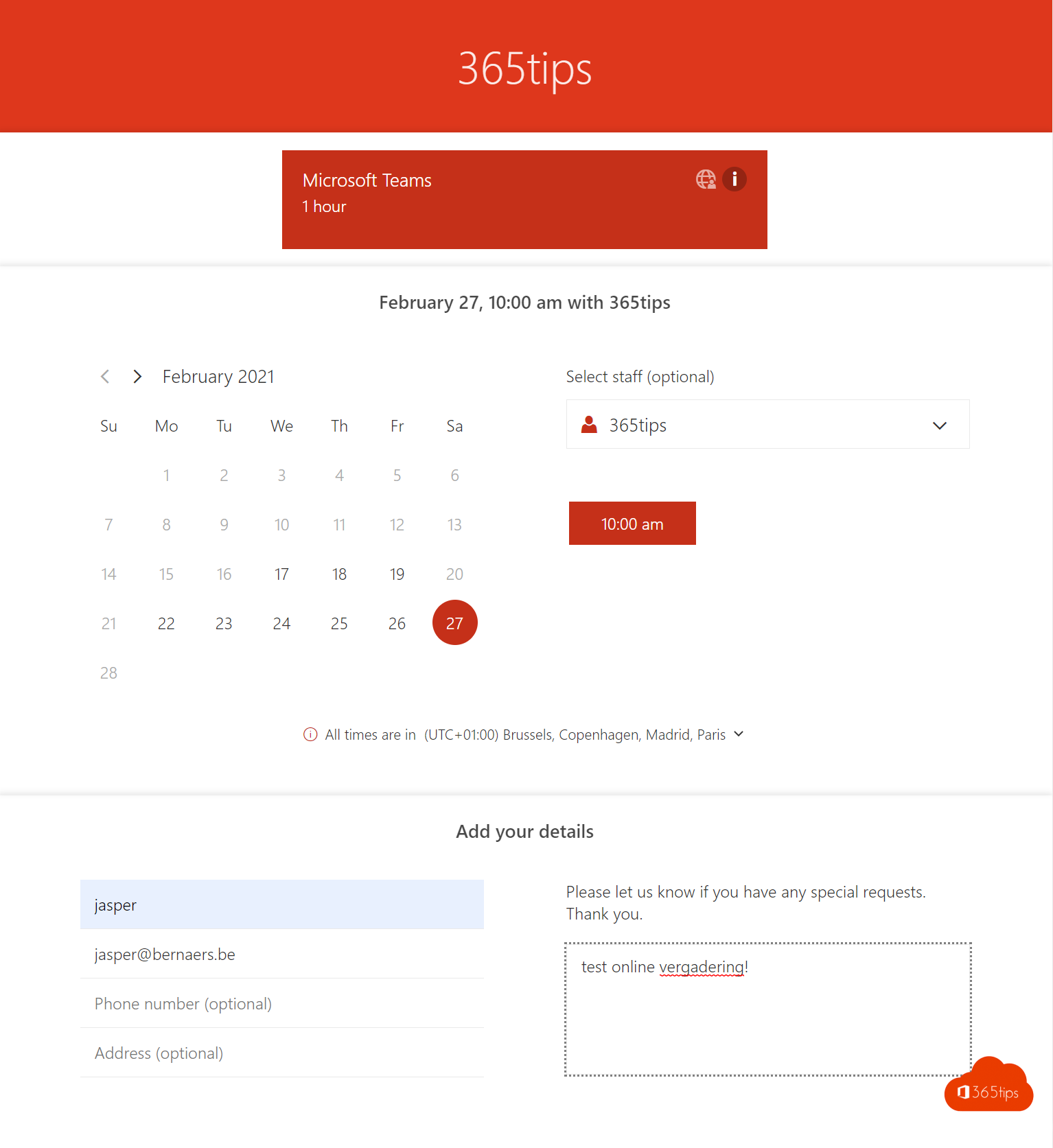
Emailing back and forth to schedule an appointment takes time. With Microsoft Bookings you create a booking page where customers, colleagues or parents pick a time in your calendar themselves. Bookings respects your availability, sends confirmations and adds a Teams link automatically. This article shows how to set up a booking page.
Two kinds of pages
- Personal booking page (Bookings with me): for yourself, such as 30-minute office hours. Linked to your own Outlook calendar.
- Shared booking page: for a team, with several staff members and services, such as a helpdesk or parent evenings.
Create a shared booking page
- Open Bookings from the Microsoft 365 app launcher, or as an app in Teams.
- Select Create new booking page, enter a name and choose the business type.
- Add staff and choose their role.
- Create services, such as Intake call 30 minutes, with duration, buffer time and whether it's a Teams meeting.
- Set availability and booking policy: how far ahead, cancellations, reminders.
- Choose who can book (anyone or only your organisation) and select Save and publish.


Share the page
Copy the link or HTML code and put it on your website, in your email signature or in a newsletter. Customers pick a service and time, and get an instant confirmation with the Teams link.
Licence and admin
- Bookings is included in Microsoft 365 Business Standard, Business Premium, E3, E5 and A3/A5, among others.
- Admins turn Bookings on or off in the Microsoft 365 admin center > Settings > Org settings > Bookings.
- Each shared booking page gets its own mailbox. Give it a clear name.
Tips
- Leave at least 15 minutes of buffer between appointments.
- Set up reminders by email or text to reduce no-shows.
- Finding a time with a few colleagues? Use a scheduling poll, or schedule a Teams meeting.
Read also
Use a scheduling poll (formerly FindTime) in Outlook
Schedule a Microsoft Teams meeting in your calendar
Share your Outlook calendar with colleagues or external people
Nederlandstalige versie: Microsoft Bookings instellen zodat anderen zelf een afspraak plannen