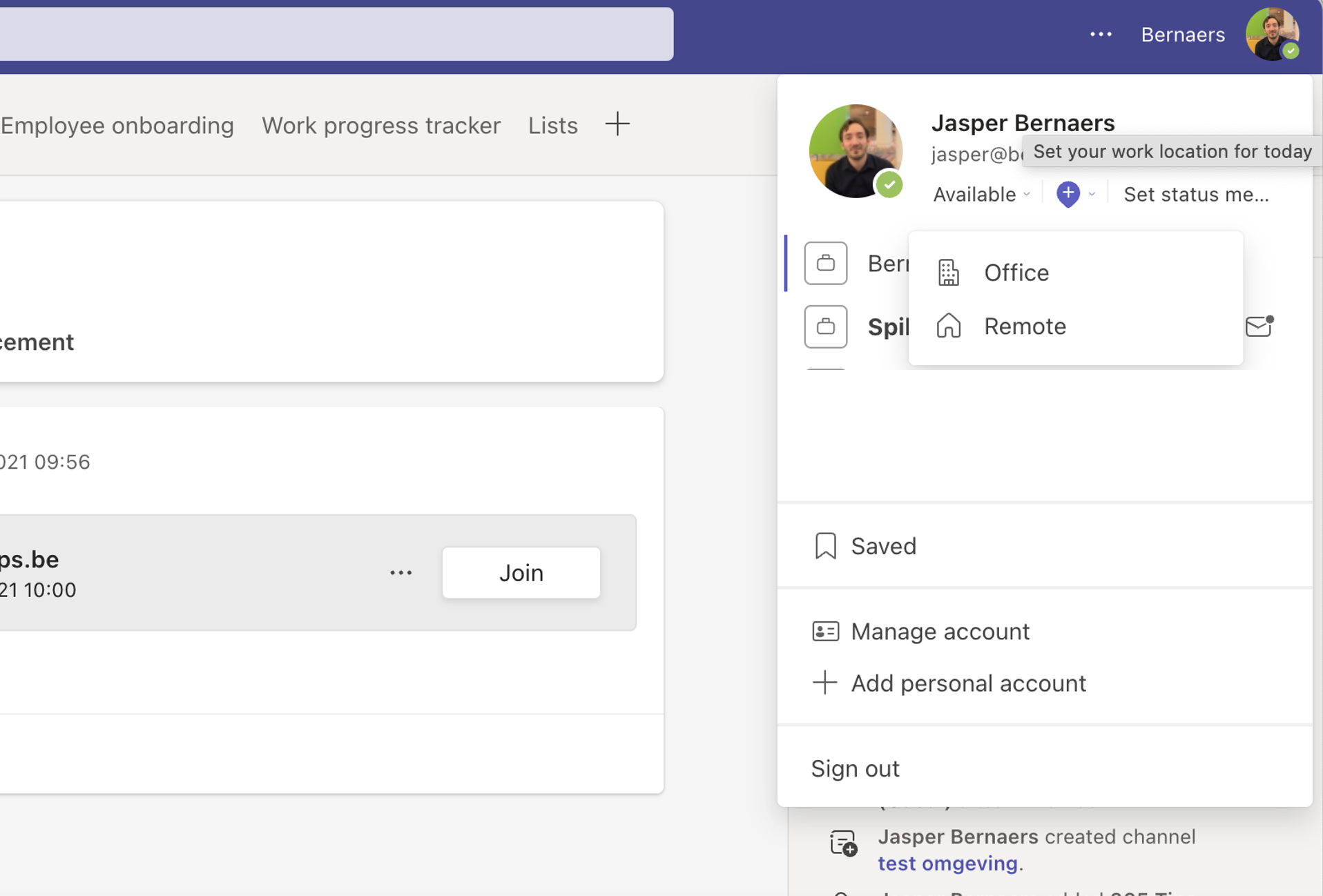
Who's in the office tomorrow? With work hours and location in Outlook and Teams you set, per day, when you work and whether you're in the office or remote. Colleagues see it in your calendar and on your profile card, so planning a meeting or an office day together gets easier.
Set work hours and location
- Open the new Outlook or Outlook on the web and go to Settings > Calendar > Work hours and location.
- Choose your work hours for each day.
- Choose a location for each day: Office or Remote.
- Select Save.
Change a single day
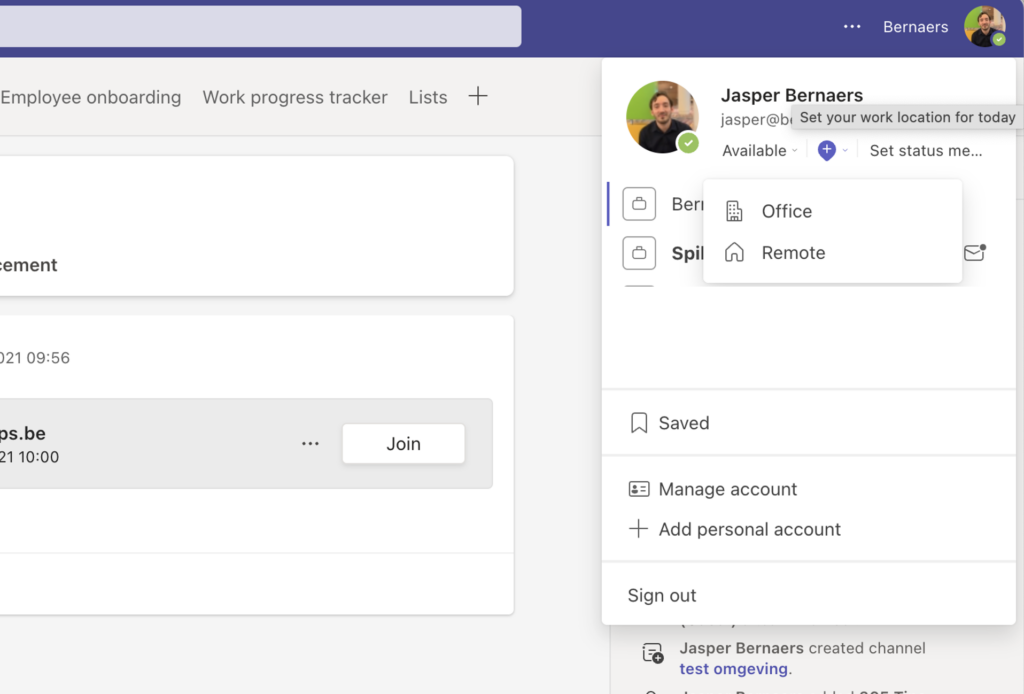
Going to the office on an unusual day? Select your location at the top of that day in your calendar and pick another one for that day only. In Teams you can also change it via your profile picture > Work location. If your admin allows it, Teams can set your location automatically when you connect to the office network.
What do colleagues see?
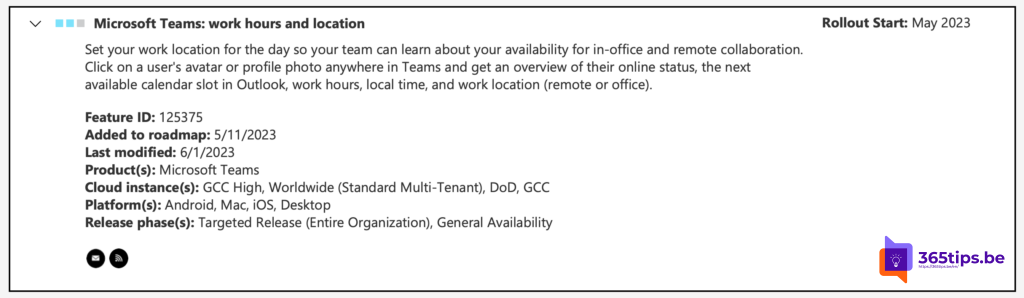
- Your location on your profile card in Teams and Outlook.
- Your work hours in the scheduling assistant, so they don't book meetings outside them.
- In Places (if your organization uses it), who's in the office on which day.
Also see attend in person or online and set your status in Teams.
Read also
Let people know whether you'll attend a meeting in person or online
Set your status in Microsoft Teams: available, busy or do not disturb
Share your Outlook calendar with colleagues or external people
Nederlandstalige versie: Werkuren en werklocatie instellen in Outlook en Teams